Updated October 26, 2026 · By Shivam Das
Want a premium-looking Roblox avatar without spending Robux? Free shoulder accessories can add a pet, mascot, or small companion to an outfit, while back accessories can change the silhouette without replacing your whole look. The catch: catalogue prices, availability, and limited promotions can change. This guide focuses on how to verify a genuinely free item before you spend time claiming it.
Quick answer: Start with the official Roblox Marketplace filtered to zero-price accessories. Open each item's own listing and check that the price is still 0 Robux and that the Get or Claim button is available while signed in. A thumbnail, old video, or third-party list alone does not prove that an item is free today.
Where to find free shoulder accessories right now
Use Roblox's own Marketplace first. Open the zero-price accessories results, then search terms such as “shoulder,” “companion,” “pet,” “mini,” or “back accessory.” The filter is a discovery shortcut, not a guarantee that every result will remain free or that every accessory will fit the shoulder slot.
Check the item detail page before claiming. Confirm the item name, creator, price, item type, and whether the listing is still available. If the listing shows a Robux price, a resale price, or an unavailable state, skip it—even if a guide or screenshot calls it free.
Free shoulder and back accessories worth checking
These are starting points for a live price check, not a promise that every item is currently claimable in every region or account. Availability can change, so open the official listing before you plan an outfit around it.
- Starwisp: Open the official Starwisp listing and confirm the displayed price and item type.
- Spider Cola: Check the official Spider Cola listing before assuming it is free or available.
- Old Navy Shopping Bag Back Accessory: Review the official item page and confirm the current price and Get button.
- Other zero-price shoulder items: Use the Marketplace's zero-price filter and search for “shoulder” or “companion,” then verify each individual listing.
How to claim an item safely
- Sign in through the official Roblox app or website.
- Open the accessory's official catalogue page from the Marketplace search results.
- Check the price, creator, and item type. Make sure the price is 0 Robux.
- Select Get or Claim only if Roblox shows that option and no payment is required.
- Open your Avatar Inventory and confirm the item arrived.
- If the listing changes to a paid price or is unavailable, do not use an external “free item generator” to get around it.
Three avatar combinations that look polished
Minimal streetwear
Pair a neutral hoodie, simple pants, and one small shoulder companion. Keep the accessory as the accent instead of stacking several large items that compete with the outfit.
Colour-matched casual
Choose a shoulder item that repeats one colour already present in your shirt, shoes, or hair. A single matching detail usually looks more deliberate than collecting unrelated colours.
Back accessory as the focal point
If you find a free back accessory, keep the shoulder area simple. This creates a clearer silhouette and makes the back item visible from more camera angles.
Limited-time event drops: check the rules carefully
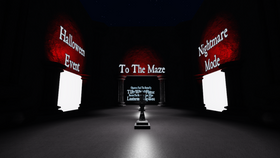
Roblox's official announcement says The Hollow Halloween event runs from October 22 through November 2, 2026, with quest-based UGC and rewards. It also says some seasonal Marketplace items are for sale, and Roblox Plus subscribers receive certain separate perks. That means “event item” does not automatically mean “free item.” Read the official event announcement and the in-game reward requirements before spending time in a server.
Official source: Roblox Newsroom's The Hollow announcement. Event rewards can have different claim conditions from ordinary Marketplace accessories; follow the event hub's own instructions and deadline.
Red flags to avoid
- A website asks for your Roblox password, browser cookie, or verification code to give you an accessory.
- A “free UGC generator” asks you to download a script, extension, or executable.
- A video shows a price from months ago but never opens the current item listing.
- A post says an item is free but the official listing shows a Robux price.
- A link sends you to a look-alike website rather than roblox.com.
Roblox's Marketplace help page is a useful starting point for understanding how avatar items are listed. Always keep account sign-in and claims on official Roblox pages.
Frequently asked questions
Are free Roblox shoulder accessories always free?
No. Item availability and price can change. Check the current official listing and make sure it shows 0 Robux before claiming.
Can I claim a free accessory from a third-party website?
Do not provide your Roblox login or verification codes to third-party sites. Use the official Roblox Marketplace or the event's in-game claim process.
Why does an old video show an item as free when I see a price?
The promotion may have ended, the listing may have changed, or the video may be outdated. The current official item page is more reliable than an old screenshot.
Does The Hollow make every Halloween accessory free?
No. Roblox distinguishes quest rewards from Marketplace items sold for Robux and from Roblox Plus perks. Check each item's own requirements.
How do I know the item was added to my account?
After claiming it, open your Roblox Avatar Inventory and look for the item in the correct category. If it is missing, check the item page and Roblox support guidance.
Bottom line
The safest way to find free Roblox shoulder accessories is to search the official zero-price Marketplace, open each item page, verify that the price is still 0 Robux, and confirm the item appears in your inventory. Treat third-party lists and social posts as leads—not proof. This guide is updated for October 26, 2026, but individual listings can change after publication.
Explore more updates in our Roblox guides and news.