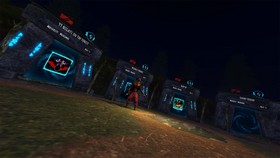
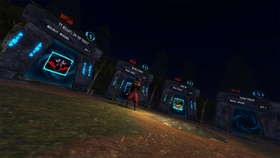
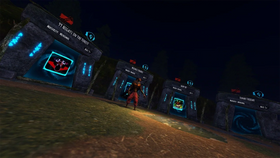
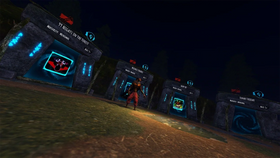
Updated October 26, 2026. If Roblox feels choppy on your phone during Hiachi runs in The Hollow, start with graphics quality, background apps, phone temperature, and connection stability. Roblox Support separates graphics lag, network lag, and system lag because each needs a different fix.
Quick answer: Open the Roblox in-experience menu, go to Settings, switch Graphics Mode to Manual if available, and move Graphics Quality toward the low end. Close resource-heavy apps, let an overheated phone cool down, and use the most stable connection available. Change one thing at a time and test the same area.
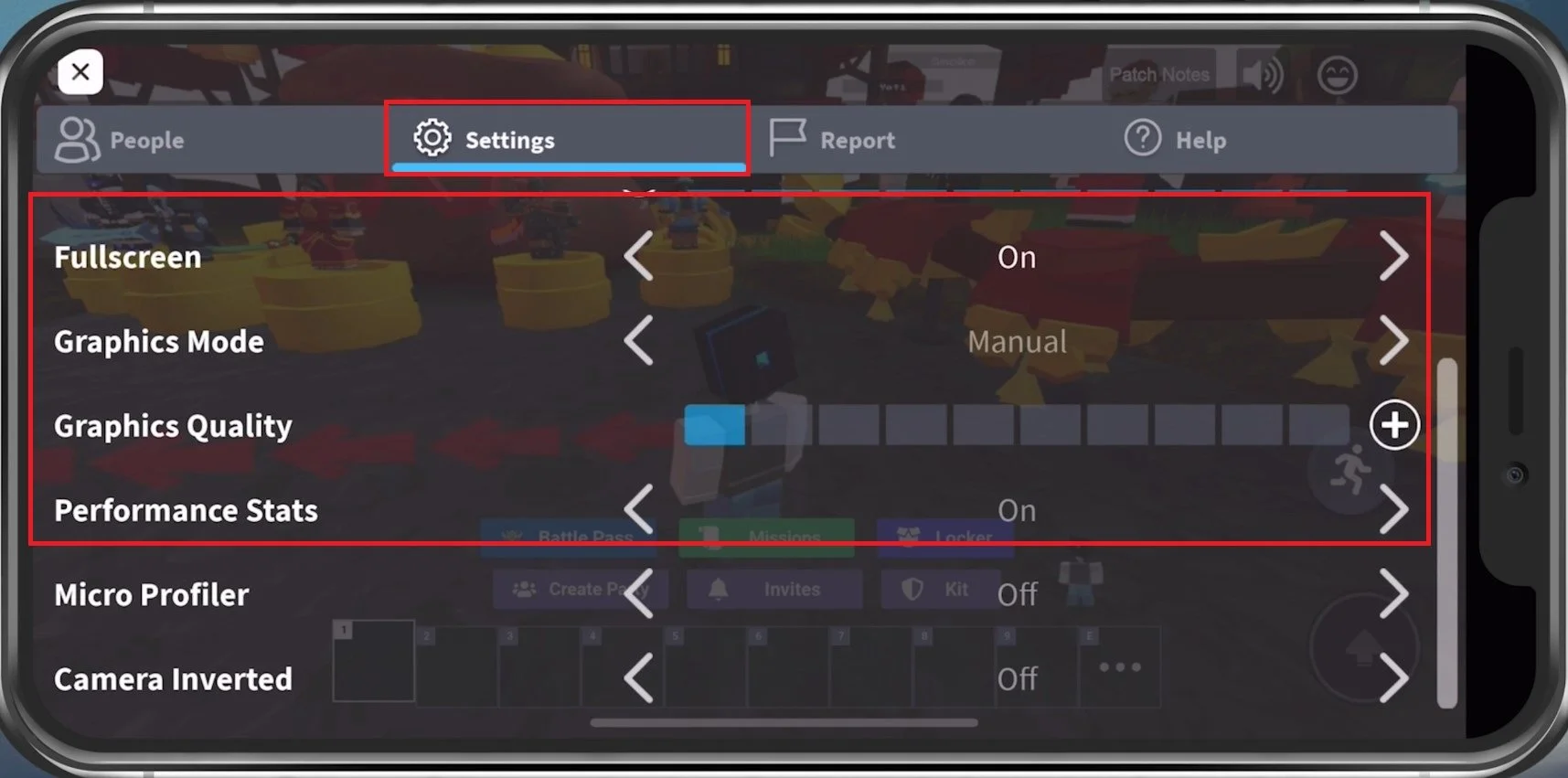
Table of Contents
- Best settings to try first
- Lower graphics on mobile
- Fix connection lag
- Prepare your phone
- Low-end phone settings and extra performance checks
- Three-minute Hiachi test
- Identify the lag type
- Mistakes to avoid
- FAQs
Best Mobile Settings to Try Before Hiachi Runs
No single graphics preset guarantees smooth performance on every iPhone or Android device. Roblox experiences differ in effects, map complexity, scripts, and server load. Treat these as starting points, not an official Hiachi-specific configuration.
| Setting/action | Starting point | Why it may help |
|---|---|---|
| Graphics Mode | Manual, if available | Lets you control quality instead of relying on automatic adjustment. |
| Graphics Quality | Low end; test a few levels | Reduces visual workload on the phone’s graphics hardware. |
| Background apps | Close resource-heavy apps | Frees memory and processing resources. |
| Connection | Stable Wi-Fi or strongest reliable mobile signal | Can reduce connection-related delays. |
| Temperature | Keep the phone cool | Phones may slow down when too hot. |
| Battery saver | Test normal and performance modes | Some power modes limit performance; behavior varies by phone. |
Start with graphics and background apps. Avoid third-party “RAM cleaners,” modified Roblox clients, or apps asking for your Roblox password; they are not necessary for these steps.
How to Lower Roblox Graphics on Mobile
- Join an experience and wait for the map to load.
- Tap the Roblox menu icon in the upper-left area; layout can vary.
- Open Settings.
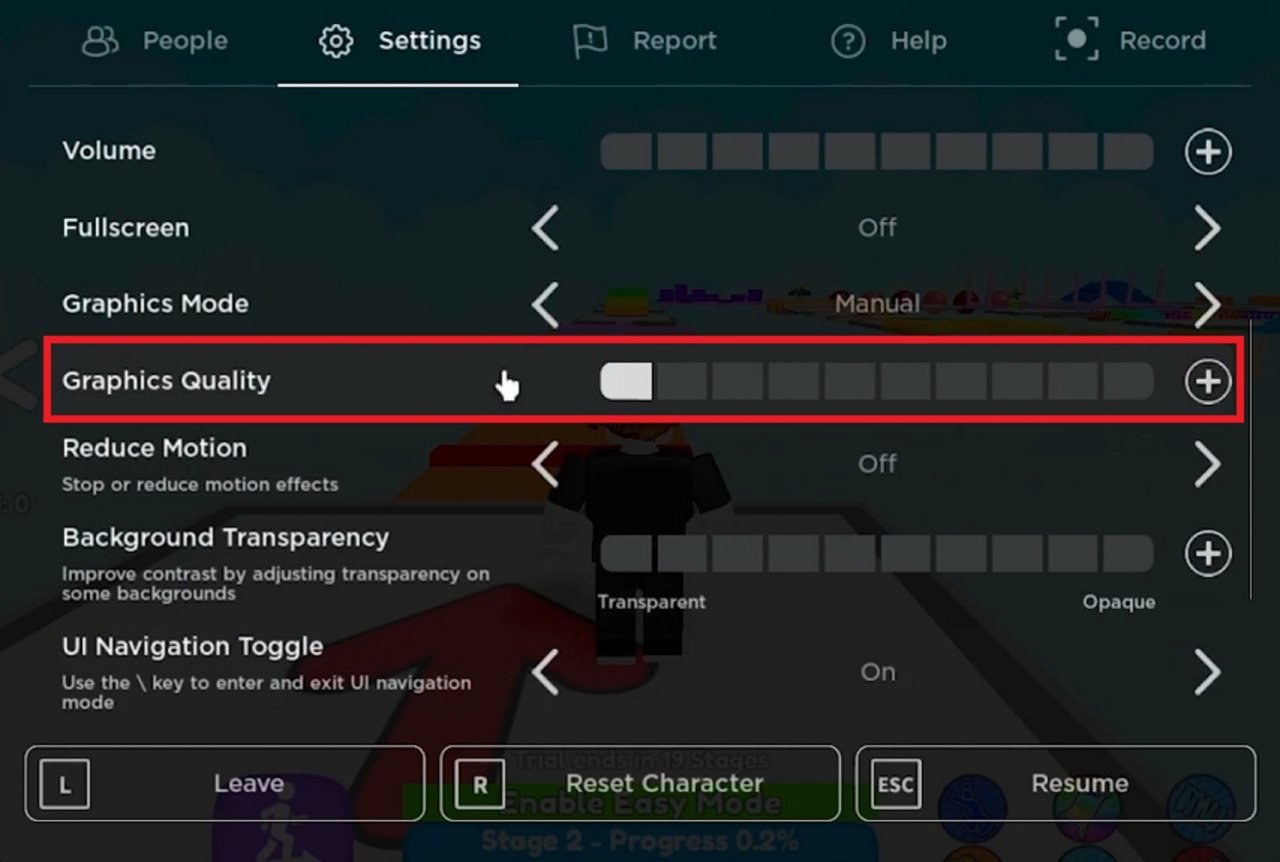
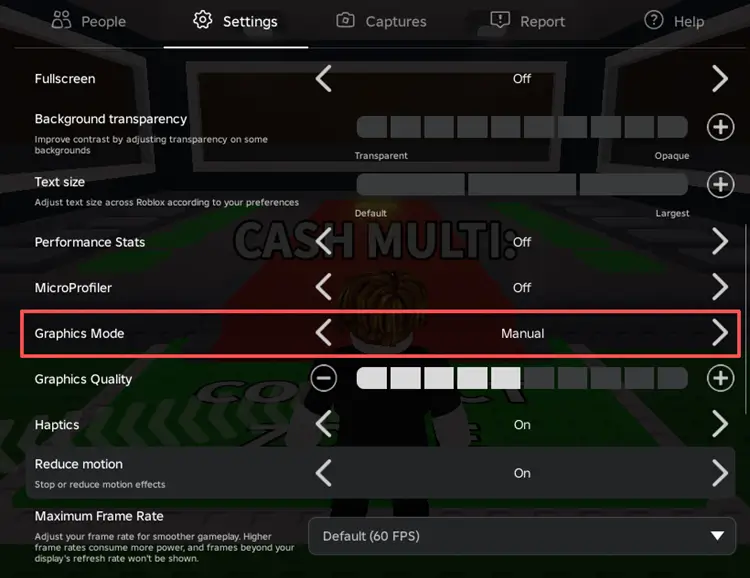
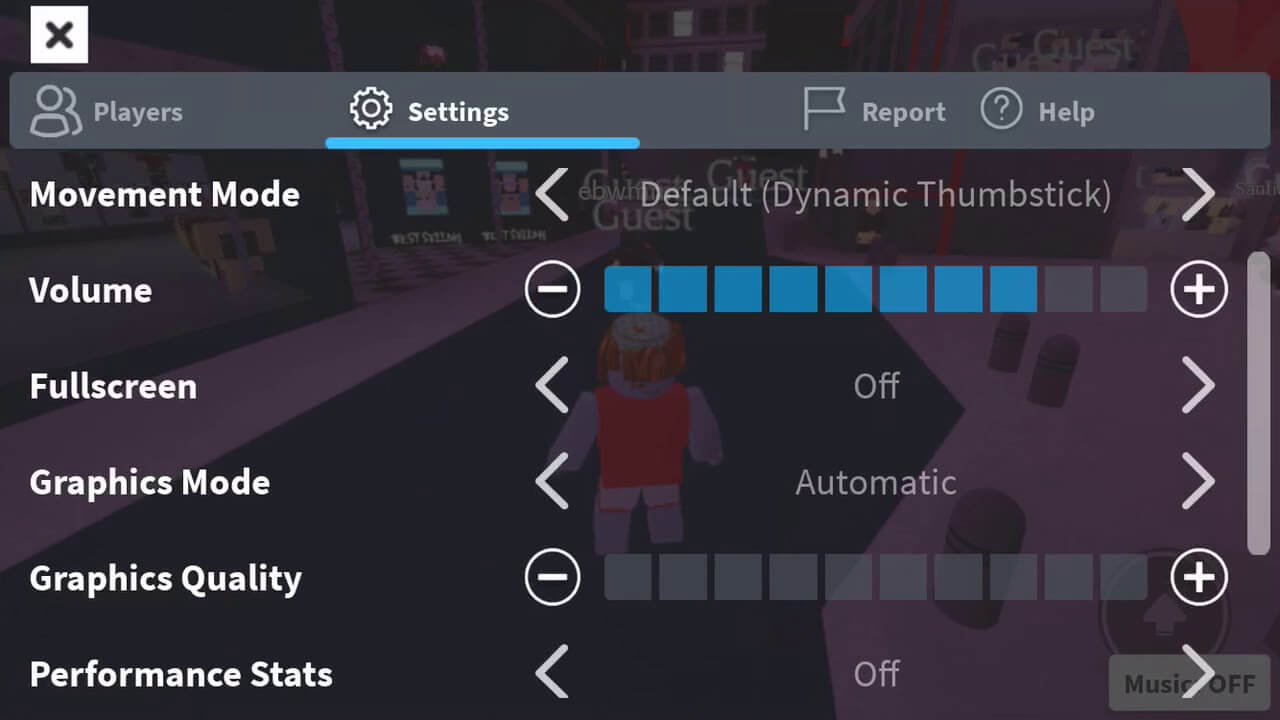
- If Graphics Mode appears, change Automatic to Manual.
- Move Graphics Quality toward the lower end. Raise it one step at a time only if performance stays stable.
- Return to the experience and test the same route for 30–60 seconds.
Roblox says lower graphics quality reduces visual detail while asking less of the device. It is a sensible first adjustment when animation stutters or frames drop. If the controls do not appear in your version, use only the settings available on your device.
Fix Connection Lag Separately
Lower graphics will not fix a weak connection. If your avatar moves smoothly but actions register late, other players jump around, or interactions respond after a delay, the issue may be network lag rather than frame rate.
- Try reliable Wi-Fi. If it is congested, briefly test mobile data and keep whichever is more stable.
- Move closer to the router; pause downloads, cloud backups, and video streams on the same network.
- On mobile data, check signal strength and whether your plan is throttled.
- Restart the router if other devices are affected too, not only Roblox.
- Check the official Roblox status page if several experiences or services become unreliable.
Roblox’s mobile requirements page lists a minimum connection range of 4–8 Mb/s, but raw speed alone does not guarantee low latency. Stability, packet loss, signal quality, and congestion matter too.
Prepare Your Phone for a Longer Run
Long sessions can reveal problems absent in a quick test. A phone may start smoothly and become choppy as it heats up or runs short on memory.
- Close demanding apps. Focus on editors, camera apps, downloads, and other games competing for resources.
- Let the phone cool. Avoid direct sunlight. If it feels hot, pause and let it cool naturally.
- Keep Roblox updated. Install updates from the official App Store or Google Play listing.
- Restart if performance degrades. A fresh launch can help after a long session; save progress first if possible.
- Keep storage available. Very low storage can contribute to broader device problems. Do not delete app data unless you know what it removes.
- Test power settings. Battery saver may limit performance on some phones; performance mode may drain battery and create more heat.

A Three-Minute Hiachi Test Routine
- Minute 1 — Baseline. In the same area, note whether the issue is choppy animation, delayed input, long loading, or all three.
- Minute 2 — Graphics only. Set Manual mode if available and lower quality. Do not change Wi-Fi and power mode at the same time.
- Minute 3 — Compare. Repeat the same movement. If animation improves, keep the lower setting. If movement is smooth but actions are delayed, test the network next.
For a fair comparison, keep the device, location, and connection the same. If only Hiachi runs poorly while other experiences are smooth, the experience or its current server may contribute. Players cannot fix creator-side optimization from phone settings.
How to Identify the Lag Type
| Symptom | Likely cause | First test |
|---|---|---|
| Animation stutters or frames drop | Graphics/device performance | Lower Graphics Quality; close heavy apps. |
| Players jump around; actions are delayed | Network or server delay | Try a stable connection; check Roblox status. |
| Starts well, then slows | Heat, memory pressure, long session | Cool the phone and relaunch Roblox. |
| Only one experience is affected | Experience effects, scripts, or server conditions | Compare with another experience. |
| Roblox crashes or will not load | App, OS, compatibility, or storage issue | Update, restart, and check requirements. |
Settings Mistakes to Avoid
- Changing everything at once. Adjust one setting and test so you know what helped.
- Assuming graphics fixes ping. It does not repair weak Wi-Fi or server delay.
- Using unofficial “FPS unlockers.” Avoid modified clients and downloads requesting account credentials.
- Ignoring heat. Lower graphics may not be enough if the phone is overheating.
- Expecting identical results. Performance depends on device, OS, app version, and how an experience is built.
Low-End Phone Settings and Extra Performance Checks
If your phone is older or has limited memory, keep the setup simple rather than chasing a long list of “secret” tweaks. Start with Roblox graphics set to Manual and a low quality level, then close apps that are actively using the camera, video, navigation, downloads, or heavy background processing. Reopen only what you need. These steps free up resources; they do not increase the phone’s hardware capability or guarantee a fixed frame rate.
Use a repeatable test instead of changing everything
Choose a safe, low-pressure moment in The Hollow and test one change at a time. For example, play the same short route once with your normal graphics level, then lower graphics and repeat it. If the second attempt is visibly smoother, keep the lower setting. If the experience still pauses while the image itself looks smooth, investigate the connection or server instead. A simple before-and-after test is more useful than changing graphics, network, battery, and accessibility options all at once.
- Older or budget phone: prioritize low graphics, close unused apps, avoid recording the screen during a demanding run, and let the device cool between attempts.
- Newer phone that still stutters: check whether the issue occurs only in The Hollow or across multiple Roblox experiences. If it happens everywhere, investigate the app, device, and connection; if it happens in one experience, the experience or server may be part of the problem.
- Phone getting hot: pause and let it cool naturally. Avoid playing while the device is already hot from charging or other demanding tasks. Do not put a hot phone in a refrigerator or freezer.
- Unstable connection: try a more reliable Wi-Fi network or mobile signal and stop large downloads or streaming on the same connection. Choose stability over a theoretical maximum speed.
What to do during a Hiachi run
Before entering, make sure Roblox has finished updating and that your device has enough battery for the session. Once the run starts, avoid repeatedly opening menus or switching between apps unless needed. If the game freezes, wait a moment before tapping repeatedly; rapid repeated inputs can make it harder to tell whether the app has recovered. If you disconnect, reopen the experience through Roblox rather than following third-party links that promise a special “low-lag” server or reward.
Do not install unofficial Roblox clients, “FPS unlockers” for mobile, unknown APKs, configuration profiles, or booster apps that ask for account access. They are not required by Roblox Support’s standard troubleshooting guidance and can introduce privacy or account risks. Never provide your Roblox password to a lag-fix site, and never disable basic device security to follow a performance tutorial.
Check for a wider Roblox issue
If your phone and connection seem normal but Roblox suddenly becomes slow across several experiences, check the official Roblox Status page. A service incident can affect gameplay in ways that no local graphics adjustment will fix. If the status page shows no incident, that still does not prove the problem is your phone; continue with the network, app, and device checks above.
For the cleanest troubleshooting record, note your device model, operating-system version, Roblox app version, whether you used Wi-Fi or mobile data, and what changed after lowering graphics. If you contact support, those details are more useful than saying only that the game “lags.” The goal is to identify the cause and make the game playable—not to promise a perfect run on every device.
Frequently Asked Questions
What is the best Roblox mobile setting for fewer lag spikes?
Set Graphics Mode to Manual, if available, and move Graphics Quality toward the low end. Close resource-heavy apps and test the same area. It is a starting point, not a guaranteed fix.
Will lowering graphics make Hiachi runs faster?
It can help when the phone struggles to render the scene. It may not help when delay comes from the connection, server, or experience itself.
Should I use Wi-Fi or mobile data?
Use whichever is more stable. Congested Wi-Fi can perform worse than a reliable mobile signal. Avoid downloads and streaming during a run.
Why does Roblox get laggier after 10–15 minutes?
Heat and memory pressure are possible causes. Let the phone cool, close demanding apps, and restart Roblox if needed. One experience may also have its own performance issues.
Do all Roblox mobile versions have Performance Stats?
Not necessarily. Available controls vary by device and app version. Use the options in your own Settings menu.
What are Roblox’s minimum mobile requirements?
Roblox lists iOS/iPadOS 14 or later for Apple devices and Android 8.0 or later with OpenGL ES 3.0 support for Android devices. See the official mobile system requirements.
Is there an official Hiachi-specific lag preset?
This guide does not identify an official Hiachi-only preset. These are general Roblox mobile troubleshooting steps based on Roblox Support guidance.
Official Sources and Further Reading
- Roblox Support: How to Reduce Lag and Speed Up Play
- Roblox Support: Graphics Quality
- Roblox Support: Mobile System Requirements
- Roblox Support: Android App Technical Issues
- Roblox Status
Editorial note: This is an independent player guide, not an official Roblox announcement. Controls, menus, and performance can vary by device and app version.
Copy this article URL: