For U.S. Roblox players · October 30, 2026 · By Shivam Das
Quick answer: If Floor 8 in Roblox The Hollow is stuttering, making the camera hard to control, or causing missed interactions on your phone, start with Roblox’s in-experience graphics set to Manual and lower the graphics quality, close background apps, use a stable Wi-Fi connection, and make small camera movements instead of long swipes. Keep the screen bright enough to see the red-lit corridors, but reduce other visual effects on your device if it is overheating. There is no verified universal “best sensitivity” number for every phone, and Roblox has not announced a Floor 8-specific mobile settings patch. These are practical troubleshooting settings—not a claimed official fix.
Floor 8 is a particularly awkward test for touchscreen players: the floor is played in first person, its maze is large, and the Overseer can catch players while they search for puzzle objects. The aim is not to make the game look beautiful. It is to keep movement, camera control, and object placement predictable long enough to finish the relic run.
What changed on Floor 8—and what has not been confirmed
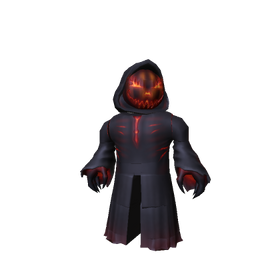
As of October 30, Floor 8 is accessible from The Hollow lobby elevator. Current walkthroughs describe a red safe room leading into a round hall and maze. The WARDEN-themed puzzle reportedly requires players to find five objects—a candle, skull, bottle, lantern, and bell—and carry each one to its matching pedestal. After completing the placements, players must collect the relic and return to the elevator. The Rotten Pumpkin badge and head accessory are reported as the reward for completing the run.
One important caution: the public Roblox event announcement confirms the event and reward window, but it does not publish a Floor 8 mobile performance fix, recommended phone model, camera-sensitivity value, or official graphics preset. Guides and player recordings can help explain the puzzle, but they are not evidence of a platform-wide mobile bug or a developer-issued settings update.
Best Roblox settings to try on mobile
1. Switch graphics to Manual and lower the quality
Open the Roblox in-experience menu, go to Settings, and look for the Graphics Mode and Graphics Quality controls. If Graphics Mode is set to Automatic and the game is struggling, switch to Manual and move Graphics Quality down to a low setting. Start around the lowest level; if the experience becomes stable, raise it one step at a time until you find a balance. The exact slider level that works best depends on your phone, temperature, and the current experience build.
Do not assume that a higher graphics setting gives you a gameplay advantage. On a phone that is already dropping frames, lower quality can make camera movement and timing feel more consistent. If your menu does not show the same controls, Roblox or the experience may be presenting a different settings layout on your device.
2. Use the in-game camera option that feels predictable
Roblox’s support guidance explains that camera options can include Classic and Follow, unless an experience developer locks the camera mode. Try the available options in a safe area before entering the maze. Choose the one that keeps your view steady while you move; do not keep changing modes halfway through a run unless the current setting is clearly causing trouble.
Floor 8 uses a first-person view in current walkthrough reporting. If the experience locks the camera, a camera-mode switch may not be available. In that case, focus on controlled, short drags to turn rather than repeatedly swiping across the entire screen.
3. Keep your movement thumb and camera thumb separate
Roblox’s standard mobile controls use the lower-left area for movement, the lower-right jump button, and a drag across the middle of the screen to rotate the camera. Keep one thumb on the movement control and use the other for camera adjustments. Avoid covering the center of the screen while turning, especially when checking a corridor or lining up with a doorway.
On Floor 8, use brief camera drags to scan the next section, then move. Long, fast swipes can turn you away from a pedestal or make it harder to recognize the corridor you just came from. If your device supports a controller and the experience accepts it, a controller may offer more precise movement—but do not assume every mobile setup supports every controller.
4. Turn on accessibility options only when they help
Roblox provides accessibility options such as Reduce Motion and Background Transparency in supported menus. Reduce Motion can reduce certain interface effects; Background Transparency can make UI backgrounds more opaque and easier to read. These options do not promise higher frame rates or remove Floor 8’s in-world visual effects. Try them if menus or interface elements are difficult to follow, and keep whichever setting makes the display easier for you to read.
Phone-side changes before you enter the maze
- Close demanding background apps. Free up memory before launching the event. Avoid recording video or running screen overlays while testing performance if your phone struggles.
- Let the phone cool down. If the device is hot, pause and let it cool. Heat can cause some phones to reduce performance. Remove a thick case temporarily if it is trapping heat, and do not play while the phone is charging if that makes it noticeably hotter.
- Use a stable connection. Prefer reliable Wi-Fi over a weak or fluctuating connection. If you must use mobile data, play where signal is steady. A network delay can look like a control problem, but changing graphics will not fix a weak connection.
- Keep the app current. Check the official app store for a Roblox update. Restart the app after updating and rejoin The Hollow.
- Protect battery and visibility. Avoid letting the phone enter a low-power state mid-run if it reduces performance. Keep brightness high enough to distinguish the red corridors, while balancing battery and heat.
- Do not clear app data as a first step. Start with a normal app restart and a fresh server join. More disruptive troubleshooting should come only after simpler checks fail.
Floor 8 mobile route: reduce mistakes, not just lag
Settings can help the controls feel more reliable, but a simple route discipline is just as important. Floor 8’s reported puzzle requires repeated trips between the object room and matching pedestals. Because players carry one object at a time, every wrong turn costs time and increases the chance of being caught.
- Test the controls in the safe room. Move a few steps, turn left and right, and confirm that the camera responds before entering the maze.
- Identify the exit and remember your first turn. Use a short camera movement to orient yourself. Avoid spinning in place and losing your sense of direction.
- Find the puzzle room before committing to a long carry. Current guides describe five objects in the room. Check the items shown in your own run rather than relying on a route from another server.
- Match the object to the pedestal outline. A glowing pedestal is not enough; compare the outline with the object you are carrying. Approach it slowly and follow the on-screen interaction prompt.
- Carry one object at a time and keep a mental map. Note a distinctive turn, doorway, or landmark. Do not assume the maze layout is identical in every server.
- Confirm the relic is in your hand. Completing a placement is not the same as finishing the whole floor. Check that the relic is collected before starting the return.
- Return to the elevator and verify the reward. Check the lobby badge notification and your avatar inventory after the run.
Which settings should you avoid changing?
Do not chase random sensitivity numbers copied from another player’s device. Roblox experiences can implement camera behavior differently, and phone screen sizes, touch sampling, and performance vary. A value that feels controlled on one device may be too fast on another.
Also avoid installing third-party “FPS booster” apps, modified Roblox clients, or scripts that promise to remove the monster or reveal the maze. They are not official fixes and may put your account or device at risk. Never share your Roblox password or verification code with a site claiming it can optimize The Hollow.
Quick troubleshooting: match the symptom to the fix
| What you notice | Try this first | What it may indicate |
|---|---|---|
| Choppy movement or low frame rate | Manual graphics; lower quality; close background apps; cool the phone | Device performance or heat, not necessarily a game-wide bug |
| Camera turns too far | Use shorter, slower touch drags; test the available camera mode in the safe room | Touch-control precision or camera configuration |
| Character moves but the world appears to pause | Check Wi-Fi or mobile signal; rejoin once | Possible connection delay |
| Object will not place | Check that the carried object matches the pedestal outline; approach and use the on-screen prompt | Wrong object, positioning, or interaction timing |
| Game closes or phone becomes very hot | Stop, let the phone cool, restart the app, and reduce graphics | Device stability or resource pressure |
| Reward does not appear immediately | Return to the lobby, check the badge and inventory, then rejoin if needed | Reward sync delay or an incomplete return step |
Is there a confirmed Floor 8 mobile bug?
We could not verify a Roblox announcement identifying a widespread Floor 8-only mobile bug or publishing a specific fix date. Individual reports of lag, camera trouble, or failed interactions should be documented with the phone model, operating-system version, Roblox app version, time of occurrence, and a short recording if possible. That information is more useful for troubleshooting than a broad claim that “mobile is broken.”
If the issue repeats, test another Roblox experience on the same phone. If other experiences also stutter, the problem may be device or network related. If only The Hollow Floor 8 reproduces it, report the details through Roblox’s official support route and include the steps that trigger it.
November 2 reward deadline: do not confuse it with the finale
Roblox’s official announcement says The Hollow reward collection remains open until noon Pacific Standard Time on November 2, 2026. The live finale begins on October 31, but the collection window continues beyond the finale. For U.S. readers, noon PST on November 2 is 3 p.m. Eastern Standard Time. If you are trying to earn the Floor 8 reward, leave enough time for a full puzzle-and-return attempt rather than waiting until the final minutes.
Frequently asked questions
What are the best graphics settings for The Hollow Floor 8 on mobile?
Start with Graphics Mode set to Manual and Graphics Quality low. If the game becomes stable, raise quality gradually. There is no single official graphics level that Roblox recommends for every phone.
Can I change camera sensitivity on Roblox mobile?
Camera behavior and available controls vary by experience and device. Use the available in-experience settings and make shorter, slower touch drags. We have not verified an official Floor 8 sensitivity number.
Why is Floor 8 harder on a phone?
The first-person maze, camera turns, object carrying, and repeated navigation can be less forgiving with touchscreen controls. Lowering graphics may help performance, while deliberate camera movement can reduce navigation mistakes.
How many objects are needed for the Floor 8 puzzle?
Current walkthroughs report five objects: a candle, skull, bottle, lantern, and bell. Match each one to its corresponding pedestal outline, collect the relic, and return to the elevator. Check the objects and prompts in your own server.
Does lowering graphics fix network lag?
No. Lower graphics may help frame rate, but it will not repair a weak Wi-Fi or mobile-data connection. If movement appears delayed or the server stops responding, test your connection and rejoin once.
When does The Hollow reward collection end?
Roblox lists the collection deadline as noon Pacific Standard Time on November 2, 2026. The October 31 live finale is a separate event milestone.
Sources and reporting notes
- Roblox Newsroom: The Hollow Halloween survival event — official event format, reward collection deadline, and finale information.
- Roblox Support: In-experience Settings and Help — official guidance on settings, camera options, and accessibility.
- Roblox Creator Hub: Playing on Roblox — official overview of mobile movement, jump, and camera gestures.
- AllThingsHow: The Hollow on Roblox — Floor 8 overview — current third-party Floor 8 observations.
- TechWiser: Roblox The Hollow Floor 8 Warden puzzle guide — third-party walkthrough for the five-object puzzle and reported reward.
Editorial note: This is independent coverage and is not affiliated with or endorsed by Roblox. Settings recommendations are general troubleshooting steps, not an official Roblox patch or guaranteed performance fix. Floor 8 puzzle details are based on current third-party reporting and may vary by server or update.