For U.S. players · Updated October 26, 2026 · By Shivam Das
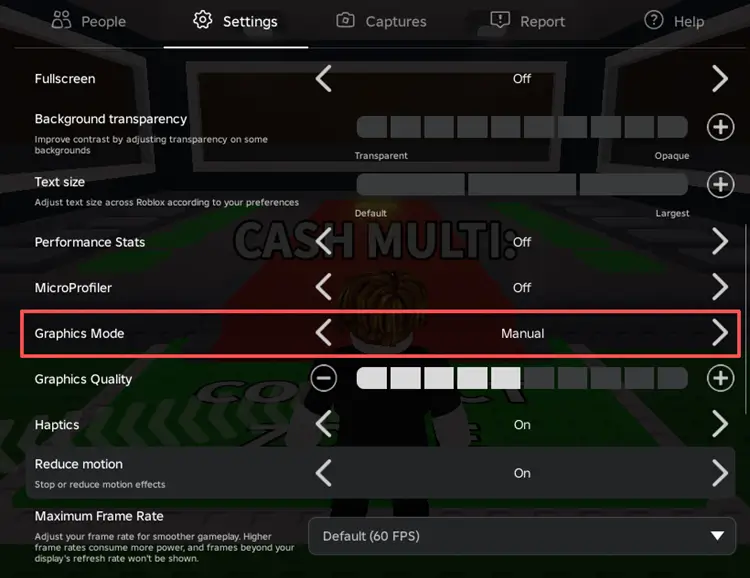
Quick answer: If Roblox stutters during a Hiachi chase on your phone, open the in-experience menu, go to Settings, switch Graphics Mode from Automatic to Manual if available, and lower Graphics Quality a few steps. Close demanding background apps, let an overheating phone cool down, and test a stable Wi-Fi connection. These steps may reduce device-side lag, but they cannot fix an overloaded server or a poor network route.
One important detail before following a Night 5 guide: Roblox’s official announcement confirms that Hiachi from The Mimic is one of The Hollow Halloween event’s monsters, but its newsroom announcement does not publish a complete official day-by-day floor schedule. Check the live event hub to confirm the active floor instead of assuming a social post proves the current rotation.
Start with settings that can actually help
1. Switch Graphics Mode to Manual
Join the experience, open the Roblox menu, and select Settings. If Graphics Mode is set to Automatic, change it to Manual. Move the Graphics Quality slider left by a few steps, resume the game, and test the same area again. Start at a low-to-middle setting rather than assuming the lowest possible setting is always best; keep enough visual clarity to read clues and spot doorways.
Roblox’s official support guide says lowering graphics quality can reduce the work a device must do and may improve choppy gameplay. Menu wording and available controls can vary by client and device. Read Roblox’s official lag troubleshooting guide and its Graphics Quality instructions.
2. Close apps that compete for memory and processing power
Before a longer run, close unused games, video editors, screen recorders, downloads, and other demanding apps. On older phones, the difference may be noticeable after several minutes. If the game begins smoothly but gets worse as the phone heats up, take a short break and let the device cool before trying again.
3. Stabilize the connection before blaming the phone
Network lag and graphics lag can feel similar during a chase, but they need different fixes. If your avatar rubber-bands, other players jump between positions, or interactions arrive late, suspect a connection problem. Move closer to the Wi-Fi router, pause large downloads on the same network, and avoid switching between Wi-Fi and mobile data mid-run. Roblox lists a minimum connection requirement of 4–8 Mbps for mobile, but a stable connection matters too; raw speed alone does not guarantee low latency.
If only The Hollow stutters while other Roblox experiences run normally, the issue may be specific to that experience or server instance. Rejoin once and compare; repeated reconnecting without checking another experience usually wastes time.
A practical starting profile for Hiachi chases
| Setting or action | Starting recommendation | Why it helps |
|---|---|---|
| Graphics Mode | Manual, if available | Lets you control visual workload. |
| Graphics Quality | Start low-to-middle; reduce further if stutter continues | Reduces rendering work while preserving useful visual detail. |
| Background apps | Close high-demand apps before launching | Frees memory and processing capacity. |
| Device temperature | Let the phone cool if it becomes hot | Some phones slow down during sustained heat. |
| Connection | Use the most stable available connection | Helps reduce network-related rubber-banding. |
| Battery | Start with adequate charge and avoid excessive heat | Helps prevent power or thermal constraints during long sessions. |
This is a troubleshooting baseline, not a developer-issued “Hiachi performance preset.” Roblox has not published a special Night 5 graphics configuration or promised that one slider value will eliminate every chase lag spike.

How to identify the kind of lag you have
- Low frame rate: Camera motion looks choppy or animations stutter. Lower graphics and close background apps first.
- Network lag: Players appear to teleport, or doors and interactions respond late. Test your connection and compare another experience.
- Experience-specific slowdown: The phone works normally elsewhere, but one Hollow session repeatedly stutters. Rejoin once and see whether the problem persists; local settings cannot repair server-side performance.
- Heat-related slowdown: Performance degrades after several minutes and the phone becomes hot. Take a break, let it cool, and resume at lower graphics.

Use the live event page for floor and objective details
Roblox describes The Hollow as a shared Halloween survival event with a different monster appearing each day across nine nights. Players search mazes for clues, evade monsters, and complete quests for rewards. The official announcement names Hiachi from The Mimic, but it does not confirm every floor’s exact schedule in the published text.
Before a run, open the official The Hollow experience on Roblox and check the active event panel and quest text. Use Roblox’s official event announcement for confirmed event details. Do not treat a creator livestream time as proof of a floor reset time.

A 60-second pre-chase checklist
- Open Settings and reduce Graphics Quality if the game stutters.
- Close demanding apps and check whether the phone is unusually hot.
- Confirm the connection is stable before entering the maze.
- Read the live objective and note nearby landmarks before sprinting into a chase.
- If lag persists, rejoin once and test another Roblox experience to distinguish local lag from an experience-specific issue.
Community post and official support
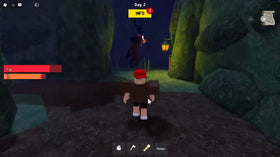
For troubleshooting, start with Roblox Support: How to Reduce Lag and Speed Up Play. The community post below shows historical The Mimic gameplay and is included for context only; it is not evidence of current Night 5 mechanics or a guaranteed fix.
Community-shared Roblox The Mimic gameplay screenshot. Historical gameplay context, not a current The Hollow event update.
— ChoiNicky2 (@ChoiNicky2) February 24, 2021
Frequently asked questions
What is the best Roblox mobile setting to reduce Hiachi chase lag?
Start by setting Graphics Mode to Manual if available and lowering Graphics Quality a few steps. Close demanding apps and test the connection. No single setting guarantees a lag-free chase on every phone.
Should I set graphics to level 1?
Not automatically. Start low-to-middle, test performance, and reduce further only if needed. Very low detail may make visual clues harder to see, and graphics settings will not fix network or server lag.
Why does Roblox lag only during a chase?
A busy scene, device heat, memory pressure, unstable network conditions, or the experience itself may contribute. Compare another experience, reduce graphics, and see whether the issue repeats in the same place.
Will better Wi-Fi increase FPS?
Not necessarily. Wi-Fi can improve network responsiveness, but FPS depends largely on how smoothly the device renders the game. If the camera stutters while other players move normally, lower graphics and close background apps; if players teleport or interactions are delayed, investigate the connection.
Is Hiachi officially confirmed for The Hollow?
Yes. Roblox’s official announcement names Hiachi from The Mimic as one of the event’s featured monsters. The announcement does not publish a complete day-by-day floor schedule, so check the live hub for the active floor.
Can these settings fix server lag?
No. Lower graphics can help local rendering and a stable connection can help network lag, but players cannot fix a server-side issue from their phone. Check Roblox Status and compare another experience if the problem continues.
Bottom line
For mobile players, start by lowering Roblox graphics manually, closing demanding apps, keeping the phone cool, and stabilizing the connection. Diagnose the symptom instead of changing every setting at once. These steps can make a Hiachi run more manageable, but they cannot guarantee a perfect session or confirm the current floor. Use Roblox’s live event panel for objectives and official support guidance for troubleshooting.
Read more guides in our Roblox news and guides section.