Quick answer: If Roblox The Hollow Floor 8 stutters on your phone, switch Graphics Mode from Auto to Manual, lower Graphics Quality a few steps, close demanding background apps, and test the same area again. If characters teleport or interactions respond late while the picture remains smooth, the problem may be network lag rather than graphics. These are troubleshooting steps, not a confirmed Floor 8-specific fix.
Updated October 29, 2026 · U.S. players · By Shivam Das
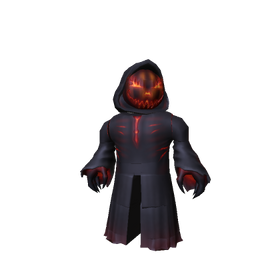
The Overseer is part of Roblox’s nine-monster Halloween event, The Hollow. Roblox’s official announcement confirms the monster lineup and the October 31 finale, but it does not identify a special mobile graphics preset or document a widespread Floor 8 mobile bug. The most useful approach is to diagnose the type of lag before changing every setting at once.
Best Roblox graphics settings to try first
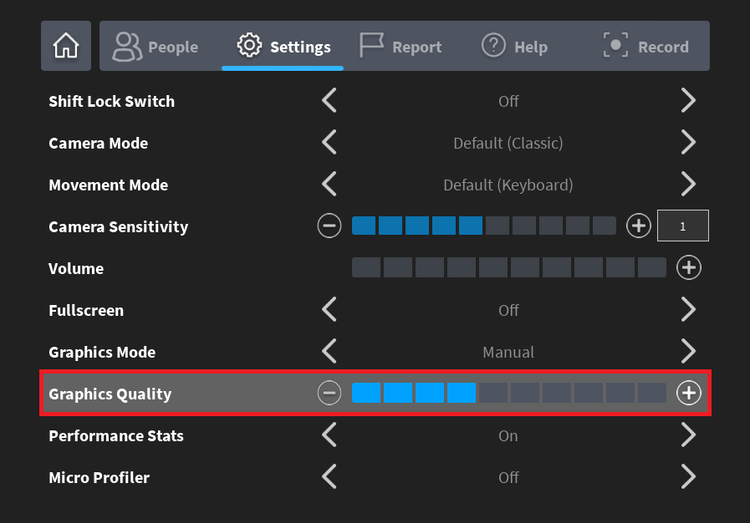
- Turn off Auto graphics: Open the Roblox in-experience menu, go to Settings, and switch Graphics Mode to Manual if that option is available.
- Lower Graphics Quality: Move the slider down several steps and replay the same section. A low-to-middle setting is a sensible starting test on a struggling phone, not a universal recommended preset.
- Raise quality gradually: If the game becomes smooth, raise the slider one step at a time until stutter returns. Keep the highest setting your device can handle consistently.
- Close heavy background apps: Shut down video, camera, browser, or other demanding apps before rejoining.
- Test one change at a time: Changing graphics, network, and device settings simultaneously makes it harder to identify what actually helped.
How to tell graphics lag from network lag
Roblox Support distinguishes graphics lag, network lag, and system lag. Graphics lag usually looks like choppy frames or stuttering. Network lag can make players warp around or make actions take unusually long to register. System lag can happen when a device is under heavy load.
| What you notice | First test |
|---|---|
| The picture freezes or stutters during movement | Lower Graphics Quality and close other apps. |
| Other players jump or teleport, but visuals are otherwise smooth | Check Wi-Fi or mobile data stability; try a different reliable connection. |
| Buttons or interactions respond late | Rejoin once and compare another server; this can be network or server delay. |
| The phone heats up or performance drops over time | Close background apps, let the device cool, and avoid charging under heavy load if heat is excessive. |
Floor 8 mobile checklist before another run
- Confirm Floor 8 and its current objective in The Hollow’s live hub.
- Set graphics to Manual and reduce quality only enough to make movement stable.
- Keep the phone’s operating system and Roblox app updated through official app stores.
- Close unused apps and make sure the device has enough free storage.
- Try one fresh server if the experience appears stuck, then compare results.
- Check Roblox’s official support or status pages if several experiences fail in the same way.
Do not copy a PC-only settings guide blindly
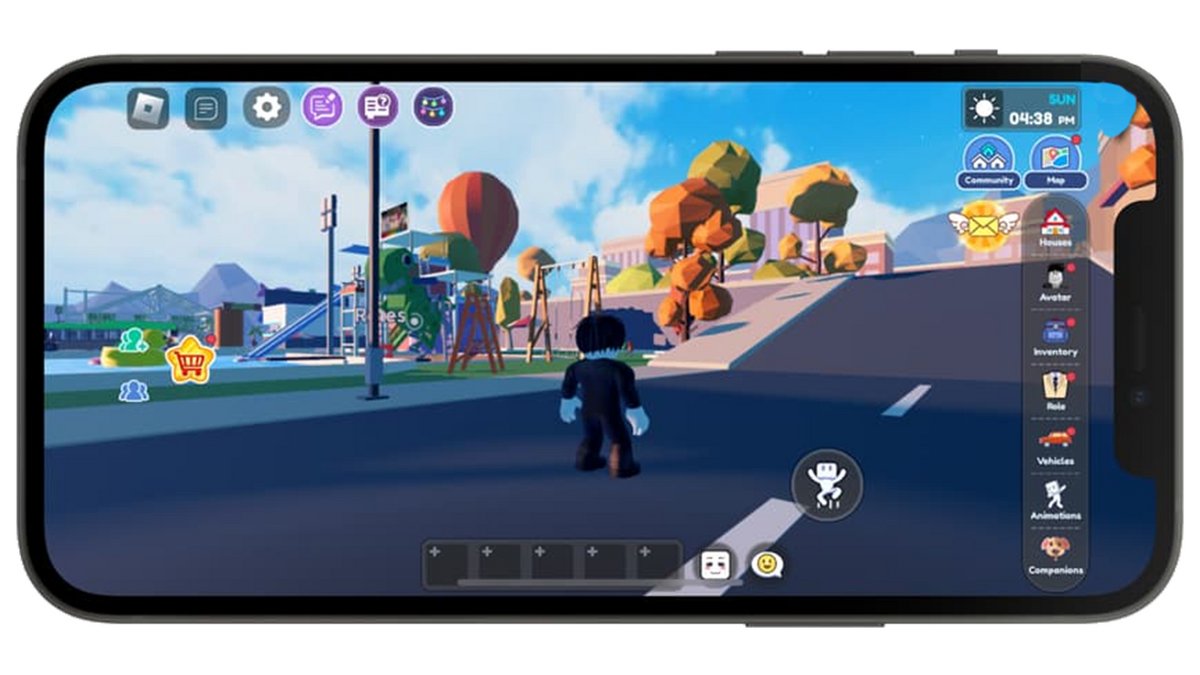
Some guides focus on desktop options such as keyboard controls, fullscreen settings, or graphics tools that may not appear in the same form on a phone. Use the controls visible in your own Roblox app. Avoid third-party “FPS booster” downloads, modified clients, or scripts that ask for account access; they are not necessary for basic graphics troubleshooting and may put your account or device at risk.
Official resources and social updates
Roblox’s support article explains how to lower graphics quality and close resource-heavy apps. Roblox’s official event announcement confirms The Hollow’s nine-monster lineup, including The Overseer from WARDEN, and says the live finale is planned for October 31. It does not confirm a specific Floor 8 mobile performance incident.
- Roblox Support: How to Reduce Lag and Speed Up Play
- Roblox Newsroom: The Hollow Halloween survival event
- Play The Hollow on Roblox
Roblox’s official X account can also be checked for event updates. The embedded timeline below is a live social feed; posts may change and are not proof of a particular bug unless the post says so.
Posts by Roblox
Frequently asked questions
What graphics setting is best for The Hollow Floor 8 on mobile?
There is no official Floor 8-specific preset. Switch Graphics Mode to Manual and lower Graphics Quality until movement is stable, then raise it gradually if performance allows.
Will lowering graphics fix every type of lag?
No. Lower graphics can help with choppy visuals, but it will not necessarily fix network delay, server issues, or every device problem.
Is Roblox aware of a confirmed Floor 8 mobile lag bug?
In the official sources checked for this article, we did not find a Roblox announcement confirming a widespread Floor 8-specific mobile lag bug. Individual player experiences can differ.
Should I install a third-party Roblox FPS booster?
No third-party booster is needed for the basic steps here. Avoid modified clients, unknown downloads, and tools requesting your Roblox password or session details.
Where can I verify The Hollow event details?
Use Roblox’s official newsroom announcement and the live The Hollow experience. The in-game hub is the best place to check the floor and current objective on your server.
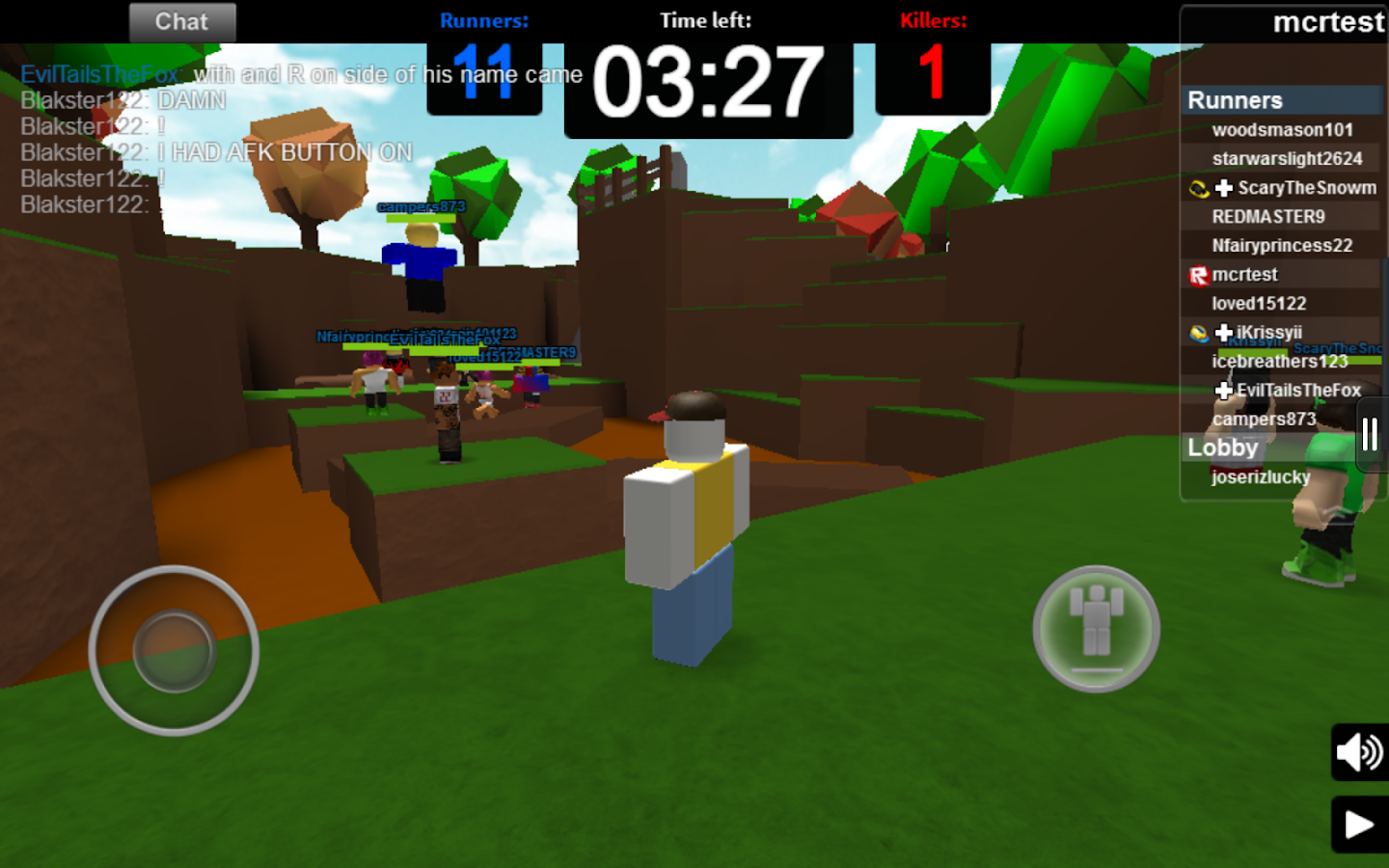
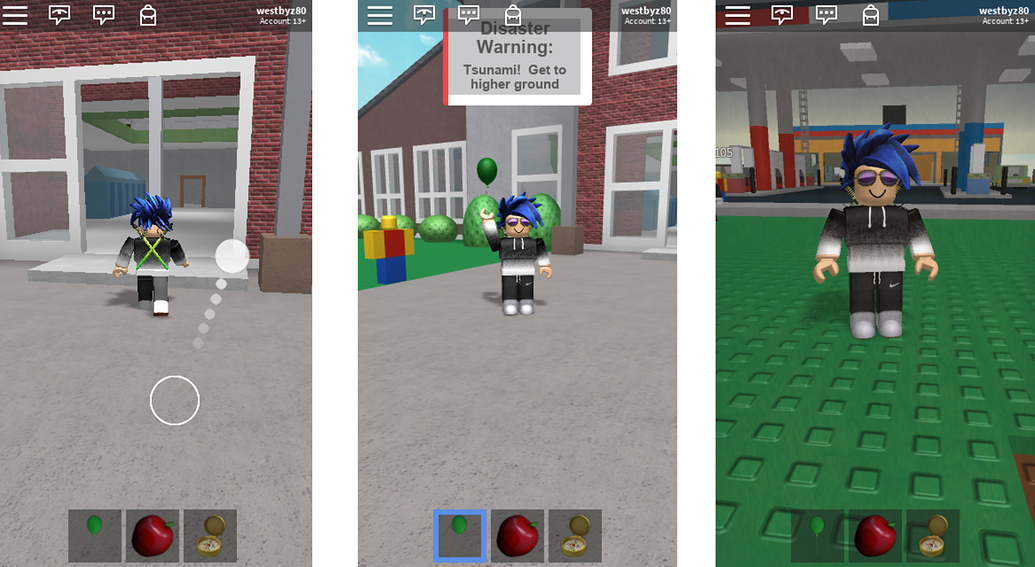
Image note: The five images above are real third-party or platform images used as general mobile/gameplay context; they are not presented as verified screenshots of The Hollow Floor 8. Check each source’s terms before reuse. No AI-generated images were used.