Quick answer: If Roblox The Hollow’s newer maze feels awkward on a phone, fix your touch routine before changing every setting. Keep movement on the left thumbstick, use short camera drags with the right thumb, make one deliberate interaction tap at a time, and test the route in a quiet corner before entering a chase. Roblox does not publish a special Floor 8 mobile-control preset, so the setup below is a practical starting point—not an official event setting or a guaranteed fix.
For U.S. players · Checked October 29, 2026 · By Shivam Das
Why mobile controls can feel harder in The Hollow’s maze
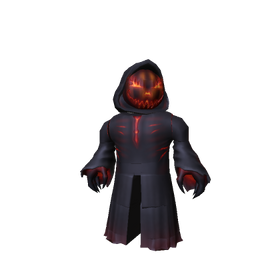
The Hollow is Roblox’s Halloween survival event, built around a new maze and a different horror-game monster across nine nights. Roblox’s announcement confirms The Overseer from WARDEN is among the featured monsters, but it does not publish a dedicated mobile control layout for each floor. That distinction matters: a player can experience camera drift, missed taps, or delayed movement without there being a confirmed event-wide mobile bug.
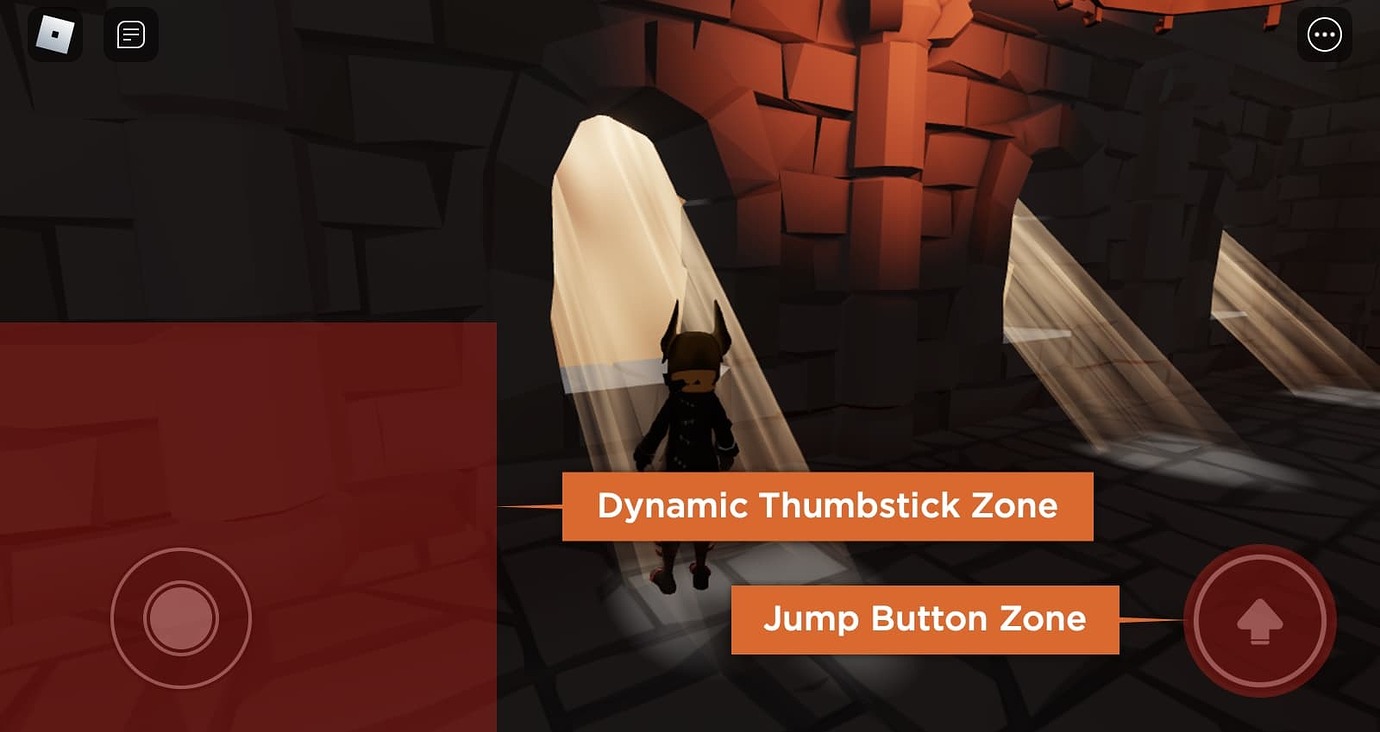
On a phone, three actions compete for limited screen space: steering the avatar, rotating the camera, and tapping an object or prompt. In a narrow corridor, a long camera swipe can accidentally pull the view away from the path. During a chase, holding the movement control while trying to tap an interaction can make the input feel inconsistent. The goal is to separate those actions rather than swipe faster.

Best starting control setup for a phone
Start with the default on-screen movement control and make small, repeatable adjustments. The best setup depends on screen size, grip, and whether you play with one or two thumbs; there is no single layout that suits every phone.
- Keep movement predictable. Use the left-side virtual thumbstick with short, controlled movements. Avoid dragging it to the screen edge unless you need a longer sprint through a safe corridor.
- Separate camera movement. Use the right side of the screen for brief camera drags. Make a small turn, release, then move. This reduces the chance of rotating the view while you are trying to steer.
- Re-center before an interaction. Stop moving, aim the camera at the object or prompt, and tap once. If nothing happens, wait a moment and try again rather than repeatedly tapping while walking.
- Keep jump deliberate. Do not tap jump while making a camera adjustment unless the situation requires it. A clean, separate input is easier to diagnose when the avatar does not respond as expected.
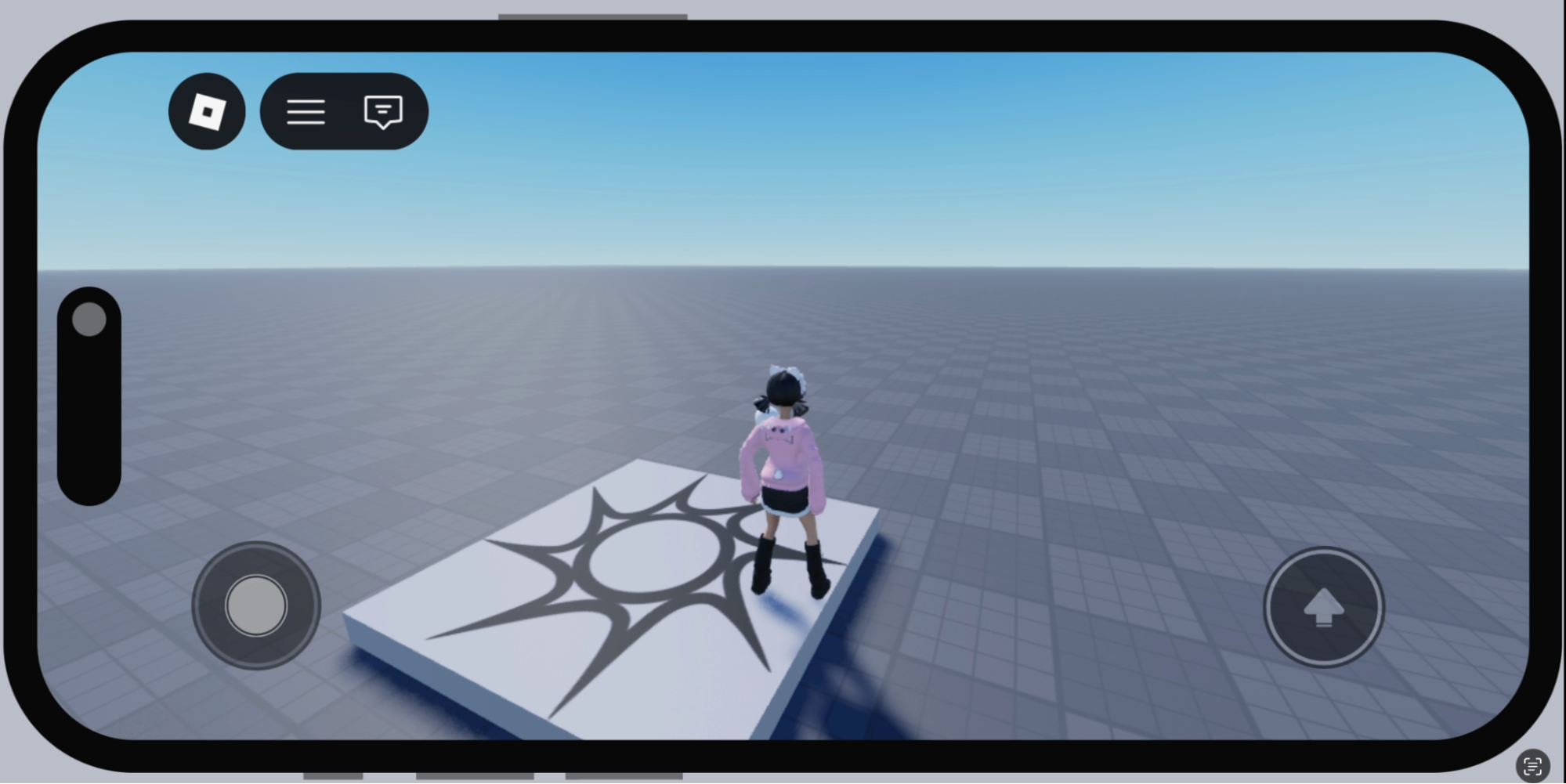
- Test your grip. If your thumb repeatedly covers the objective or interaction prompt, rotate the device to landscape if the experience supports it and adjust how you hold the phone. Do not assume every Roblox experience supports every orientation.
Camera settings: Classic or Follow?
Roblox says players may be able to switch between Classic and Follow camera modes when an experience has not locked the camera mode. In Classic, the camera stays where it is until the player adjusts it; Follow rotates with the avatar as the player moves. The experience developer can restrict the available choice, so do not assume both options will appear in The Hollow.
For maze navigation, try the mode that lets you keep the next turn visible without constant corrections. If Follow makes the camera swing too much around corners, test Classic and make short manual adjustments. If Classic leaves you looking at a wall after a turn, test Follow. Change one setting at a time and replay the same short section so you can tell whether it helped.

How to tell control trouble from graphics lag
Not every mobile problem is a control problem. If the picture stutters while your taps still register, lower graphics quality as a separate test. Roblox’s official Graphics Quality instructions say players can switch Graphics Mode to Manual and move the quality slider left for better performance. If the picture stays smooth but interactions arrive late, check the connection and try another server before changing your control routine.
| What you notice | What to test first |
|---|---|
| Avatar turns too far | Use shorter camera drags; pause between turns. |
| Avatar walks when you meant to tap | Stop the thumbstick before selecting an object or prompt. |
| Screen movement looks choppy | Test Manual graphics at a lower quality level. |
| Prompts respond late but visuals are smooth | Check Wi-Fi or mobile data and test a different server. |
| Buttons are partly covered by your fingers | Adjust grip or device orientation if the experience allows it. |
Step-by-step settings check before another run
- Join The Hollow and wait in a safe area before testing controls.
- Open the in-experience menu and look at the available Settings and Help options.
- Check whether Camera Mode is adjustable. If it is, test Classic and Follow separately.
- Move a few steps, make one short camera turn, then stop and test an interaction prompt.
- If the display itself stutters, open Settings, switch Graphics Mode to Manual, and lower Graphics Quality a few steps.
- Return to the same short route and compare. Keep the change only if it improves the specific problem you noticed.
Roblox’s Help menu also includes mobile gestures and instructions for actions available in the current experience. If a control or setting described in a general guide is missing, the experience may not support it or may have configured it differently.

What not to change during a chase
- Do not change camera mode, graphics quality, and movement style all at once. You will not know which change helped.
- Do not repeatedly tap a prompt while still pushing the movement control.
- Do not assume a creator’s phone layout will feel right on your own screen.
- Do not download third-party “FPS booster” apps or share your Roblox login to fix performance.
- Do not treat a single failed run as proof that Floor 8 has a confirmed mobile-only bug.
Related Roblox Hollow guides
- Mobile players and Floor 8 graphics settings: performance checks
- Roblox mobile lag on the Floor 7 stairs section
- Open The Hollow on Roblox
Frequently asked questions
What are the best mobile controls for Roblox The Hollow?
Start with the left-side thumbstick for movement, short right-side camera drags, and separate taps for prompts and jumps. Test your own grip and screen size; Roblox does not publish one official Floor 8 mobile preset.
Should I use Classic or Follow camera mode?
Try both if the experience allows it. Classic keeps the camera in place until you move it, while Follow rotates with your avatar. Choose the one that makes corners easier to see without constant correction.
How do I reduce Roblox lag on a phone?
If the image stutters, try Manual Graphics Mode and lower the Graphics Quality slider. If actions are delayed while the image remains smooth, test your connection and another server instead.
Why is my Roblox mobile movement button different?
Movement controls can vary with the device, app version, and experience configuration. Check the in-experience Help and Settings menus rather than assuming every player sees the same layout.
Is there a confirmed Floor 8 mobile controls bug?
This guide does not establish a confirmed event-wide mobile bug. Individual reports are useful signals, but players should separate a control-layout problem from graphics stutter, network delay, or a temporary server issue.
Sources and verification
- Roblox Newsroom: The Hollow Halloween survival event
- Roblox Support: In-experience Settings and Help
- Roblox Support: Graphics Quality
- Roblox Support: Mobile System Requirements
Editorial note: The control images above are general Roblox mobile-interface examples sourced from Roblox Developer Forum posts. They are not presented as actual screenshots from The Hollow. The settings are practical tests based on Roblox Support documentation, not an official event-specific configuration.
Author: Shivam Das