By Shivam Das | Updated October 28, 2026
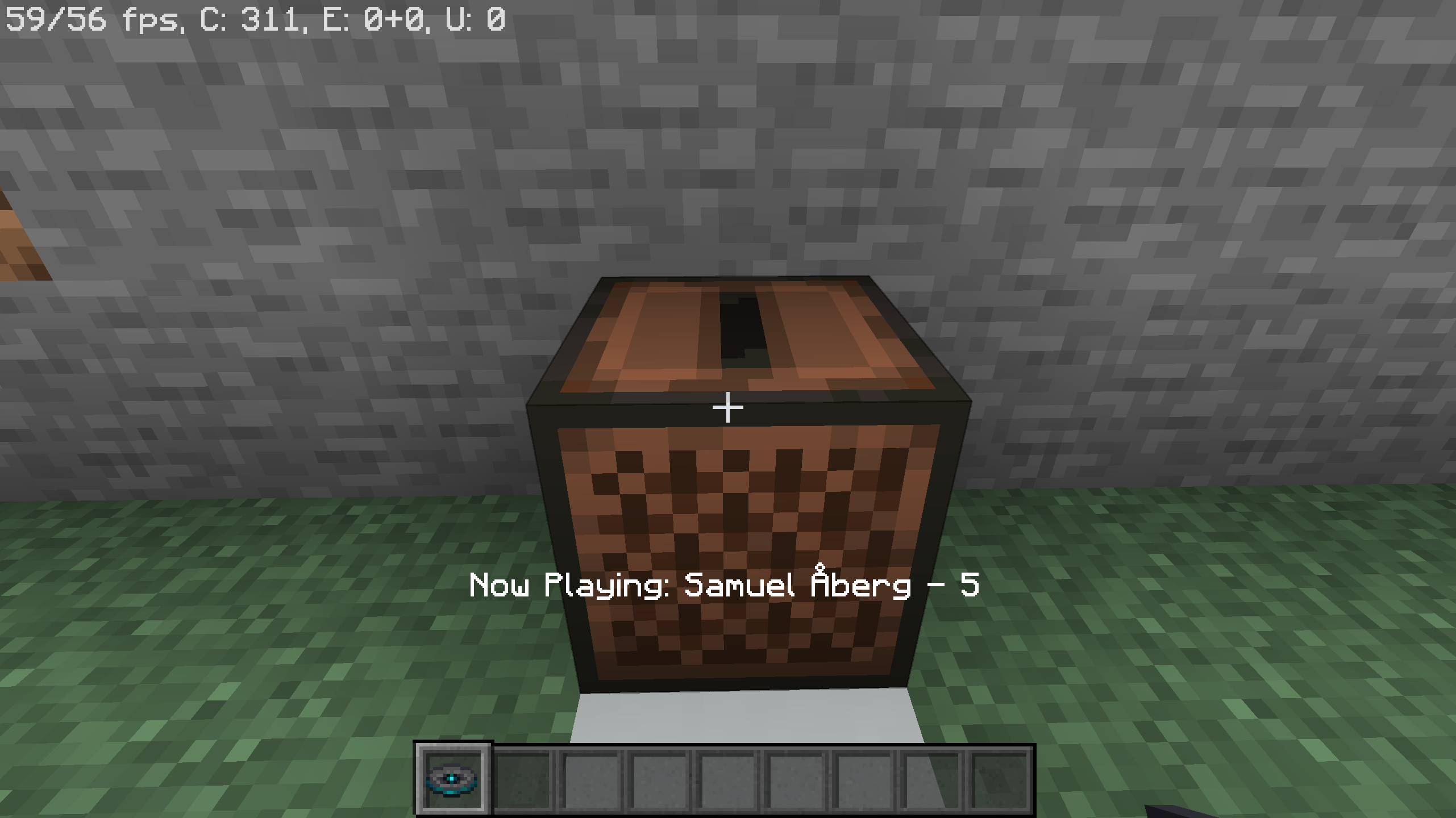
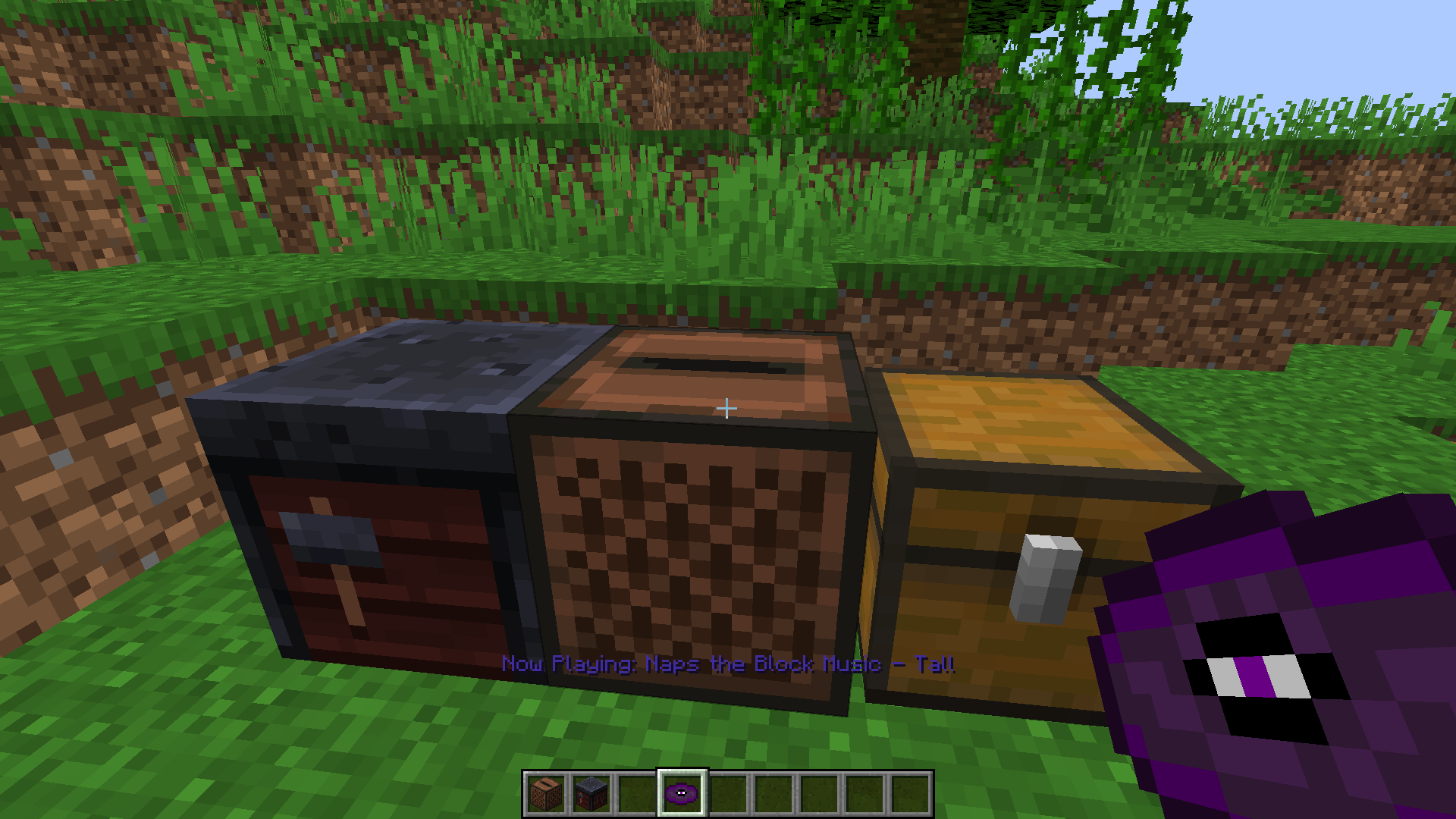
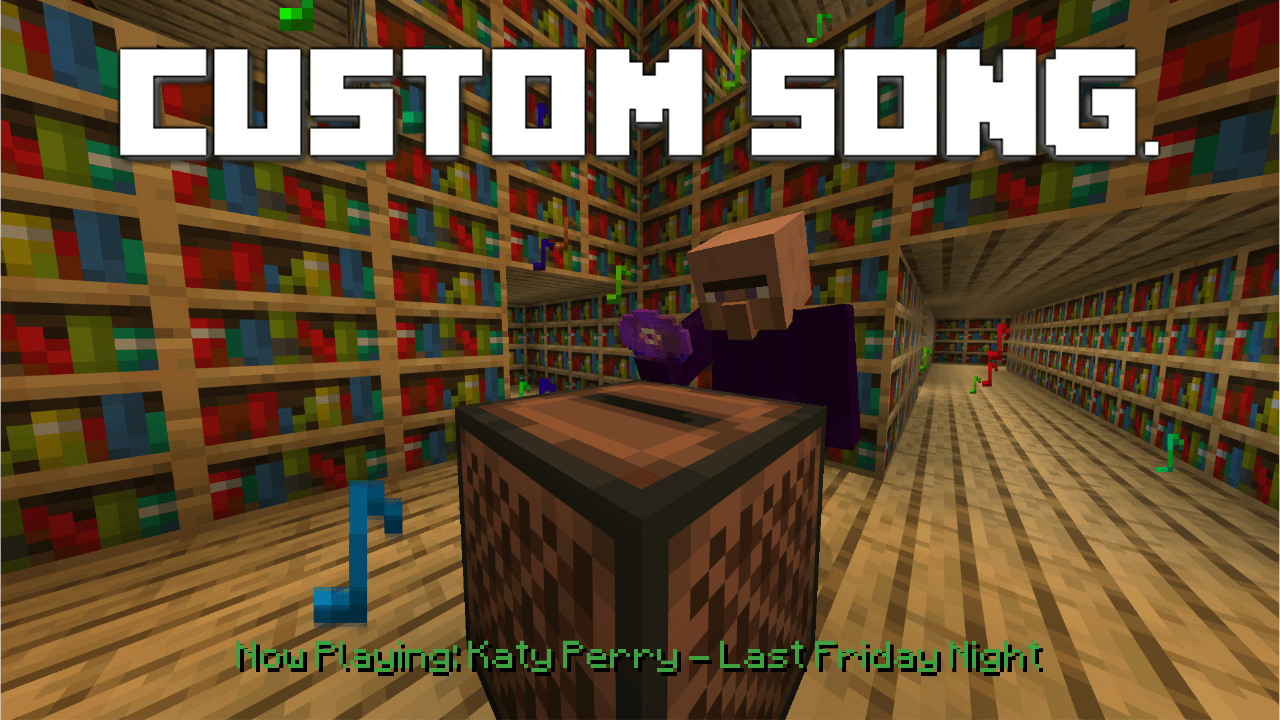
Minecraft’s newest free Music Features Add-On gives Bedrock players another way to bring music into a world: create track discs with a Disc Press, play them in a Jukebox, or carry a Pocket Jukebox in your inventory. But the same track can feel different depending on whether you listen through headphones or your TV speakers. Headphones usually make quiet details and left-right placement easier to notice; TV speakers make the music feel more like part of the room and are convenient for couch co-op. Neither setup is automatically “better.”
Quick answer: Use headphones if you want clearer detail at lower volume, a more personal listening experience, or fewer distractions from the room. Use TV speakers if you play with family or friends, want sound shared across the room, or dislike wearing a headset for long sessions. For a fair comparison, use the same track, game volume, TV/headphone volume at a comfortable level, and listening position. This is a practical listening guide, not a claim that one device changes the game’s original audio files.

First, what is the free Music Features Add-On?
The Music Features Add-On appeared in Bedrock Preview 26.70.21 as a built-in, free pack. Mojang’s preview notes describe a Disc Press for making track discs, a Jukebox for playing them, and a Pocket Jukebox for taking music along with you. The pack is included with the game installation in that preview, so players do not need to buy it from the Marketplace. To use its new blocks and items, enable the Music Features Add-On resource pack for the world; the matching behavior pack is added automatically.
The current preview notes say these features do not work with Realms yet. That is important if you plan to test with friends: try the feature in a local test world first and check the notes for your exact build before assuming every multiplayer environment supports it. Preview builds are unfinished and can change before release.
Official reading: Minecraft Preview 26.70.21 and Mojang’s Music Features Add-On feedback thread.
Headphones vs. TV speakers: what actually changes?
| Listening factor | Headphones | TV speakers |
|---|---|---|
| Detail at low volume | Often easier to hear quieter notes and small effects because the sound is close to your ears. | Room noise and distance can mask quieter details, especially at low volume. |
| Spatial impression | Stereo separation can feel more direct; results depend on the headset and game mix. | The room and distance add a sense of shared space, but reflections can blur placement. |
| Shared play | Best for one player unless others use their own headsets. | Everyone nearby can listen without wearing anything. |
| Comfort and fatigue | Fit, clamping force, heat, and long listening sessions matter. | No headset pressure, but you may need a louder setting to overcome room noise. |
| Privacy | Music stays more private and is less likely to disturb others. | Sound travels through the room and may bother people nearby. |
| Low-frequency sound | Depends heavily on headset design and fit. | Depends on the TV, its placement, room acoustics, and any soundbar or subwoofer. |
These are general audio tendencies, not guarantees. A good TV and soundbar can sound fuller than inexpensive headphones, while a comfortable headset can be clearer than small built-in TV speakers. The source track is not inherently “higher quality” just because you switch output devices; the speaker or headphone hardware, room, fit, and volume all influence what reaches your ears.
What you may notice with headphones
Headphones can make it easier to focus on the melody without hearing as much room noise. That is useful when you are building late at night, exploring caves, or testing whether the music feels too quiet under other game sounds. A well-fitting pair may also make small changes in stereo balance easier to notice, though the effect depends on the headset and the mix.
There are trade-offs. Some headsets exaggerate bass or treble, some compress dynamics, and some use virtual surround processing that changes the presentation. If a track sounds harsh, boomy, or unusually distant, try disabling optional “3D audio,” equalizer presets, or virtual surround before blaming the add-on. Start with a neutral preset, if available, and a comfortable volume.
What you may notice with TV speakers
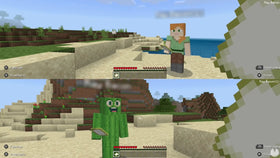
TV speakers are the easy choice when you want Minecraft to fill a shared room. The music blends with the sound of movement, weather, mobs, and building, which can make a world feel more communal. They are also convenient for split-screen play, because nobody has to wear a headset just to hear the soundtrack.
The main limitation is the room. A TV mounted high above a cabinet, placed in a corner, or used in a reflective room can sound different from one positioned near ear level in a furnished space. Voices from other people, fans, or street noise can mask quiet parts of the music. If you cannot hear the track clearly, move closer or lower competing noise before pushing the volume to an uncomfortable level.
How to run a fair A/B listening test
- Choose one short, repeatable section. Use the same track disc or the same menu music each time. Do not compare two different songs and assume the output device caused the difference.
- Keep Minecraft’s sound settings unchanged. Avoid adjusting Music, Sound Effects, and Master volume between tests unless you are deliberately testing those controls.
- Match perceived loudness as closely as you can. Louder playback often seems fuller or clearer, even when the source is identical. Do not turn either device up to an uncomfortable level just to match it.
- Listen for three things. Notice melody clarity, how well music sits alongside game effects, and whether the sound feels comfortable after several minutes.
- Switch back and forth. Listen to the same section through headphones, then TV speakers, and repeat once. If the difference disappears on a second listen, do not overthink it.
- Record your preference. Note which setup works better for quiet building, exploration, or playing with others. Choose based on your actual use rather than a universal ranking.
Do not compare a headset connected directly to the console with TV speakers while also changing the TV’s “Cinema,” “Game,” or “Music” audio preset. That tests multiple changes at once. For a useful comparison, keep the settings stable and change only the output device.
Recommended settings for a cleaner comparison
- Start with moderate volume. Set both devices to a comfortable level before focusing on detail.
- Disable extra processing for the first pass. Turn off optional virtual surround or heavy EQ presets if you want a more neutral comparison. You can test those features later.
- Balance music and effects. If the music is buried under block sounds, lower Sound Effects a little or raise Music modestly rather than raising Master volume for everything.
- Check system audio settings. Console, TV, headset, and soundbar menus can each apply their own processing. If audio sounds oddly hollow or delayed, check those settings one at a time.
- Use subtitles or captions when available. If you rely on audio cues for gameplay, captions can supplement sound; availability varies by edition and build.
- Protect your hearing. Keep headphones at a comfortable level and take breaks. Louder is not a reliable way to hear more detail safely.
Does the Pocket Jukebox sound different from a normal Jukebox?
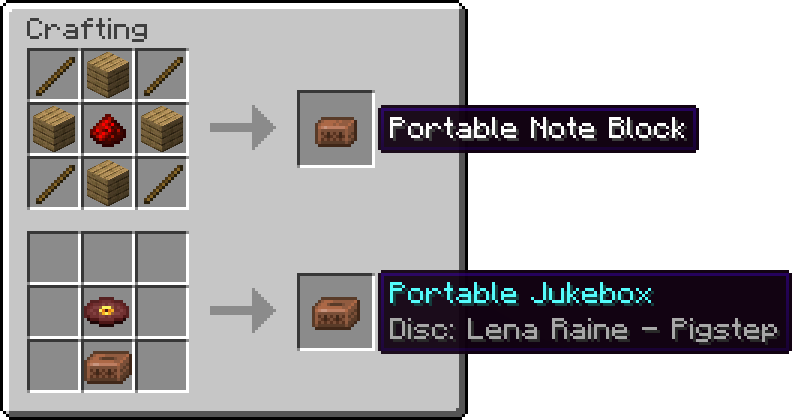
The Pocket Jukebox changes where and how you access music, not necessarily the composition itself. Preview documentation says it can hold up to 20 track discs or regular music discs and plays the music client-side for the player using it. That means the sound is personal to that player rather than tied to a fixed block in the world. Your headphones or speakers still influence how you hear it.
For the new Music Features Add-On, track discs can be created in the Disc Press and played in a Jukebox or Pocket Jukebox. Current community documentation notes that track discs use online audio and require the “Online audio” setting to be enabled. Since the feature is still under development, confirm the behavior in your build if a disc appears silent or fails to load.
Why a track may seem quiet or fail to play
Check the Music slider
Minecraft has separate volume categories. If Music is low but other game sounds are loud, the soundtrack may seem missing even though the output device is working. Check the Music slider first and avoid turning up Master volume unless all game audio is too quiet.
Check online audio and your connection
The new track-disc feature is in preview and uses online audio according to current documentation. If regular game sounds work but a track disc does not, check the relevant online audio option, network connection, and any loading or known-issue notes for your build.
Test without audio enhancements
TV surround modes, headset apps, spatial audio, or equalizer presets can change the sound. Temporarily disable one enhancement and retry the same track. If that fixes the problem, re-enable features one at a time to identify which one causes the change.
Confirm the preview build
The Music Features Add-On is experimental content in Bedrock Preview 26.70.21. If you are on a stable release, Java Edition, or a different preview build, you may not see the same pack or behavior. Do not assume that an unfinished feature is available on every platform or in Realms.
Frequently asked questions
Is the Music Features Add-On free?
Yes. Mojang describes it as a free add-on built into the game installation in the relevant Bedrock Preview. You enable it for a world; you do not need to purchase it from the Marketplace.
Do headphones improve Minecraft’s actual audio quality?
Headphones do not change the original music file, but they can make details easier to hear because of their design, fit, and isolation from room noise. The result varies by headset and listener.
Are TV speakers better for Minecraft music?
They are convenient for shared play and can sound fuller on a good TV or soundbar. Room acoustics and background noise may make quiet details harder to hear.
Can I use the Music Features Add-On in Realms?
The Preview 26.70.21 notes say the new Music Features Add-On features do not work with Realms yet. Check later changelogs for changes before relying on Realm support.
Why is a new track disc silent?
Check that the Music Features Add-On is enabled, that the relevant online audio setting is on, and that your game build supports the feature. If it still fails, test another track and consult the preview’s known issues.
Which should I choose for late-night play?
Headphones are usually the more considerate option when other people are sleeping, provided you keep the volume comfortable. TV speakers are better when you want everyone in the room to share the soundtrack.
Sources and further reading
- Official Minecraft Preview 26.70.21 changelog
- Official Minecraft Feedback: Music Features Add-On
- Microsoft Learn: Introduction to Sound in Bedrock Edition
- Minecraft Wiki: Music Features Add-On overview
- Minecraft Wiki: Track Disc details and online audio notes
Editorial note: This article offers a repeatable listening method and general audio guidance. The subjective comparisons are not laboratory measurements, and Music Features Add-On behavior may change while it remains in preview. Verify compatibility in your current build.