By Shivam Das |
Quick answer: Yes. Nintendo’s official Minecraft for Nintendo Switch 2 listing says Nintendo Switch worlds can be carried over. To protect a long-running survival or creative save, follow Mojang’s dedicated migration instructions, keep the original console and world intact until the new copy opens correctly, and avoid using a full console reset as a shortcut. Nintendo’s product listing and Mojang’s Switch 2 launch guide both confirm world carry-over.
A Minecraft save can represent months of work: a survival base, a creative build, a shared family world, or a network of carefully mapped locations. Moving to a new console should be a save-preservation task first and a graphics upgrade second.
Can you transfer Minecraft worlds from Switch to Switch 2?
Yes. Nintendo says worlds from the original Nintendo Switch version can be carried over to the native Switch 2 edition. Mojang’s launch announcement also says existing players can bring their worlds forward and pick up where they left off. You do not need to assume that moving to the newer edition automatically means starting over.
One important distinction: Minecraft world migration and Nintendo’s full System Transfer are related but different processes. System Transfer moves eligible console data and settings. If your goal is specifically to move a Minecraft world, start with the dedicated migration instructions linked in Mojang’s launch article and follow the steps that match your setup.
- Minecraft Switch 2 product listing: confirms that Nintendo Switch worlds can be carried over.
- Mojang’s launch article: links to “Minecraft World’s Migration from Switch to Switch 2.”
- Nintendo System Transfer guide: explains the broader process for moving compatible console data and settings.
Official guides: Mojang’s Switch 2 launch article and Nintendo’s System Transfer guide.
Before you move a world: safety checklist
- Keep the original Switch available. Do not trade it in, initialize it, or delete Minecraft save data until the world opens correctly on the new system.
- Update both consoles and the game. Install available system updates and follow any update requirements in the official migration guide.
- Check the correct Nintendo Account and user profile. Account or profile confusion can make it look as though a save is missing.
- Confirm the edition. Make sure you have installed and launched the native Switch 2 edition if that is the version you intend to use.
- Use stable power and internet. Avoid starting a lengthy transfer with a low battery or an unreliable connection.
- Remember a few landmarks. Note your world name and familiar locations—your base, farm, or portal—so you can verify the correct world afterward.
Minecraft world migration vs. Nintendo System Transfer
Minecraft’s dedicated migration route
Use the Minecraft-specific migration instructions linked from Mojang’s Switch 2 launch article when you want to bring a world into the native Switch 2 version. Read the guide first, then follow its current on-screen steps. Screens and requirements may vary with software versions and the method available for your setup.
Nintendo System Transfer
Nintendo’s general System Transfer can move eligible digital games, save data, and settings to Switch 2. Nintendo says an internet connection and at least one user profile linked to a Nintendo Account are required. Its support guidance also warns that some transfer methods delete data from the source console after completion. That is a reason not to choose a full system transfer casually if you only intend to migrate one Minecraft world.
Read Nintendo’s official transfer guide before using this option. For server-based transfers, review the warnings carefully: Nintendo notes that retrieving a server transfer is tied to the target console’s initial setup, and some cases may require resetting the target console.
Step-by-step: move your world cautiously
This is a safe order of operations, not a replacement for the official on-screen migration instructions.
- Open Mojang’s migration guide. Visit the official Minecraft Switch 2 launch article and choose the “Minecraft World’s Migration from Switch to Switch 2” link.
- Read every step and warning first. Check which account, menu, or prompt is required. Do not skip warnings about source-console data.
- Follow the prompts in order. Avoid switching profiles, closing the game, or powering off during an active transfer.
- Check the world list on Switch 2. Look for the expected world name. If it is missing, do not immediately delete the original save or repeatedly restart the process.
- Load the world and verify it. Check your base, inventory, nearby storage, and one familiar landmark. Give the world time to load before deciding something is missing.
- Keep the old save untouched until you are confident. Complete any remaining cleanup only after confirming the new copy appears correct and the official guide permits it.
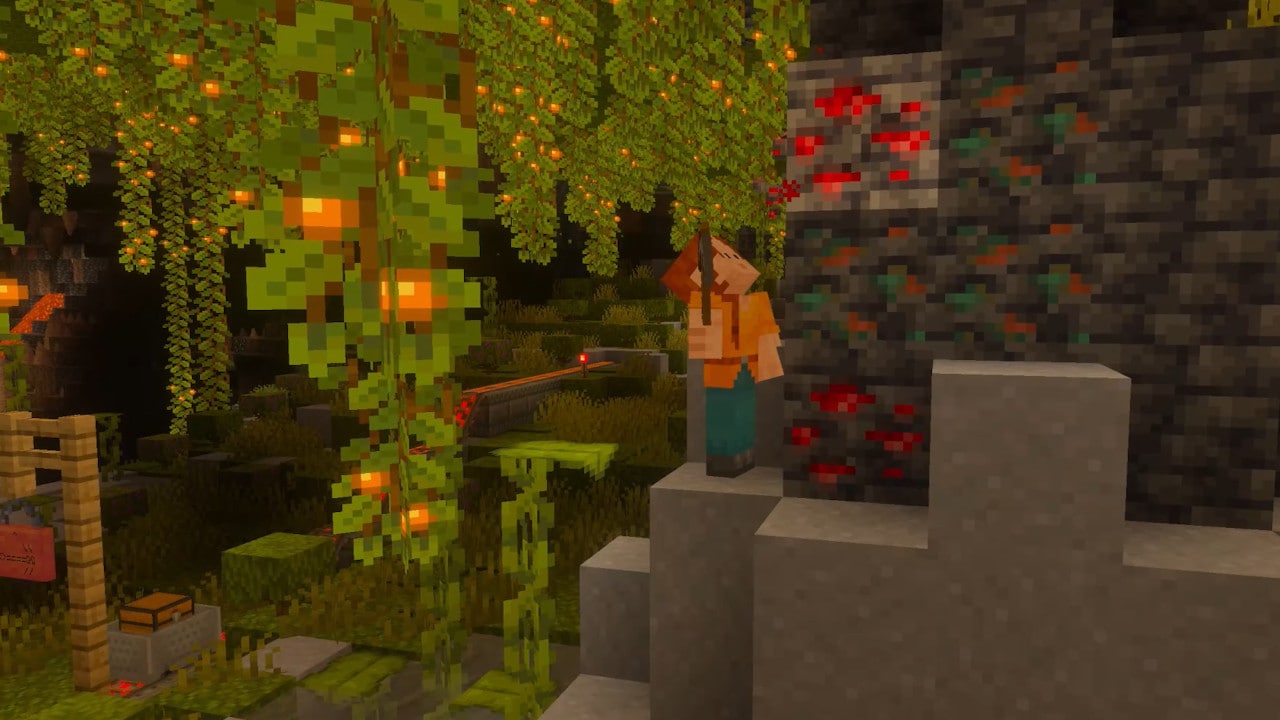
If your Minecraft world is missing on Switch 2
A world that does not appear immediately is a reason to troubleshoot, not proof that it has been erased. Confirm the correct profile and game edition first, then compare the steps you completed with Mojang’s official migration guide.
- Check the original console. If the world is still visible there, leave it untouched while investigating.
- Confirm the game version and profile. Make sure you are checking the world list for the edition and user you intend to use.
- Recheck the official prompts. Follow the migration route carefully and note any step that failed or was skipped.
- Check updates and connectivity. Complete required updates and retry only the steps the official guide recommends.
- Do not wipe or initialize a console as a first fix. Some system-transfer options have destructive consequences; read the warnings and confirm which device’s data could be removed.
- Contact official support if needed. Explain which console still has the save, which edition you launched, and where the process failed. Never share passwords or verification codes with anyone claiming they can recover the world.
For console-transfer issues, consult Nintendo’s System Transfer support page. For Minecraft-specific migration, use the link from Mojang’s launch article.
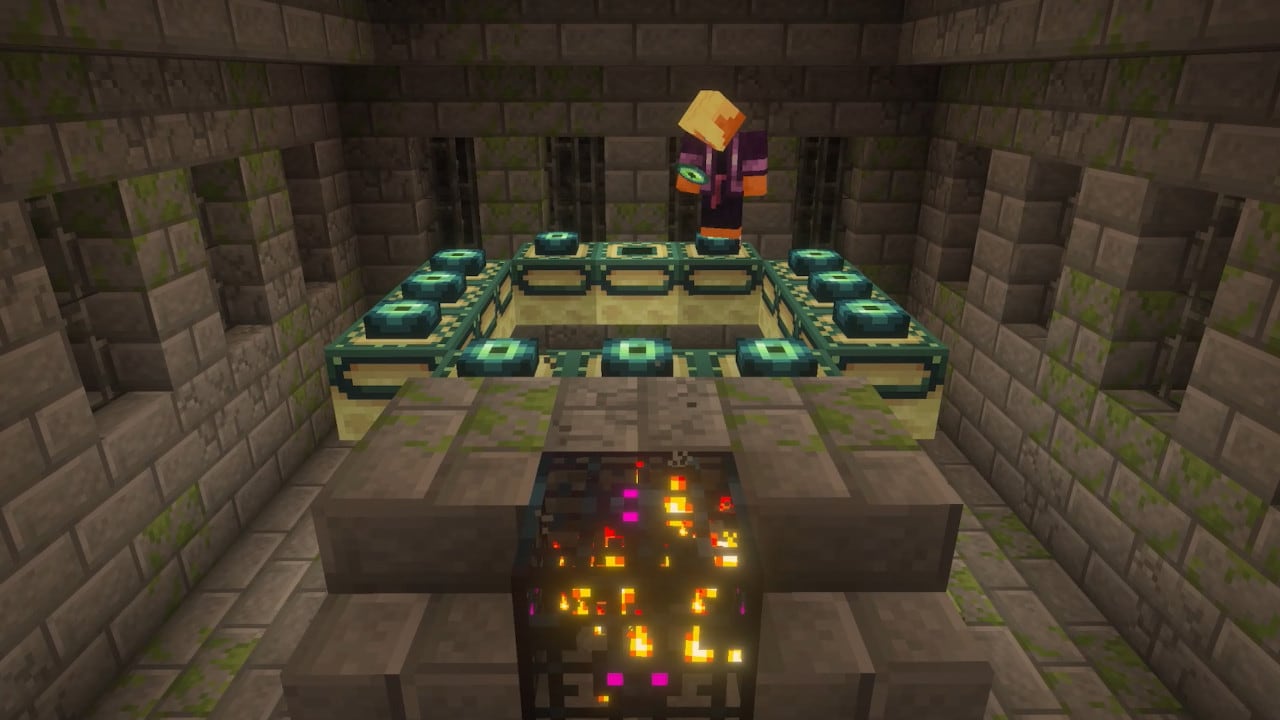
Does the Switch 2 upgrade change your world?
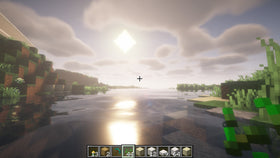
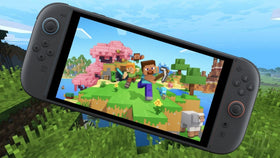
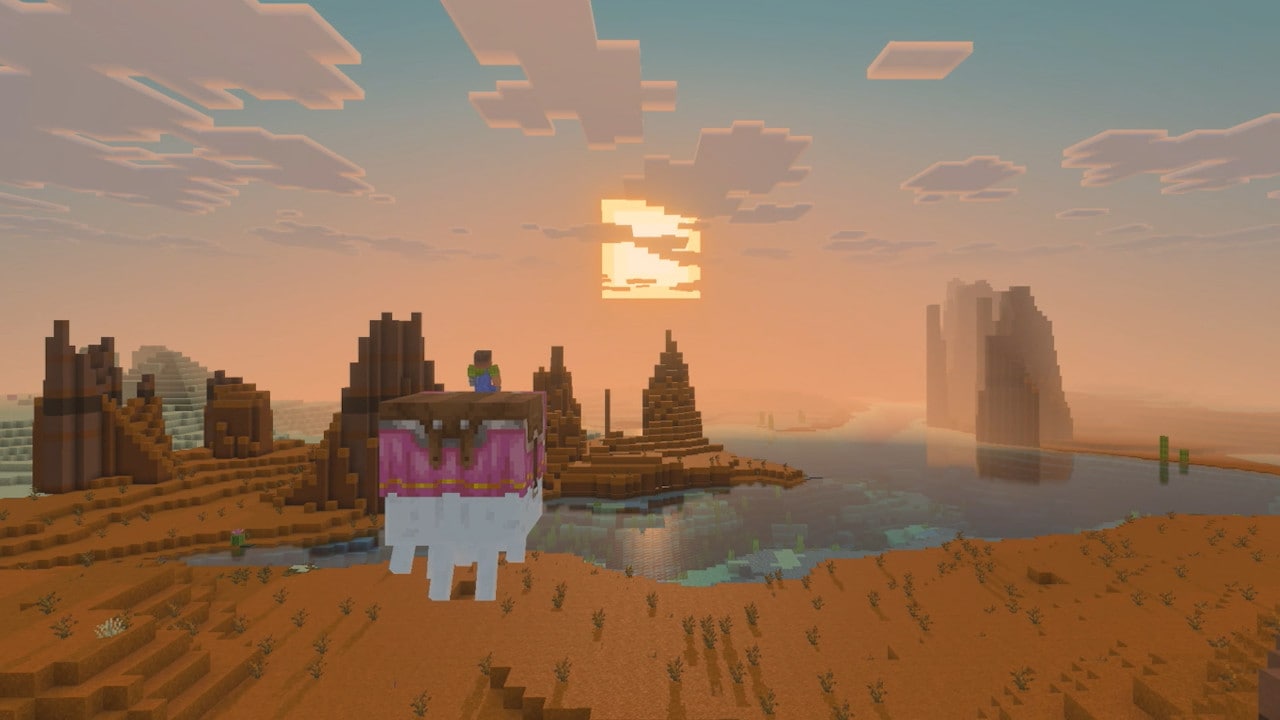
The native Switch 2 edition adds supported visual features, but the rendering experience is not identical in every situation. Nintendo notes that Vibrant Visuals is unavailable in some gameplay, including split-screen and certain Marketplace worlds and content. A change in lighting or appearance does not by itself mean the world has been replaced or damaged.
When checking a migrated save, focus first on whether the right world loads and whether your builds, inventory, and landmarks are present. Judge visual differences separately. If you use Marketplace content or add-ons, check compatibility with the version you are playing before treating a graphics difference as a save problem.
Frequently asked questions
Can I transfer Minecraft worlds from Nintendo Switch to Switch 2?
Yes. Nintendo and Mojang confirm that Nintendo Switch worlds can be carried over. Follow the dedicated Minecraft migration instructions for the current process.
Do I need Nintendo System Transfer for just one Minecraft world?
Not necessarily. System Transfer is a broader console-data process. Start with Mojang’s dedicated Minecraft migration guide when your goal is to bring a world into the Switch 2 edition.
Should I delete the world from my old Switch after moving it?
No—not before verifying the new copy. Keep the original console and save untouched until the migrated world opens correctly and you have checked key locations.
What if the world does not appear on Switch 2?
Confirm the correct profile and edition, check the original console, and review the official migration steps. Avoid initializing or wiping either system as an early troubleshooting step, and contact official support if the world remains unavailable.
Does Vibrant Visuals work everywhere?
No. Nintendo says Vibrant Visuals is unavailable in some gameplay situations, including split-screen and certain Marketplace worlds or content.
Official sources
- Minecraft: Play Minecraft on your Nintendo Switch 2 today
- Nintendo: Minecraft for Nintendo Switch 2
- Nintendo: Transfer Guide—Moving to Nintendo Switch 2
- Nintendo Support: System Transfers to Nintendo Switch 2
Bottom line: Your existing Minecraft world can come with you to Nintendo Switch 2. Follow Mojang’s dedicated migration guide, preserve the original save until the new copy is verified, and avoid using a full system reset as a shortcut. A few minutes of careful checking can protect the base, builds, and memories you have already invested in.