By Shivam Das | October 28, 2026
If you have spent months building a Minecraft survival base, collecting rare gear, mapping your world, and automating farms, the Experimental Features toggle deserves more than a casual click. It can unlock unfinished gameplay systems and upcoming content—but Mojang warns that experimental features may crash, break a world, or stop working after future updates. The safest rule is simple: do not enable experiments on the only copy of a long-term survival world. Test the feature in a separate copy or a dedicated test world first.
In Bedrock Edition, activating an experiment on an existing world creates a copy automatically, according to Minecraft’s official guidance. That is useful protection, but it should not replace a separate backup you control. More importantly, the experimental state cannot simply be switched off later to return that world to a normal, non-experimental state. The copy is your test branch—not a harmless temporary setting.
Quick answer: should you turn experiments on?
- For your main survival world: usually no, if you want the most predictable long-term save, achievements, and update compatibility.
- For a copied world: it can be reasonable if you have a separate backup and accept that the test copy may break.
- For a new test world: this is the best place to try an unfinished feature, report bugs, and learn how it behaves.
- For Java Edition: the setup is different; many experimental mechanics are tested through snapshots or specific data packs rather than the same Bedrock toggle.
The important distinction is between a world you are willing to experiment with and a world you are trying to preserve. If your goal is to explore a new feature and you can tolerate bugs, experimentation can be fun. If your goal is a dependable world for a long-running series, shared Realm, or achievement-focused playthrough, keep the original stable and test elsewhere.
Official guidance: Minecraft Feedback: Experimental Features Toggle and Microsoft Learn: Experimental Features in Bedrock Edition.
What experimental features actually mean
Experimental options let players try features that are still being developed. Depending on the release and toggle, they can change gameplay, world generation, blocks, mobs, or technical systems used by add-ons. Some experiments eventually become ordinary game features; others change, are removed, or never ship in the form players first tested. Enabling a toggle is not a promise that the feature is finished or will remain identical in a later release.
The exact list varies by game version and edition. An option seen in a Preview build may not appear in the stable retail version, and a toggle that existed during one update can disappear when its feature graduates into normal gameplay. Check the official notes for the specific version you are running instead of relying on a screenshot from an older tutorial.

The four biggest risks for a long-term survival save
1. World or save damage
Mojang’s warning is direct: a world using unfinished features may crash, break, or fail to work with future updates. That does not mean every experimental world will be damaged, but it does mean you should not treat the risk as theoretical or assume you can always undo the toggle. A save with a large base, rare items, elaborate redstone, or a carefully explored map has more progress at stake than a disposable test world.
2. Future updates may change the feature
Experimental content is a moving target. A block’s behavior, a generation rule, or a technical interface may be adjusted before release. When the game updates, a world that depends on an earlier version of that feature may behave differently or stop loading as expected. Keeping your test world separate makes it easier to abandon or recreate the experiment without putting your main project at risk.
3. Achievements and progression rules can be affected
In Bedrock Edition, enabling experiments is associated with an Experimental world state, and some experimental/add-on configurations can affect achievements. The precise rules can vary by feature and version, so check the in-game warning and current official documentation before proceeding. If achievements matter to you, keep a clean non-experimental world and do not rely on a test copy to preserve the same eligibility.
4. Add-ons and multiplayer compatibility can get complicated
Experiments may be intended for creators or for testing upcoming gameplay, not for every public world or shared session. An add-on may require a specific toggle, and another player may not have the same content or version. Before putting experimental content into a shared world, check the feature’s compatibility requirements and make sure every participant understands which copy is the test version.
Why the automatic copy is helpful—but not enough by itself
Minecraft’s Bedrock documentation says that enabling an experiment on an existing world generates a copy with “Copy of…” added to its name. This is a sensible safeguard because the original remains available while you test the feature. However, the copy is still a world file that can be changed or damaged during testing, and a second copy is not the same as an independent backup stored somewhere safe.
For a world you truly care about, make an additional manual backup before testing. Where your platform supports cloud saves or world export, understand how to restore the backup before you need it. Minecraft Help provides platform-specific instructions for restoring Bedrock worlds from automatic or manual backups. A backup is useful only if it is complete and you know how to recover it.
A safer step-by-step test plan
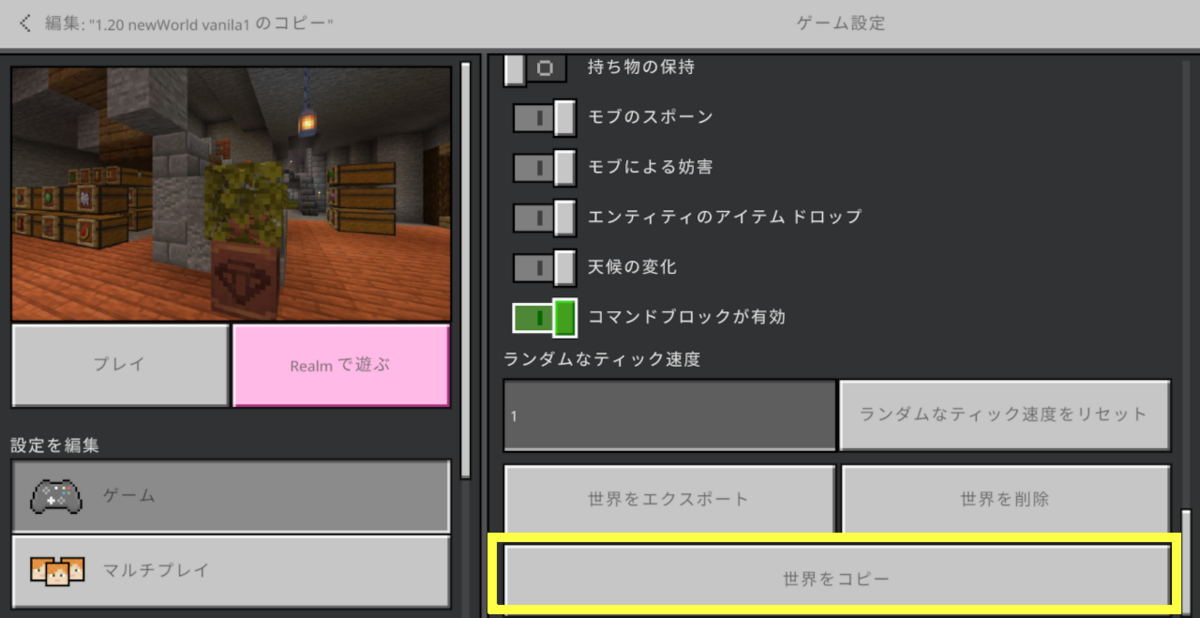
- Keep the original untouched. Do not toggle experiments directly on the only version of your main survival save.
- Create a separate copy. Use the in-game copy option or the automatic copy created when enabling an experiment.
- Make an independent backup. Use the backup/export method available on your platform, and confirm that you know where the file is stored.
- Read the version-specific notes. Confirm which experimental toggle is needed and whether the feature is available in stable Minecraft, Preview, or a creator-focused build.
- Enable only what you intend to test. Avoid adding unrelated experiments and packs at the same time; otherwise, it becomes harder to identify what caused a problem.
- Test in a low-stakes area. Check loading, block behavior, world generation, mobs, and any add-ons that matter to your project.
- Keep the test copy clearly named. Include “TEST” or “EXPERIMENTAL” in the name so you do not accidentally continue your main playthrough in the wrong save.
- Return to the original for serious progression. If the experiment is unstable or you want a clean long-term world, keep playing the untouched original rather than trying to reverse the experimental state.

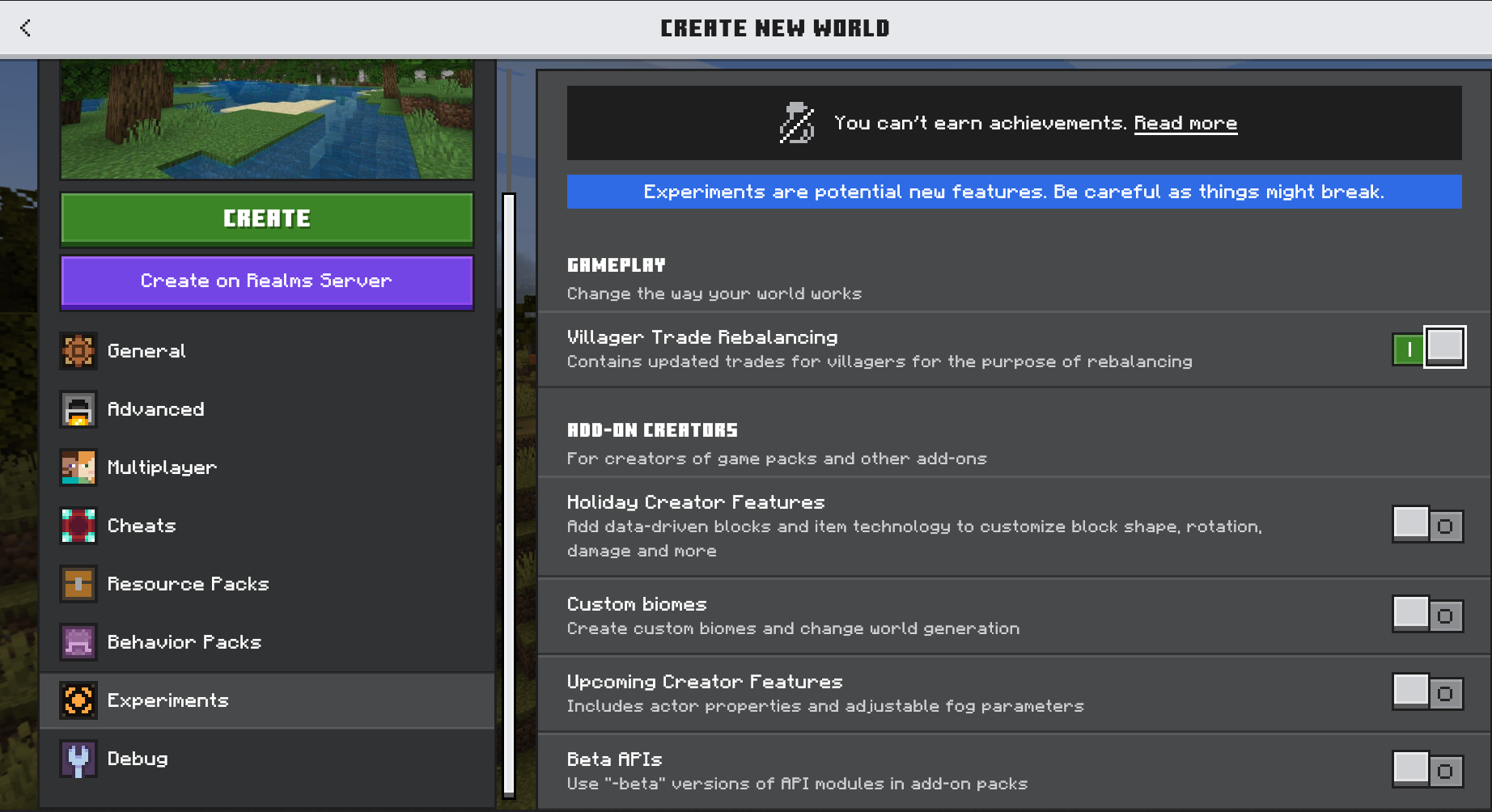
How to enable an experiment on a copy in Bedrock Edition
Menu labels can change between versions, but the general flow described in Minecraft’s official documentation is:
- Open the Worlds list and select the edit/settings control for the world copy.
- Open the Game settings and scroll to the Experiments section.
- Enable only the experimental toggle required for the feature you want to test.
- Read the confirmation warning. Continue only if you accept that the test world may crash, break, or behave differently after an update.
- Check the Worlds list for the Experimental label and confirm you are loading the intended test copy.
If your menus differ, consult the current official instructions for your edition and platform. Do not use an external world editor to force an experiment off after the fact; changing world metadata without understanding the format can create additional problems.
References: official Bedrock toggle instructions and Minecraft: Testing New Minecraft Features.
What about Java Edition?
Java Edition uses a different testing workflow. Players commonly try upcoming changes through snapshots, while certain gameplay experiments can be enabled through data packs when supported. Do not apply Bedrock-specific assumptions—such as the exact Experiments menu or automatic-copy behavior—to every Java world. Before loading an important save in a snapshot or with an experimental data pack, make a separate copy and verify the version-specific instructions.
Minecraft’s official guide to testing new features explains the broad distinction between Bedrock experimental toggles and Java snapshot testing. You can read it here: Testing New Minecraft Features.
Frequently asked questions
Can I turn off Experimental Features later in Bedrock?
Official Bedrock guidance says a world that uses experimental feature toggles cannot be restored to a non-experimental state through the normal settings. Keep the original non-experimental world if you want a clean fallback.
Does Minecraft automatically make a copy of an existing world?
Minecraft’s official Bedrock instructions say that enabling an experimental toggle on an existing world creates a “Copy of…” version. Make an additional backup for valuable saves rather than relying on a single copy alone.
Will Experimental Features always corrupt my world?
No. The warning describes a risk, not a guaranteed outcome. A world may work normally during testing, but unfinished features can crash, break, or become incompatible with future updates.
Should I enable experiments if I care about achievements?
Be cautious. Experimental and some add-on configurations can affect achievement eligibility in Bedrock. Check the current in-game warning and official documentation, and keep a separate clean world for achievement-focused play.
Can I use experiments in a Realm or multiplayer world?
Compatibility depends on the feature, edition, version, and hosting setup. Verify the specific experiment’s requirements before trying to use it in a shared world, and never test it first on the only copy of a world used by friends or family.
What is the safest way to try a new Minecraft feature?
Use a dedicated test world or a copy of your existing save, create an independent backup, enable only the needed toggle, and leave the original world untouched.
Bottom line
Experimental Features can be a great way to explore Minecraft’s future, but they are a poor gamble for the only copy of a long-term survival world. Mojang warns that experimental worlds may break or stop working after updates, and Bedrock worlds with experiments cannot simply be switched back to a non-experimental state. Keep your main save clean, make a separate test copy, and back it up independently. You can still explore new mechanics without putting months—or years—of survival progress on the line.
Sources
- Minecraft Feedback — Experimental Features Toggle in Bedrock Edition
- Microsoft Learn — Experimental Features in Minecraft: Bedrock Edition
- Minecraft — Testing New Minecraft Features
- Minecraft Help — Restore or Recreate a Bedrock Edition World
Editorial note: This guide distinguishes official warnings and documented behavior from general safety recommendations. Exact options may vary by edition, platform, and game version.