Updated October 27, 2026: Minecraft players have recently reported sign-in and connection trouble, including Microsoft authentication errors, launcher screens that keep loading, and failed attempts to join online services. The reports do not, by themselves, confirm a widespread Minecraft outage. The fastest approach is to check service status first, then refresh your account session and troubleshoot the device only if the problem continues.
For Minecraft players in the United States, here is what the latest reports indicate and what to try before reinstalling the game.
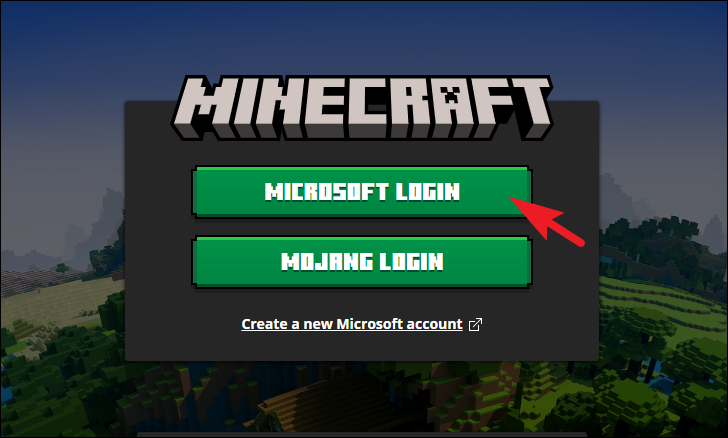
Is Minecraft down right now?
As of the latest checks reviewed for this update, there is no clear confirmation of a broad Minecraft outage. An independent status tracker listed the service as operational while also showing recent player-submitted reports, including sign-in and connectivity complaints. Those reports are useful signals, but they are not proof that every player—or a specific platform—is affected.
That distinction matters: a Microsoft account authentication problem, an Xbox service issue, a local launcher problem, and an individual multiplayer server outage can look almost identical from the player’s side. If several devices or friends in different locations fail at the same time, wait a few minutes and recheck service reports before changing settings.
Check these sources before trying fixes:
- Xbox status for account and network services.
- Minecraft account sign-in support for official troubleshooting steps.
- Recent Minecraft user reports as a secondary signal, not an official outage declaration.
Quick fixes to try first
1. Fully close Minecraft and sign in again
Close the game and the Launcher completely, then reopen the Launcher. Use the account menu to sign out and sign back in with the Microsoft account that owns Minecraft or has the relevant subscription. On consoles and mobile, open Minecraft’s Settings, choose Account, and use the sign-out option before signing in again. On Nintendo Switch or PlayStation, follow the on-screen code flow and enter the code only at the official address shown by the game.

2. Make sure the same account is used everywhere
On Windows, check the account shown in Minecraft Launcher, the Xbox app, and Microsoft Store. A mismatch can make the Launcher behave as if you do not own the game, or leave the sign-in window stuck. Sign out of the apps where the wrong account is active, then sign in with the account connected to your Minecraft purchase or eligible subscription. Do not create a new account just to get past an error.
If the Play button is missing or the Launcher asks you to buy a game you already own, verify the purchase using your Microsoft account’s order history and review the official missing Play button guide.
3. Restart the device and check the connection
Restart your PC, console, or phone, then test the connection again. If you are on Wi-Fi, try moving closer to the router or briefly testing another trusted network. If you use a VPN or proxy, temporarily disconnect it to see whether it is blocking the sign-in flow. Avoid changing router security settings or disabling your firewall permanently.
4. Update the Launcher, game, and platform apps
On Windows, open Microsoft Store and select Library, then check for updates. Update Minecraft Launcher and the Xbox app if updates are available. On consoles and mobile devices, check the platform’s game-update screen. An outdated app can cause a login or service handshake to fail even when your password is correct.
For official installation guidance, use the Minecraft Launcher download and install guide. Download the Launcher only from Minecraft.net, Microsoft Store, or the official Xbox app—not from third-party download mirrors.
5. Repair the Windows app before reinstalling
If the problem only affects a Windows PC, open Settings → Apps → Installed apps, find Minecraft Launcher, choose Advanced options, and select Repair if that option is available. If it still fails, check the Xbox app and Microsoft Store sign-in, then consider the app’s Reset option after reading the warning about local app data. Menu labels can vary by Windows version.
You can also press Windows + R, type wsreset.exe, and press Enter to refresh the Microsoft Store cache. Let the process finish, reopen the Store, and try the Launcher again. Do not delete your saved worlds or Minecraft folders as an early troubleshooting step.
Fixes for common Minecraft login errors
| What you see | What it may mean | First thing to try |
|---|---|---|
| “Authentication servers are down” or “Invalid session” | The login session may be expired, or an authentication service may be temporarily unavailable. | Sign out and back in once; if many players report the same issue, wait and recheck status. |
| Launcher stays on “Sign in with Microsoft” | The browser-based sign-in window or Windows gaming sign-in components may not be completing. | Restart the Launcher and device, then update the Xbox app and Microsoft Store. |
| “You need to authenticate to Microsoft services” | The game cannot use a valid account session for the requested service. | Refresh the account session and confirm the account is correct. |
| Missing Play button or a request to buy Minecraft | The active account may not own the game or the Launcher may be using a different account. | Check the Launcher, Xbox app, and Store accounts and verify purchase history. |
| Cannot join one server or Realm | The problem may be specific to that server, Realm, platform permissions, or network. | Try another server or ask the Realm owner to check availability before reinstalling. |
When should you stop troubleshooting and wait?
If the same error appears across multiple devices, friends in different locations are affected, or service-status reports show a matching incident, stop making local changes and wait for the service to recover. Repeatedly signing in, changing passwords, or reinstalling the game will not fix a confirmed server-side issue and can create more account confusion.
If only one device is affected, continue with the account, update, network, and repair steps above. If you suspect the Microsoft account is locked or compromised, use Microsoft’s official account support rather than sharing passwords or verification codes with anyone.
What not to do
- Do not share your Microsoft password, one-time verification code, or remote sign-in code with another person.
- Do not download unofficial “login fixers,” modified launchers, or tools that ask for your account credentials.
- Do not delete saved worlds or reinstall the entire game before checking account and service status.
- Do not assume a few player reports prove a global outage.
Related Minecraft Switch 2 coverage
For more platform-specific updates, read our guides to the Minecraft Switch 2 digital upgrade and Vibrant Visuals on Switch 2.
Frequently asked questions
Is Minecraft having a login outage on October 27, 2026?
Recent player reports include login and connectivity complaints, but the reports reviewed for this article do not confirm a widespread outage. Check Xbox status and Minecraft Help for updates before assuming the problem is global.
Why does Minecraft keep asking me to sign in?
The Launcher or game may have an expired session, the wrong Microsoft account may be active, or a platform sign-in component may not be responding. Fully close the game, sign out, and sign back in with the account that owns Minecraft.
Will reinstalling Minecraft fix a Microsoft login error?
Not usually as a first step. Check service status, confirm the account, update the Launcher, restart the device, and repair the app first. Reinstall only when official troubleshooting points to a damaged installation.
Where can I get official help?
Start with the Minecraft Account Sign-in help center and the Xbox status page. Never give your password or one-time code to someone claiming they can fix the login for you.
Author: Shivam Das
Reporting note: Service status can change quickly. This article distinguishes observed player reports from a confirmed platform-wide outage and should be rechecked if new official information appears.