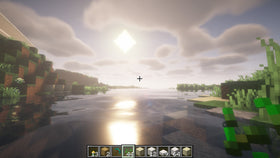
Quick answer: For the best chance of a smoother Minecraft experience on Nintendo Switch 2, start with Vibrant Visuals set to Favor Performance, reduce render distance from its maximum if needed, and choose a frame-rate limit that stays stable during your normal play. Treat 60 FPS as a target, not a guarantee: large bases, busy mob areas, weather, water reflections, and heavy Marketplace content can change performance. If smoothness matters more than enhanced lighting, test the standard Fancy or Simple graphics modes as well.
Minecraft for Nintendo Switch 2 launched on October 27, 2026, with Vibrant Visuals as a headline feature. The enhanced lighting, shadows, reflections, and volumetric fog can make the Overworld look dramatically different, but extra visual effects can also create a trade-off between image quality and frame rate. The best setup depends on whether you prioritize responsiveness, sharpness, or cinematic lighting.
Important: Mojang and Nintendo describe the visual features, but they do not promise that every scene will hold 60 FPS with Vibrant Visuals enabled. The settings below are a practical starting point to test on your own console, not an official guaranteed-performance profile.
Recommended starting settings for smoother play
| Setting or choice | Starting recommendation | Why |
|---|---|---|
| Graphics mode | Vibrant Visuals | Keeps the enhanced lighting and reflections; switch away if frame pacing is more important than the visual effects. |
| Vibrant Visuals preset | Favor Performance | Prioritizes responsiveness over the highest visual quality. |
| Render distance | Start around 12–16 chunks, then test | A moderate view distance is a sensible baseline; lower it further if busy scenes stutter. |
| Frame-rate limit | Try 60 FPS if available | A cap can make the target clear, but it cannot force the game to maintain that rate in every scene. |
| Individual visual options | Reduce costly effects first if the menu exposes them | Lowering reflections, shadow quality, or volumetric fog may help, depending on the available options in your version. |
| Split-screen | Use Fancy or Simple graphics | Mojang says Vibrant Visuals is not supported in local split-screen and the game switches to another rendering mode. |
Menu names and available controls can change between updates. If your Switch 2 version presents different options, use the closest available performance preset rather than hunting for a setting that your build does not offer.
How to change Vibrant Visuals settings
- Update Minecraft first. Install the latest available update for the Switch 2 version before comparing performance. A new build may include rendering or stability changes.
- Open Settings and choose Video. Minecraft’s general Vibrant Visuals instructions place the graphics-mode selection in the Video settings. Switch 2 may show platform-specific options.
- Select Vibrant Visuals. Keep it enabled if you want the lighting, fog, and reflections that define the mode.
- Open the Vibrant Visuals options. If your build exposes presets, start with Favor Performance rather than Favor Visuals.
- Reduce render distance if frame drops continue. Test a moderate value before making several other changes at once.
- Choose a frame-rate limit you can sustain. If a 60 FPS target produces frequent drops, test a lower cap if your build provides one. Consistent frame pacing can feel better than a higher number that fluctuates heavily.
- Test the same scene after each change. Walk through the same area, look across water, enter a forest, and revisit a busy base. Change one option at a time so you can tell what actually helped.
Favor Performance vs. Favor Visuals
The preset choice is the easiest place to start. Favor Performance prioritizes smoother play, while Favor Visuals prioritizes the enhanced look. Neither setting is universally best: a player exploring large landscapes may prefer the dramatic lighting, while someone building, fighting, or moving quickly may notice frame drops more than the extra reflections.
Choose Favor Performance if you want
- More consistent responsiveness while moving and turning the camera.
- A better starting point for exploring, combat, and fast travel through varied terrain.
- To keep Vibrant Visuals enabled while reducing some visual overhead.
Choose Favor Visuals if you want
- More emphasis on image quality and the effects that make lighting and water stand out.
- A slower, scenic building or screenshot session where a lower frame rate is acceptable.
- To prioritize atmosphere over the most responsive controls.
Do not assume Favor Performance will hold 60 FPS everywhere, or that Favor Visuals always runs at one fixed lower rate. Real-world performance varies with the scene, update, render distance, and the effects in view.
Render distance: the first setting to test
Render distance controls how far away chunks are drawn. Higher values let you see more of the landscape, but they also increase the amount of world the game must display. If you notice stutter while looking across a valley, exploring a dense forest, or approaching a large base, try lowering render distance a few steps before sacrificing every visual effect.
A useful test is to begin around 12–16 chunks and compare the same location with a higher setting. This is a suggested starting range, not an official Nintendo or Mojang recommendation. If your game remains smooth and you want more distant terrain, raise it gradually. If it still stutters, test a lower value and revisit your frame-rate cap.
Which effects should you lower first?
If the Switch 2 version exposes individual Vibrant Visuals controls, change them in small steps rather than disabling everything immediately. Reflections and shadow effects are visually noticeable, and volumetric fog can contribute heavily to the atmosphere. Reducing one or more of these options may improve the balance on your console, but the effect on performance depends on the build and scene.
- Reflections: Lower them if looking at rivers, lakes, or wet surfaces coincides with noticeable slowdowns.
- Shadow quality: Reduce it if the game struggles in forests, under complex structures, or around lots of moving light and shadow.
- Volumetric fog: Test a lower setting or turn it off if available and if you prefer clearer views over atmospheric depth.
- Fancy leaves and other detail options: If your version offers these controls, compare them in a forest where foliage fills the screen.
These are troubleshooting priorities, not a claim that every option is individually adjustable on every Switch 2 build. Use only the controls that appear in your current game menu.
Should you turn Vibrant Visuals off for 60 FPS?
If your main goal is responsiveness, test the regular Fancy or Simple graphics mode. Vibrant Visuals is a cosmetic rendering upgrade, not a gameplay requirement, and the official guidance notes that graphics mode can affect performance on supported devices. On Switch 2, community reports and early reviews show that performance varies by graphics preset and scene; some players prefer the standard rendering mode when they want a higher frame rate or fewer visual compromises.
Compare both modes in the same world. Do not judge performance only in a new, empty world: a mature survival base with farms, mobs, storage, and redstone may behave differently. If turning off Vibrant Visuals produces a noticeably steadier experience, that is a valid choice—the best setting is the one that makes your own game feel good.
Why split-screen behaves differently
Mojang’s official Vibrant Visuals guidance says the mode is not supported in local split-screen. When multiple players join locally, Minecraft switches to Fancy or Simple rendering. That is expected behavior, not necessarily a bug or a setting you missed.
If you are playing with someone on the same console, focus on the graphics mode the game actually selects and test the performance there. Do not use split-screen results to judge how Vibrant Visuals performs in single-player, because the game may be using a different rendering path.
How to test for a stable 60 FPS target
- Pick a repeatable route. Use the same forest edge, water view, cave entrance, and built-up area for each test.
- Start with Favor Performance. Keep other settings at their current values for the first run.
- Test a moderate render distance. Compare around 12–16 chunks against your current setting, if those values are available.
- Watch for frame-time spikes, not only average FPS. Sudden freezes or judder can feel worse than a slightly lower but stable frame rate.
- Change one option at a time. Test reflections, shadows, fog, or foliage only if the menu offers them.
- Repeat in a busy area. A smooth walk through an empty field is not proof that a large survival base will run identically.
- Set a realistic cap. If your version offers several frame-rate limits, choose the highest one that feels consistently stable in the places you play most.
There is no universal setting combination that guarantees 60 FPS in every Minecraft world. Your goal is a repeatable, comfortable experience—not a single best-case number from an empty test world.
Common mistakes to avoid
- Maxing every setting at once: High visual quality and high render distance can make demanding scenes less stable.
- Assuming a 60 FPS cap guarantees 60 FPS: A cap limits the maximum; it does not guarantee the game can render every frame on time.
- Changing five settings together: You will not know which change helped or hurt.
- Testing only in an empty world: Large bases and busy areas can behave differently.
- Expecting Vibrant Visuals in split-screen: Official guidance says local split-screen uses Fancy or Simple rendering instead.
- Copying settings from a different platform: Available controls and performance targets can vary by device and version.
Frequently asked questions
Can Minecraft Switch 2 run Vibrant Visuals at 60 FPS?
It can be a reasonable target to test, but 60 FPS is not guaranteed in every scene with Vibrant Visuals enabled. Start with Favor Performance and moderate render distance, then test your own world.
What is the best Vibrant Visuals preset for performance?
Start with Favor Performance. It is designed to prioritize performance over the highest visual quality, although actual results vary by scene and update.
What render distance should I use?
Try around 12–16 chunks as a practical starting point, then raise or lower it based on how your world performs. This is a troubleshooting recommendation, not an official fixed setting.
Does Vibrant Visuals work in split-screen?
No. Mojang’s guidance says Vibrant Visuals is not supported in local split-screen, and the game switches to Fancy or Simple rendering when multiple players join locally.
Should I disable Vibrant Visuals for smoother gameplay?
If Favor Performance and a moderate render distance still produce distracting stutter, compare Fancy or Simple graphics mode in the same area. Smooth, responsive play may be worth more to you than the extra lighting and reflections.
Are these official Nintendo settings?
No. They are practical starting points based on the available graphics controls and general performance troubleshooting. Nintendo and Mojang do not promise a single settings combination that guarantees 60 FPS in all worlds.
Bottom line
For a smoother Minecraft experience on Switch 2, start with Vibrant Visuals’ Favor Performance preset, use a moderate render distance, and test a sensible frame-rate cap. Lower individual effects only if the options exist in your build, and compare results in the same busy areas you actually play. If you still see distracting drops, try Fancy or Simple graphics mode. The goal is a stable experience—not a promise of locked 60 FPS in every situation.
Sources: Minecraft: Play Minecraft on Nintendo Switch 2 (October 27, 2026); Minecraft: Vibrant Visuals update and settings; Nintendo: Minecraft for Nintendo Switch 2; Nintendo Life: Minecraft Switch 2 review.