By Shivam Das · Updated October 29, 2026
Minecraft on Nintendo Switch 2 finally has the hardware and native version to show off Vibrant Visuals by default—but pretty lighting is not a free performance upgrade. Reflective water, longer shadows, atmospheric fog, and brighter scenery can make a familiar world feel new. The trade-off appears when the game has more to draw: a large farm, dense foliage, a busy build, a long render distance, or a world that is still streaming chunks.
Quick answer: Keep Vibrant Visuals on when lighting and reflections are the priority, but switch to a performance-oriented graphics preset or turn the mode off when you notice uneven frame pacing, stutters, or delayed chunk loading. There is no reliable universal FPS number for every Switch 2 world. Official notes confirm platform-specific graphics behavior and a split-screen performance improvement, while player-reported tests show that demanding scenes can behave very differently from simple test worlds.
Official Nintendo Switch 2 reveal
Watch Nintendo of America’s official overview of Minecraft on Switch 2. It showcases the game and Vibrant Visuals, but it is not an FPS benchmark.
What Vibrant Visuals actually changes on Switch 2
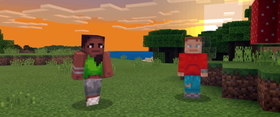
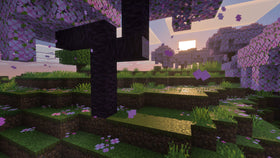
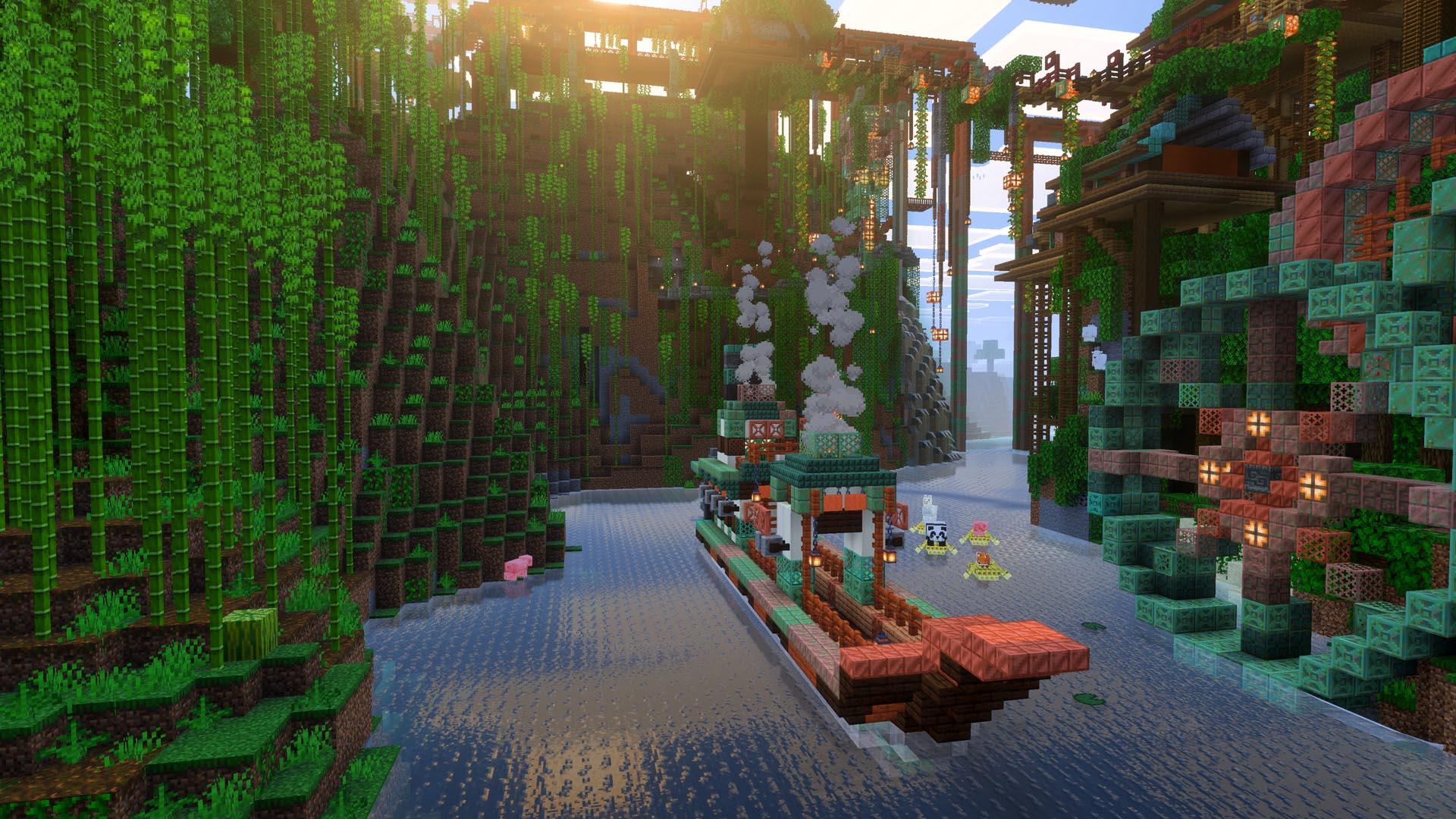
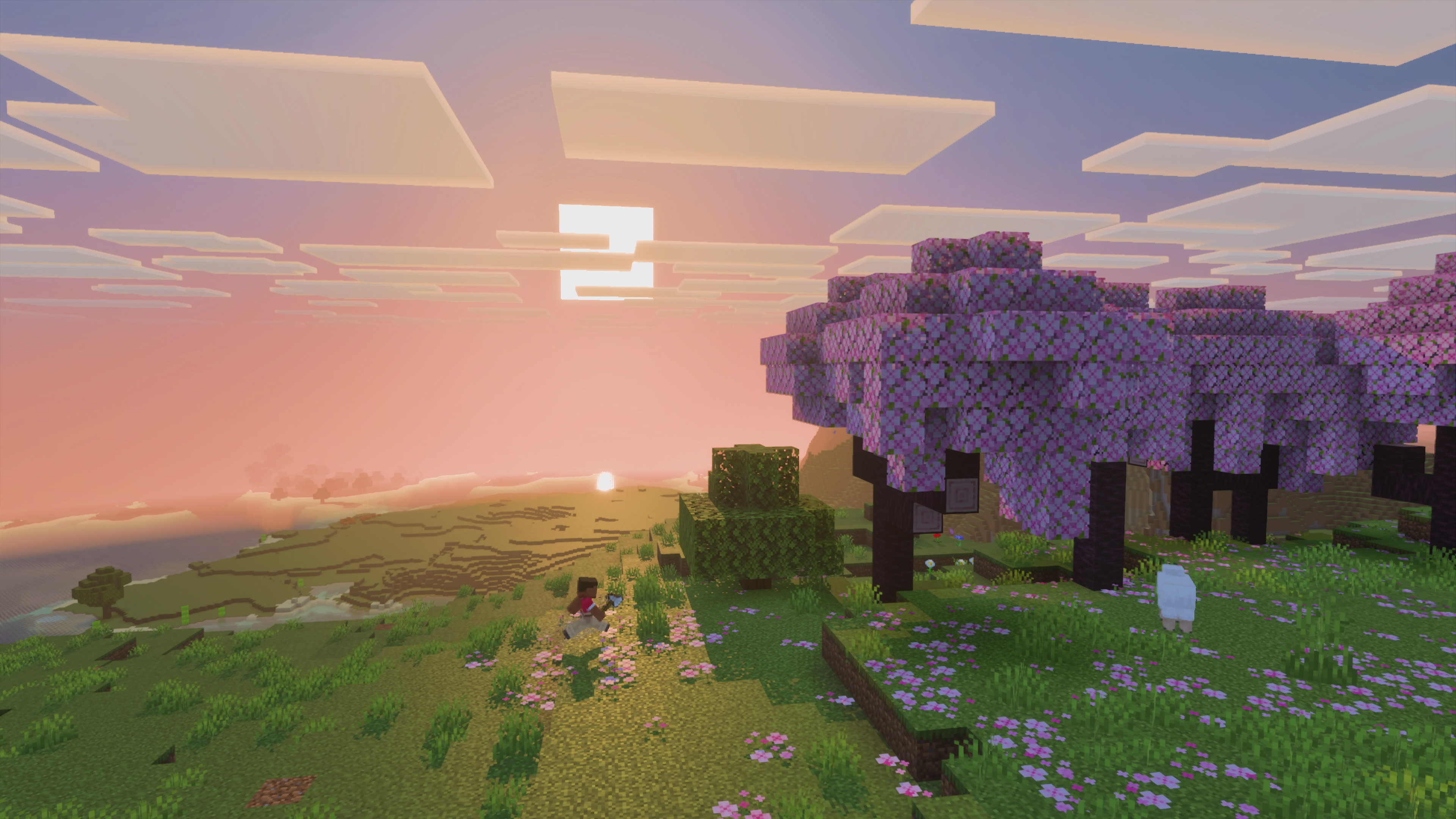
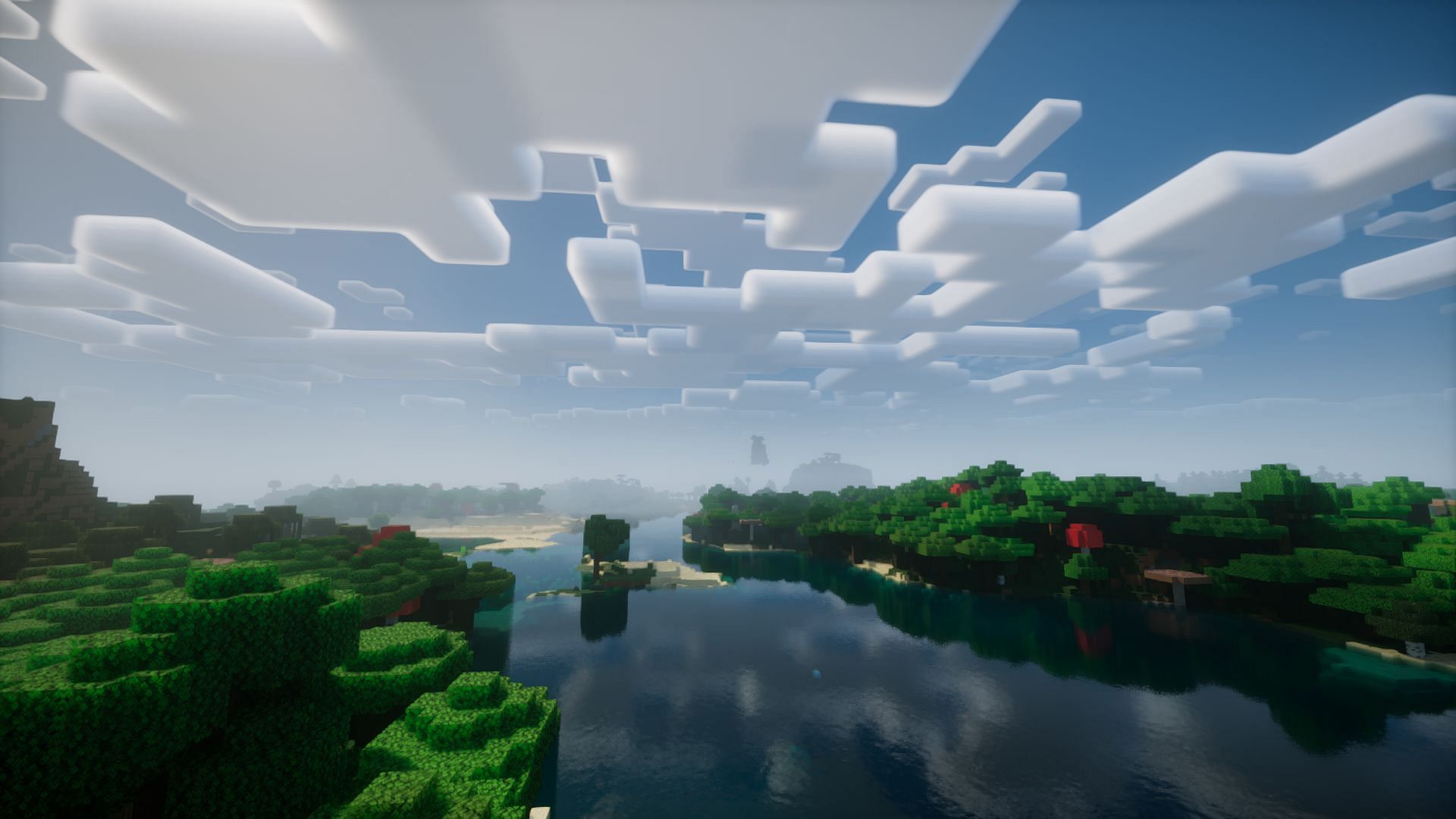
Mojang describes Vibrant Visuals as a graphics upgrade built around directional lighting, volumetric fog, moving shadows, reflections, and improved interactions between light and the world. On Switch 2, the native version launched with Vibrant Visuals as the default visual experience. That means the first impression is often dramatic: water catches the sky, tree cover creates deeper shade, and sunsets change the mood of familiar blocks.
The important distinction is that these are visual effects, not gameplay bonuses. They do not make tools mine faster, improve loot, or increase a farm’s output. They change how the world is rendered, and rendering more visual detail can cost performance in scenes that are already demanding.

When it looks amazing—and when it starts to struggle
| Situation | What to expect | Best first move |
|---|---|---|
| Scenic exploration, water, sunsets | Reflections, fog, and changing shadows are easy to notice. | Keep Vibrant Visuals enabled if motion remains smooth. |
| Large farms with many entities or moving parts | Game simulation and rendering can both become busy; a dip is not automatically caused by graphics alone. | Compare the same scene with visuals on and off, without changing other settings. |
| Dense forests, tall builds, and long sightlines | More visible geometry and effects can increase rendering work. | Reduce render distance or choose a performance-oriented preset if available. |
| Fast creative flight or rapid travel | Chunk streaming can become the bottleneck, so terrain may appear late even if average FPS seems acceptable. | Test a slower route and note whether the issue is stutter, low FPS, or missing chunks. |
| Local split-screen | Vibrant Visuals is unavailable in some gameplay, including split-screen. | Expect a different rendering mode rather than trying to force the same look. |
What the reported FPS numbers do—and do not—tell us
A recent player report in r/NintendoSwitch2 described a specific Switch 2 test: below 30 FPS with maximum graphics settings and Vibrant Visuals enabled, roughly 30–40 FPS in handheld mode during ordinary movement, and around 20 FPS during fast creative flight. The same post reported better results with Vibrant Visuals disabled and more stable performance in a simple flat world. These are the author’s observations—not an official Mojang benchmark, not an independent lab test, and not a promise that every player will see the same result.
That difference matters. A flat world with little foliage and few entities is not comparable to a mature survival base full of villagers, hoppers, redstone clocks, animals, crops, and storage. Creative flight also reveals chunk-streaming limits in a way that ordinary walking may not. If your own farm feels slower, measure the same location under the same conditions before blaming one setting.
Docked versus handheld: test your actual play style
Do not assume docked and handheld play will feel identical just because they use the same world. Your display, preferred camera distance, play location, and the scene itself affect what you notice. A performance problem that appears while flying quickly over unexplored terrain may not appear while building in a compact base. Conversely, a large farm can be demanding even when you move slowly.
For a fair comparison, choose one repeatable route: start at the same base entrance, walk past the same farm, look at the same horizon, and record any stutters or chunk pop-in. Repeat the route with Vibrant Visuals enabled and disabled. Change only one setting at a time. If the game feels smoother but the world looks flatter, you have a practical trade-off to make—not proof that one mode is universally best.
Settings checklist for a smoother Minecraft session
- Start with the graphics preset. Compare Vibrant Visuals against the available performance-oriented or simpler rendering option before changing several settings at once.
- Lower render distance if the horizon is expensive. Long views can be beautiful, but they also ask the system to keep more terrain visible.
- Test in the world that actually causes trouble. A clean test world is useful for comparison but cannot represent a complicated survival base.
- Watch for chunk pop-in separately from frame rate. Terrain appearing late during fast movement may indicate streaming pressure rather than only a lighting cost.
- Keep the game updated. The October 27 Bedrock 26.60 changelog lists a Switch 2 split-screen performance improvement and adds a warning when render distance exceeds the visual graphics level. Update notes do not guarantee that every farm or world will run at a fixed FPS.
- Use the simpler mode when playability matters more than atmosphere. For redstone testing, large farms, or competitive sessions, consistent motion may be more valuable than reflective water.
- Recheck after changing Marketplace content. Certain Marketplace worlds and content can disable Vibrant Visuals, so not every world will offer the same graphics behavior.
What official sources confirm
Mojang’s Switch 2 announcement says Vibrant Visuals is the default graphics experience for the native version, with improved lighting, fog, and reflections. Nintendo’s launch information also notes that the feature is unavailable in some gameplay, including split-screen and certain Marketplace worlds. The October 27 Bedrock 26.60 changelog lists a Switch 2 split-screen performance improvement and a warning for render distance above the visual graphics level. None of these official notes promises a fixed FPS target for every world.
Read the primary sources: Mojang’s Switch 2 and Vibrant Visuals announcement, the official Switch 2 release announcement, the Bedrock 26.60 changelog, and Nintendo’s Switch 2 announcement.
FAQ
Does Vibrant Visuals always reduce FPS on Switch 2?
No universal result is confirmed. The performance impact depends on the scene, render distance, other settings, and whether the bottleneck is rendering, simulation, or chunk streaming. Compare the same route with the mode enabled and disabled.
Is 30 FPS normal for Minecraft on Switch 2?
One player-submitted report described drops to roughly 30–40 FPS in handheld mode with Vibrant Visuals enabled, and lower values during fast creative flight. That is an individual report, not an official baseline or a result every player should expect.
Can I use Vibrant Visuals in split-screen?
Official Minecraft and Nintendo information says Vibrant Visuals is unavailable in some gameplay, including split-screen. The game may switch to a simpler rendering mode instead.
What should I turn off first if my farm stutters?
First compare the same scene with Vibrant Visuals disabled or a performance-oriented preset selected. Then test a lower render distance. Keep other settings unchanged so you can tell which adjustment helped.
Why do chunks appear late when I fly quickly?
Fast movement can expose world-streaming limits. Late terrain loading is not the same as a measured frame-rate drop, so record both symptoms separately and test again at walking speed.
The bottom line
Vibrant Visuals is worth keeping on when Minecraft’s reflections, fog, and changing shadows make exploration more immersive and your world remains smooth. It is reasonable to switch to a simpler mode when a large farm, dense base, or fast traversal produces stutter or delayed chunks. Treat online FPS figures as reports from specific setups—not universal benchmarks—and use a repeatable A/B test on your own Switch 2 save before deciding.
Author: Shivam Das