Updated October 28, 2026 · By Shivam Das
Want Minecraft to feel faster on Nintendo Switch 2? Some players say they have pushed the native version beyond 60 frames per second by switching off Vibrant Visuals, choosing the standard Fancy graphics mode, keeping render distance reasonable, and disabling the frame-rate cap. The key detail is that this is a community-reported setup—not an official Mojang 120-FPS preset or a guarantee that every world will run at 120 FPS.
Quick answer: For a performance-first experiment, turn Vibrant Visuals off, choose Fancy graphics, set render distance to around 16–20 chunks as a starting point, and disable the FPS limit if that option appears in your version. Test in your own world and lower render distance if frame pacing becomes uneven. Reaching 120 FPS depends on the scene, game build, mode, and display—and should be treated as a possible peak, not a locked target.

Can Minecraft really reach 120 FPS on Switch 2?
It may be possible in some conditions, but the evidence needs context. Nintendo says Switch 2 supports frame rates up to 120 FPS in compatible games; that is a platform capability, not a promise that every Minecraft scene will render at 120 FPS. The game can still slow down when it has to process a large view, many entities, complex terrain or rapid chunk loading.
In a launch-day Reddit discussion, one player recommended turning Vibrant Visuals off, using Fancy graphics, setting render distance to around 20 chunks or lower, and disabling the FPS limit to aim for up to 120 FPS. That is a useful starting point to test, but it is a single player's report—not a controlled benchmark, a developer-confirmed setting list, or proof of a steady 120 FPS in every biome.
For comparison, Mojang's native Switch 2 release supports Vibrant Visuals by default. The official feature improves lighting, shadows, fog and reflections; choosing standard graphics trades some of that presentation for a simpler rendering path. Mojang's Switch 2 launch guide and Nintendo's Switch 2 features page explain the platform and visual features, but neither promises a Minecraft-specific 120-FPS target.

The settings to try first
| Setting | Starting point | Why it matters |
|---|---|---|
| Graphics Mode | Fancy, not Vibrant Visuals | Turns off the enhanced visual renderer and its extra effects. |
| Vibrant Visuals | Off | Removes the visual mode's lighting, fog and reflection features. |
| Render Distance | 16 chunks first; test up to 20 | A shorter view usually means fewer distant chunks to render and manage. |
| Frame Rate Limit | Unlimited / Off, if available | Removes a software cap, but does not force the game to reach 120 FPS. |
| World for testing | Fresh, quiet Overworld | Avoids comparing a simple test area with a busy base full of entities and farms. |
| Play mode | Test handheld and docked separately | Performance and display behavior can vary by mode and setup. |
These values are a practical test plan based on community reports, not official Switch 2 recommendations. If your menu uses different labels or does not offer a frame-rate limit control, do not assume a hidden toggle exists—use the closest available graphics options and check the current version's settings.
Step-by-step: turn Vibrant Visuals off
- Launch the native Minecraft version for Nintendo Switch 2, rather than the original Switch version running through compatibility.
- From the title screen, open Settings and then Video.
- Find Graphics Mode and choose Fancy or the standard graphics option available in your build.
- If a separate Vibrant Visuals toggle or section appears, make sure that mode is no longer selected.
- Look for the frame-rate limit control. If it is available, set it to unlimited or off for testing.
- Start at 16 chunks of render distance. If movement remains smooth, try increasing it toward 20 chunks.
- Close and relaunch the world if the setting change does not seem to apply, then test a repeatable route for several minutes.
Minecraft Help's official graphics-mode guide explains how to find the Video settings and notes that some graphics options can be unavailable while a world is active or when incompatible content is in use. Menu labels can change between platforms and updates, so use the options your Switch 2 build actually displays.

How to check whether the change helped
- Use the same route. Test a forest edge, an open field and a village instead of comparing unrelated scenes.
- Move, don't just stand still. Turn the camera, sprint, jump and travel far enough to trigger new chunks.
- Check a busy save. A fresh world can run more smoothly than a mature base with villagers, farms, redstone and dropped items.
- Repeat the test. Run the same route twice after loading the world so one temporary hitch does not define the result.
- Prefer stable motion to a peak number. A brief 120-FPS reading is less useful than consistent input response and fewer stutters.
If you do not have a reliable in-game counter, do not guess the frame rate from how smooth the game looks. Record the settings and your subjective result, and treat any third-party overlay or capture-based measurement as an estimate unless its method is clearly documented.
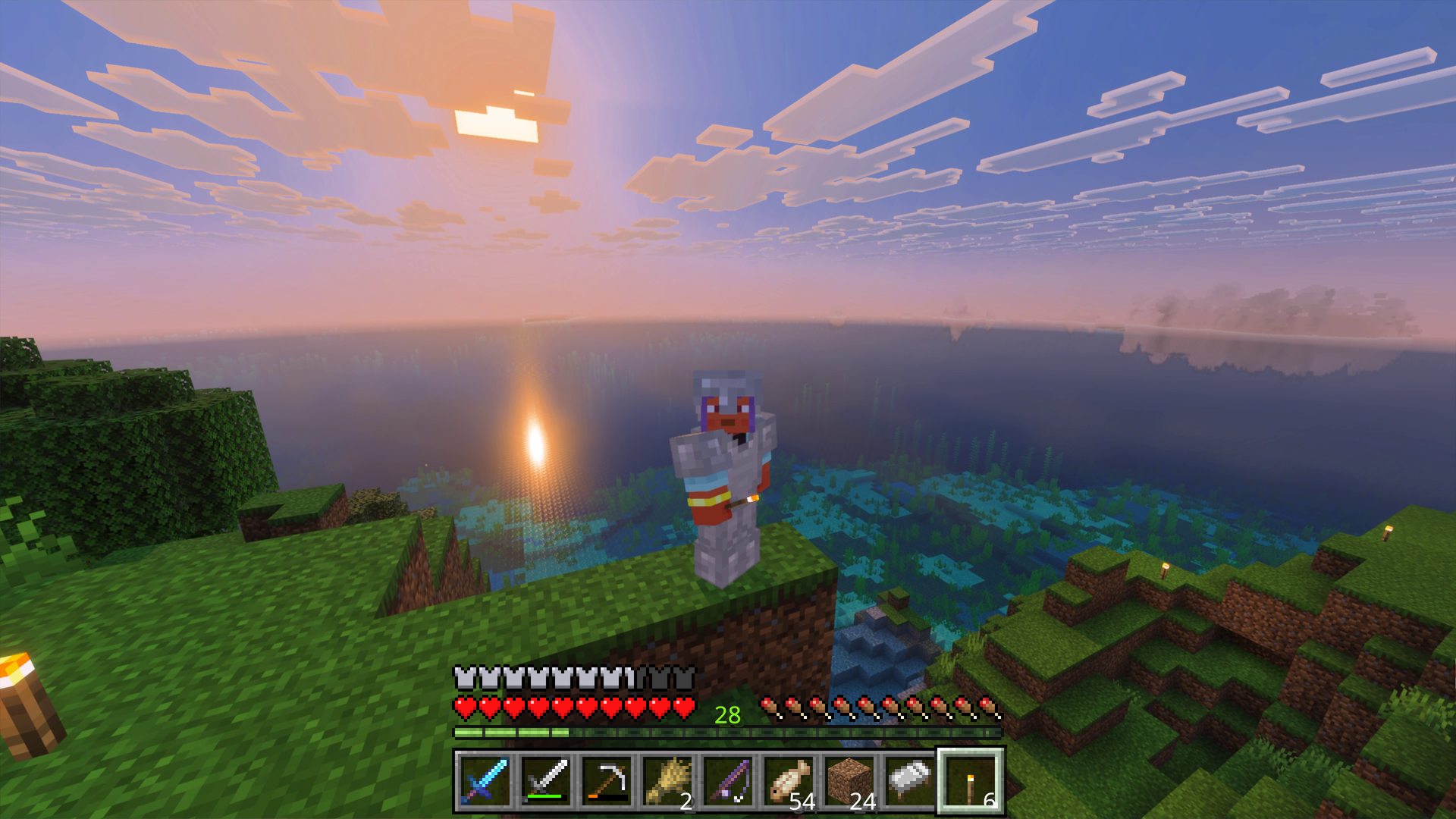

Why you might not reach 120 FPS
Your world is demanding
Villagers, animals, item entities, redstone contraptions, farms and a large base can all add work. If a fresh world feels fast but your main save does not, reduce render distance before dismantling builds or changing unrelated settings.
Chunk loading interrupts movement
Fast travel can expose pauses while the game brings new terrain into view. Try a slightly shorter render distance and compare the same route again. Turning off visual effects cannot eliminate every hitch caused by loading or simulation work.
Your display or output mode has a different limit
Nintendo's stated 120-FPS support applies to compatible games and displays. Make sure your screen and selected output mode support the refresh rate you expect, and remember that the console's general capability does not establish the game's actual frame rate.
You prefer the look of Vibrant Visuals
There is no need to chase 120 FPS if the simpler renderer makes the game less enjoyable. Vibrant Visuals is the native Switch 2 edition's signature graphics upgrade, and Mojang designed it to add directional lighting, dynamic shadows, volumetric fog and water reflections. Try it with performance-oriented options first if those effects matter more to you than maximum frame rate.
120 FPS settings: what is confirmed and what is not?
| Claim | Evidence status |
|---|---|
| Switch 2 hardware supports up to 120 FPS in compatible games | Confirmed by Nintendo, with compatibility and display requirements. |
| Turning Vibrant Visuals off may improve Minecraft performance | Reasonable, player-reported result; varies by scene and build. |
| Fancy graphics, about 16–20 chunks and uncapped FPS can be a starting setup | Community-reported configuration, not an official preset. |
| Every player can lock Minecraft at 120 FPS with these settings | Not confirmed. No official guarantee or universal benchmark establishes this. |
For related coverage, read our Switch 2 settings comparison and Switch 2 split-screen and Vibrant Visuals explainer.
FAQ
How do I get 120 FPS in Minecraft on Switch 2?
There is no guaranteed universal setup. As a community-reported starting point, switch Vibrant Visuals off, use Fancy graphics, test around 16–20 chunks of render distance, and disable the FPS cap if your version offers one. Then measure your own world.
Does turning Vibrant Visuals off guarantee higher FPS?
No. It removes extra visual effects and may improve performance, but the result depends on world complexity, rendering distance, the game build and the selected output mode.
Should I set render distance to 20 chunks?
Use 16 chunks as a conservative starting point, then try 20 if the game remains smooth. Lower it again if chunk loading or camera movement becomes uneven. The ideal value varies by world.
Can the Switch 2 display 120 FPS?
Nintendo says the console supports up to 120 FPS in compatible games and with suitable displays. That is not the same as confirming Minecraft runs at 120 FPS all the time.
Is Fancy graphics the same as Vibrant Visuals?
No. Fancy is a standard graphics mode; Vibrant Visuals adds enhanced lighting, shadows, fog and reflections. Choosing Fancy means giving up some of those effects in favor of a simpler rendering path.
The bottom line
If you want to chase higher frame rates in Minecraft on Switch 2, start with Vibrant Visuals off, Fancy graphics, a moderate render distance and an uncapped frame rate if the option is available. Test in the same locations and judge consistent motion—not a peak number alone. Some players report reaching up to 120 FPS in favorable conditions, but the exact result is not officially guaranteed and will not hold in every world.
Author: Shivam Das