Updated October 28, 2026 · By Shivam Das
Minecraft’s native Nintendo Switch 2 edition is finally here, and the choice is no longer simply “better graphics or worse graphics.” The real trade-off is how much visual polish you want before motion starts to feel less responsive. Vibrant Visuals adds richer lighting, dynamic shadows, atmospheric fog and water reflections, but pushing every graphics option to its highest level can cost smoothness.
Quick answer: Start with the performance-oriented graphics preset if you care most about responsive movement, combat and building. Choose the visuals-oriented preset when you’re exploring, taking screenshots or building at a slower pace. Treat “maximum graphics” as a quality-first experiment, not a guaranteed 60-FPS setting: early player reports and review testing suggest frame rates can fall substantially when visual settings are pushed hard.
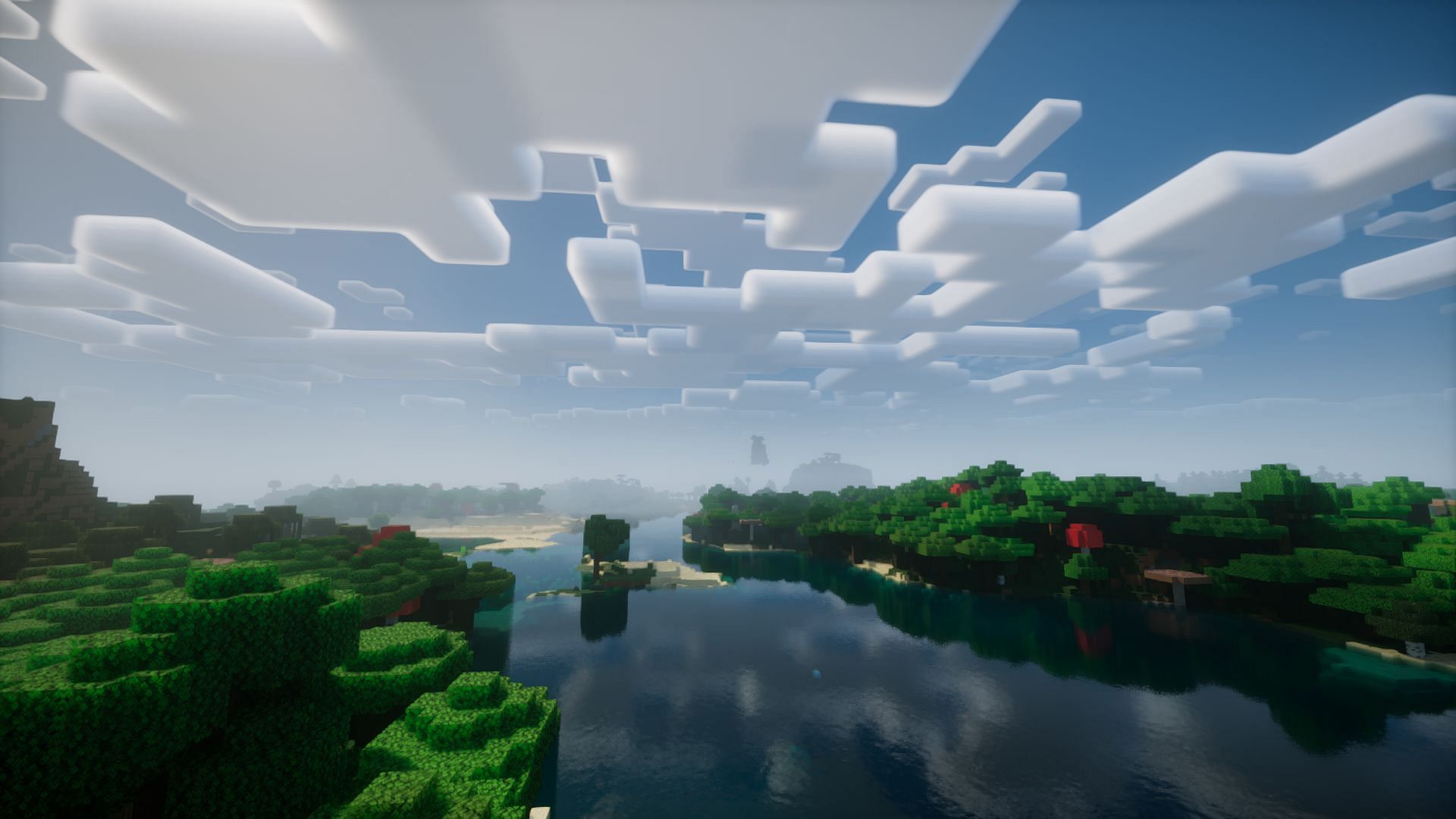
What Switch 2’s graphics modes actually mean
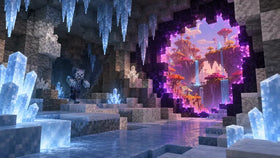
The Switch 2 version is a native release built to take advantage of the newer console. Minecraft and Nintendo describe Vibrant Visuals as adding directional lighting, volumetric fog, shifting shadows and improved water reflections. It is a meaningful visual upgrade, not a change to Minecraft’s core building or survival rules.
However, a graphics preset is not a promise of a fixed frame rate. The balance depends on the scene, effects in view, and the exact settings available in the current build. Nintendo Life’s launch review describes a 60-FPS target with occasional drops, while noting that dialing up graphical options can bring performance closer to 30 FPS. That is why the best setting depends on how you play, not just which screenshot looks prettiest.
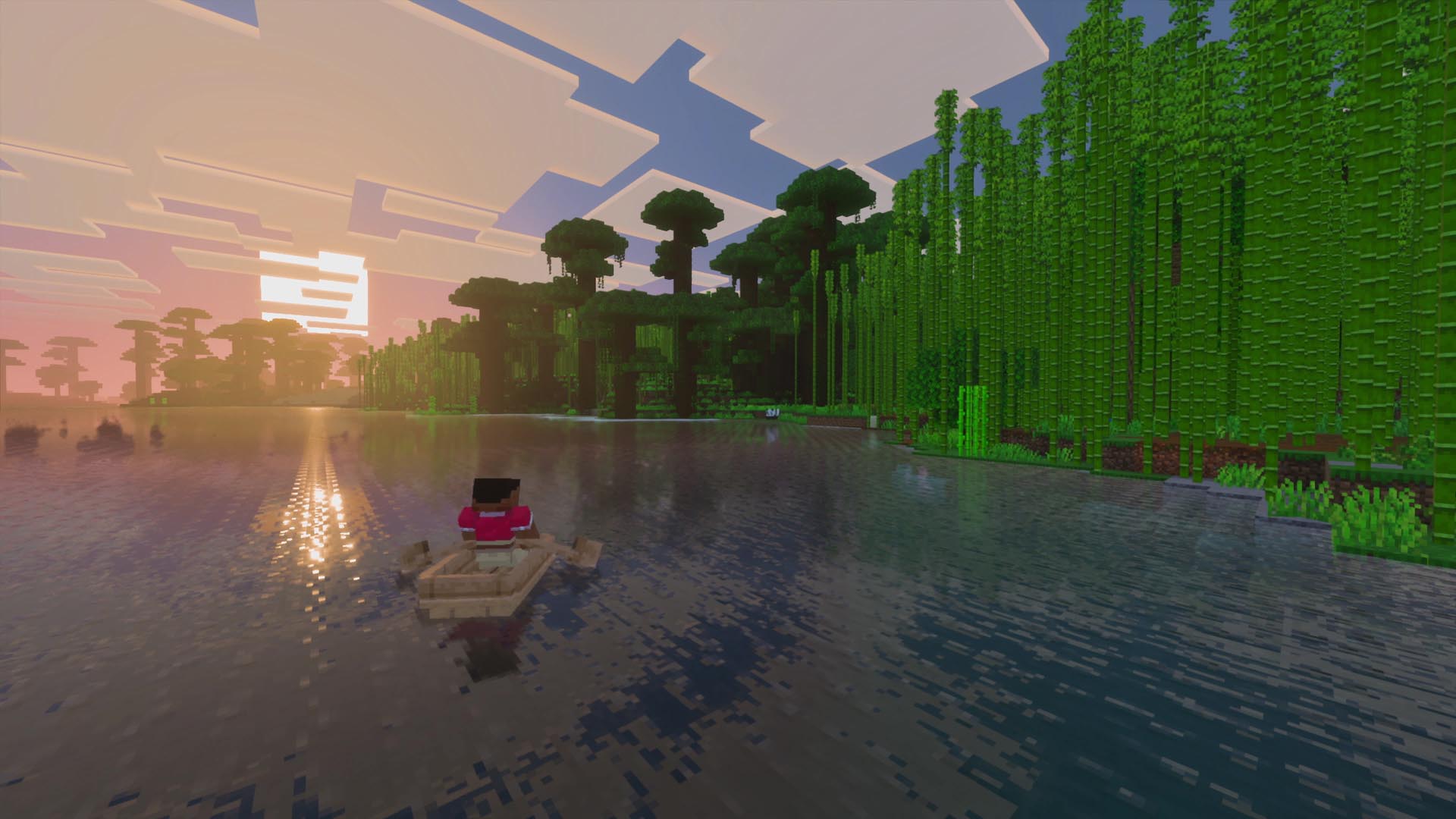
Recommended settings for the smoothest feel
1. Choose the performance-focused preset first
If you spend most of your time in Survival, sprinting through caves, fighting mobs, or placing blocks precisely, responsiveness matters more than the finest shadow detail. Start with the preset labeled for performance or frame rate if it is available in your current graphics menu. It is the sensible baseline for handheld play and busy worlds.
- Best for: Survival, combat, quick movement and everyday play.
- What you give up: Some lighting, shadow, reflection or image-quality detail may be reduced.
- How to judge it: Test while turning quickly, moving through tree cover and entering a busy village—not only while standing still.
2. Use the visuals-focused preset for exploration
When you are exploring a scenic biome, building a showcase base or taking screenshots, the visuals-focused preset is worth trying. Expect richer lighting and a more polished image, but do not assume it will hold the same frame rate as the performance preset in every scene.
- Best for: Creative builds, scenic exploration and screenshots.
- Trade-off: Motion can feel less consistent if the scene becomes demanding.
- Tip: Compare the same location at the same time of day so the lighting differences are easier to spot.
3. Avoid maxing every option before you test
Maximum settings can be tempting, but “everything on” is not automatically the best experience on a handheld console. A player performance report posted to Reddit on October 27 described sub-30-FPS performance with all settings maxed, while the default performance-oriented setup felt smoother but looked softer. That is an individual report, not a controlled benchmark or a guarantee for every player; it does illustrate why it is worth adjusting one setting at a time.
How to find the graphics options
- Save and exit your world to the main menu if the game will not let you change the graphics mode while playing.
- Open Settings, then select Video.
- Find Graphics Mode and select Vibrant Visuals if it is available.
- Look for the performance/visual-quality preset or individual Vibrant Visuals options offered by your version.
- Change one option at a time, then test the same area for several minutes.
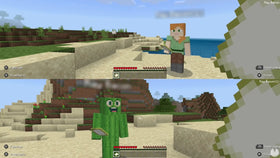
Minecraft’s official help page notes that graphics choices can be unavailable while a world is active, on incompatible systems, or when conflicting add-ons or content are in use. The Switch 2 native release supports Vibrant Visuals, but the mode is not supported in every situation—including split-screen and some Marketplace worlds or content.
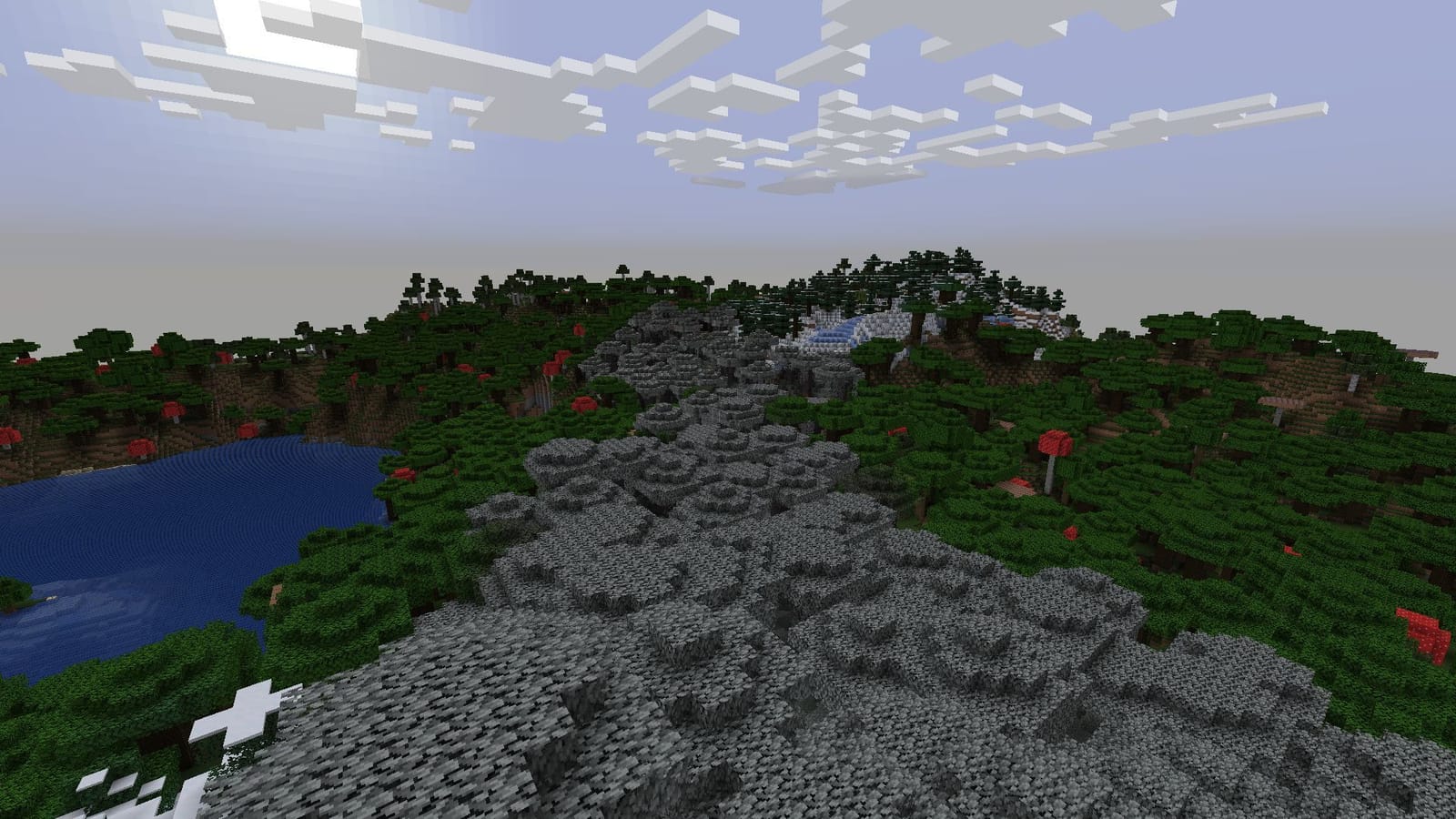
60 FPS versus maximum graphics: which should you choose?
| Play style | Start with | Why |
|---|---|---|
| Survival and combat | Performance-focused preset | Responsive movement matters most. |
| Creative building | Performance first; raise quality selectively | Stable controls help with precise placement. |
| Scenic exploration | Visuals-focused preset | Lighting and reflections add atmosphere. |
| Handheld sessions | Performance-focused preset | A consistent feel is often more valuable on a small screen. |
| Showcase screenshots | Higher visual settings | Prioritize the image when real-time responsiveness matters less. |
There is no verified universal setting combination that guarantees 60 FPS in every Switch 2 world. The honest recommendation is to start with performance, raise individual visual options gradually, and keep the highest-quality configuration only if the game still feels comfortable to play.

Common problems and quick fixes
Vibrant Visuals is grayed out
Return to the main menu before changing graphics mode. If the option remains unavailable, check for incompatible add-ons, texture packs or Marketplace content and make sure the game is updated. Some gameplay modes, including split-screen, do not support Vibrant Visuals.
The game looks sharper but feels slower
Switch back to the performance-oriented preset, then re-enable visual options one by one. Compare the same scene and movement route. Avoid judging performance only from a still image or a quiet area.
Water and leaves shimmer or look soft
Some players have reported shimmering or softer-looking output with performance-oriented settings. Try the visuals-focused preset to see whether the image improves, then decide whether the quality gain is worth any reduction in responsiveness. Results can vary by scene and settings.
What the official sources say
Mojang’s Switch 2 launch guide confirms the native edition and Vibrant Visuals support. The official Vibrant Visuals overview explains the graphics mode, while Minecraft Help’s graphics settings guide covers changing presets and troubleshooting unavailable options. For a launch-day independent perspective, see Nintendo Life’s Switch 2 review.
For related coverage, read our Minecraft Switch 2 split-screen and Vibrant Visuals explainer.
FAQ
What is the best Minecraft Switch 2 setting for 60 FPS?
Start with the performance-focused preset. It is the most practical choice for players who prioritize responsiveness, but no setting can guarantee a locked 60 FPS in every scene.
Does maximum graphics mean 60 FPS?
No. Higher visual settings can reduce performance. Launch reviews and individual player reports describe dips when graphics options are pushed harder, so test your own world instead of assuming maximum quality is also the smoothest mode.
Can I use Vibrant Visuals in split-screen?
No. Official Minecraft and Nintendo information says Vibrant Visuals is unavailable in split-screen and in some Marketplace worlds or content.
Why can’t I select Vibrant Visuals?
Exit the active world and open Video settings from the main menu. If the option is still disabled, update the game and check whether an add-on or selected world is incompatible.
The bottom line
For most Switch 2 players, the best starting point is performance-first, not maximum graphics. Use the visual-quality preset when you want to slow down and admire a build, and keep the smoother configuration for Survival, combat and everyday play. Test changes in a repeatable location, trust how the game feels in motion, and remember that a beautiful screenshot does not prove a setting will deliver a steady 60 FPS.
Author: Shivam Das