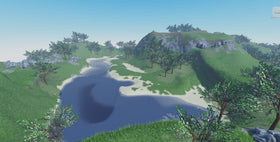
Roblox can look noticeably better with its graphics quality turned up: lighting becomes richer, shadows look sharper, particles are more visible, and distant parts of a world may render in greater detail. But the highest setting is not automatically the best setting for every player. When a game begins to stutter, a phone feels unusually warm, or a laptop struggles to keep a steady frame rate, lowering graphics quality can be a practical trade-off.
There is an important distinction here: Roblox has not announced a new “Vibrant Visuals” feature or a one-hour graphics shutdown for its platform. The relevant player control is the in-experience Graphics Mode and Graphics Quality setting. Roblox’s own support documentation says players can let the device choose quality automatically or switch to Manual and move the slider left for better performance. Roblox Support: Graphics Quality.

Why lowering graphics can make Roblox feel smoother
Rendering a detailed 3D world takes work from a device’s graphics hardware and other system resources. Roblox’s Creator documentation explains that higher quality levels can increase rendering distance, shading quality, apparent geometry and texture resolution, particle rendering, trail effects and post-processing. Lower settings reduce some of that visual detail. The exact changes depend on the platform and the experience, so one slider position will not look or perform identically on every device. Roblox Creator Hub: QualityLevel.
That trade-off matters most in visually busy experiences: large maps, dense effects, complex lighting, lots of particles, and crowded scenes can place more demand on a device than a simple obby or lobby. A player may prefer slightly simpler visuals if it means camera movement and input feel more consistent.

Long sessions can expose problems that are not obvious at launch
A device may run an experience smoothly at first and struggle later. Roblox’s Creator Hub recommends testing experiences on actual hardware because sustained play can reveal issues that short desktop tests miss. Its hardware-testing guidance specifically identifies thermal throttling: phones, tablets and thin laptops can reduce CPU or GPU clock speeds when they become too hot during sustained gameplay. It suggests observing performance over a 10–15 minute active session rather than relying only on a quick test. Roblox Creator Hub: Test on Hardware.
This does not mean every warm phone is overheating or that every frame-rate drop is caused by temperature. A demanding experience, background apps, limited memory, power settings and the device itself can all matter. Lowering graphics may reduce rendering work, but it is not a guaranteed cooling fix and it cannot repair a weak network connection.

How to lower Roblox Graphics Quality safely
- Join the Roblox experience you want to play.
- Open the in-experience menu by clicking the Roblox logo or pressing Esc on a keyboard.
- Select Settings.
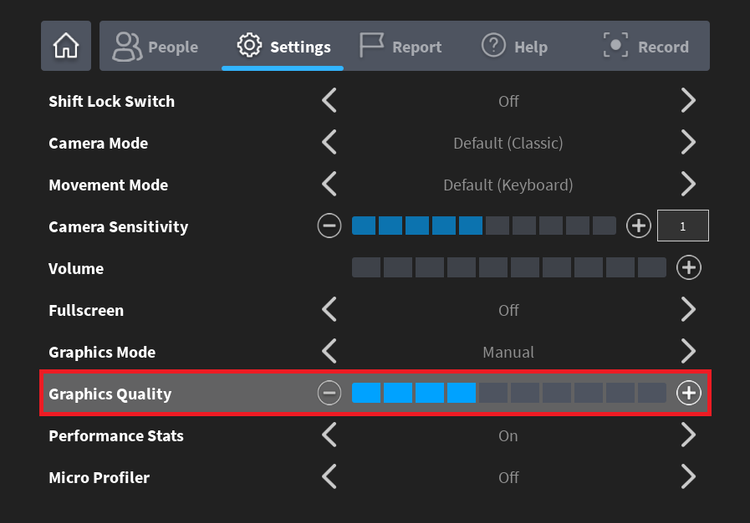
- Change Graphics Mode from Automatic to Manual if you want to control it yourself.
- Move the Graphics Quality slider a little to the left, then resume the experience and test it.
- Repeat gradually until you find a balance between smooth play and acceptable visual detail.
Roblox documents this exact control path and explains that moving the slider right improves graphics while moving it left favours performance. If you prefer the device to choose the setting, switch Graphics Mode back to Automatic. Official graphics settings instructions.
Do not confuse graphics lag with network lag
One of the most useful points in Roblox’s own troubleshooting guide is that “lag” can describe different problems. Graphics lag can make visuals stutter or look choppy. Network lag can make other players appear to warp around or cause actions to take unusually long. System lag can continue even after graphics are lowered, particularly when other demanding apps are using the device’s resources. Roblox Support: How to Reduce Lag and Speed Up Play.
| What you notice | Possible cause | What to check first |
|---|---|---|
| Camera movement looks choppy or frames visibly stutter | Graphics or device performance | Lower Graphics Quality and close unnecessary apps |
| Players jump around, or actions arrive late | Network latency or connection instability | Check Wi-Fi or mobile data; graphics changes may not help |
| Performance gets worse after sustained play | Heat, memory pressure or background workload | Check ventilation, close demanding apps and test again |
| Only one experience runs poorly | That experience may be unusually demanding | Compare with another Roblox experience on the same device |
Why the lowest setting is not always the right answer
Very low quality can reduce visual effects and detail, and in some experiences it can make distant objects harder to see. That may be an acceptable compromise for a player trying to stabilise performance, but it can be frustrating in exploration, driving, flight or competitive experiences where visibility matters. A better approach is to lower the setting in small steps, test the same area, and stop once performance is stable enough.

What Roblox players should try during a long session
- Start with the experience’s normal setting. Do not assume the lowest graphics level is necessary.
- Watch for the type of lag. Stuttering and delayed network actions point to different causes.
- Change one setting at a time. That makes it easier to tell whether graphics quality actually helped.
- Give the device room to breathe. Avoid covering phone or laptop vents and close apps that are not needed.
- Compare more than one experience. If only one game struggles, its effects or design may be part of the problem.
- Restore visual quality when it is safe to do so. The best setting is the highest level your device can sustain comfortably in that experience.
Frequently asked questions
Does Roblox automatically lower graphics after one hour?
Roblox’s public support guidance describes Automatic and Manual graphics modes, but it does not document a universal one-hour timer that switches graphics off. Device behaviour can vary, and sustained play may expose performance or heat issues.
Will lowering Graphics Quality fix high ping?
No. Roblox distinguishes network lag from graphics lag. Lowering graphics can help when the device is struggling to render the experience, but it does not improve an unstable internet connection.
Should I use Automatic or Manual graphics mode?
Automatic lets the device control graphics quality. Manual gives the player direct control. If performance becomes inconsistent, try Manual and lower the slider gradually; if you prefer automatic adjustment, switch back.
Can lowering graphics stop a phone from overheating?
It may reduce some rendering workload, but it cannot guarantee a lower device temperature. Heat can have several causes, and Roblox’s hardware guidance recommends testing sustained performance on the actual device.
What is the best Roblox graphics setting?
There is no universal best level. It depends on the device, the experience, the scene and the balance a player wants between image quality and smooth performance.
The bottom line
Lowering Roblox Graphics Quality is not a platform-wide visual shutdown or a new feature trend confirmed by Roblox. It is a built-in performance control. For players whose devices struggle during demanding or extended sessions, a modest reduction can make play feel smoother. The smart move is to diagnose the problem first, adjust gradually, and avoid sacrificing more visual quality than necessary.
By Shivam Das