Roblox developers have a new way to turn written dialogue into reusable game audio. In an October 22, 2026 Studio Beta announcement, Roblox expanded AssetService:CreateAssetAsync() so creators can pass an AudioTextToSpeech object and create an audio asset before players enter an experience. The practical payoff: recurring NPC lines, tutorial prompts, and announcements can be prepared during development instead of being generated on demand every time a player triggers them.
This does not replace every use of live text-to-speech. It adds a second workflow for dialogue known in advance. The key decision is which lines should be saved as assets, which must react to the player, and how to test the voice before release.
What changed in the Roblox Studio TTS Beta?
The existing AudioTextToSpeech system converts text into speech at runtime. That remains useful for changing instructions, contextual hints, and dialogue that depends on a player's current state. The October 22 Studio Beta adds asset creation: developers can use text, voice ID, pitch, and speed settings to generate a reusable audio asset through AssetService:CreateAssetAsync().
Roblox says this new path is intended for speech that can be generated ahead of time. Because the voice line is created as an asset during development rather than requested during gameplay, the saved clip can play when needed without making a fresh runtime TTS request for that playback.

When should a developer save a voice line as an asset?
Use a generated audio asset when the words are stable and players will hear the same line in many sessions. Good candidates include:
- NPC greetings: “Welcome back, traveler.”
- Tutorial instructions: “Stand on the glowing platform to continue.”
- Shop and quest prompts: fixed explanations that do not change with inventory or quest state.
- Round announcements: “The next round begins in ten seconds.”
- Accessibility narration: stable descriptions of menus, controls, and important objects.
Keep runtime TTS for lines that genuinely need live information: a hint naming the player's current objective, a warning that changes with a nearby hazard, or dialogue assembled from changing world state. A useful rule: bake the sentence when the sentence is fixed; generate it live when the words themselves must change.
How to create a reusable TTS audio asset
The Beta announcement documents this method signature:
AssetService:CreateAssetAsync(
    object: Object,
    assetType: Enum.AssetType,
    options: table
): Enum.CreateAssetResult, number | string
For TTS asset creation, pass an AudioTextToSpeech instance, use Enum.AssetType.Audio, and supply an empty options table. Roblox's October 22 announcement says no options are currently supported for this workflow. It also says the asset service reads only four fields from the TTS object: Text, VoiceId, Pitch, and Speed. Other TTS object fields are ignored during asset creation.
local AssetService = game:GetService("AssetService")

local voiceLine = Instance.new("AudioTextToSpeech")
voiceLine.Text = "Welcome to the outpost. Your next mission is ready."
voiceLine.VoiceId = "3"
voiceLine.Pitch = 0
voiceLine.Speed = 1

local result, assetId = AssetService:CreateAssetAsync(
    voiceLine,
    Enum.AssetType.Audio,
    {}
)

if result == Enum.CreateAssetResult.Success then
    print("Created voice asset:", assetId)
else
    warn("Voice asset creation did not succeed:", result)
end
This is a Studio-side content-preparation workflow, not a script to run for every player joining a live server. Treat it as part of creator tooling. Check the current API reference and Beta announcement before building a production pipeline, because Beta behavior and supported options can change.
Choose a voice before generating a batch
Roblox documents preset voice IDs, including English voices and supported languages such as Spanish, German, Italian, French, Mandarin Chinese, Hindi, Japanese, Arabic, Korean, and Portuguese. The runtime TTS documentation also describes automatic localization through AudioTextToSpeech.AutoLocalize. Do not assume every localization property is baked into the new asset-creation path: the October Beta announcement specifically lists the four fields the asset service reads.
Listen to a short sample before generating dozens of clips. A voice that works in a menu can feel wrong for a shopkeeper, guide, or announcer. Test names, invented words, numbers, punctuation, and unusual pronunciations. If a line sounds awkward, rewrite it in natural spoken language rather than assuming the engine will infer the intended delivery.
Plan the audio path for 2D menus and 3D NPCs
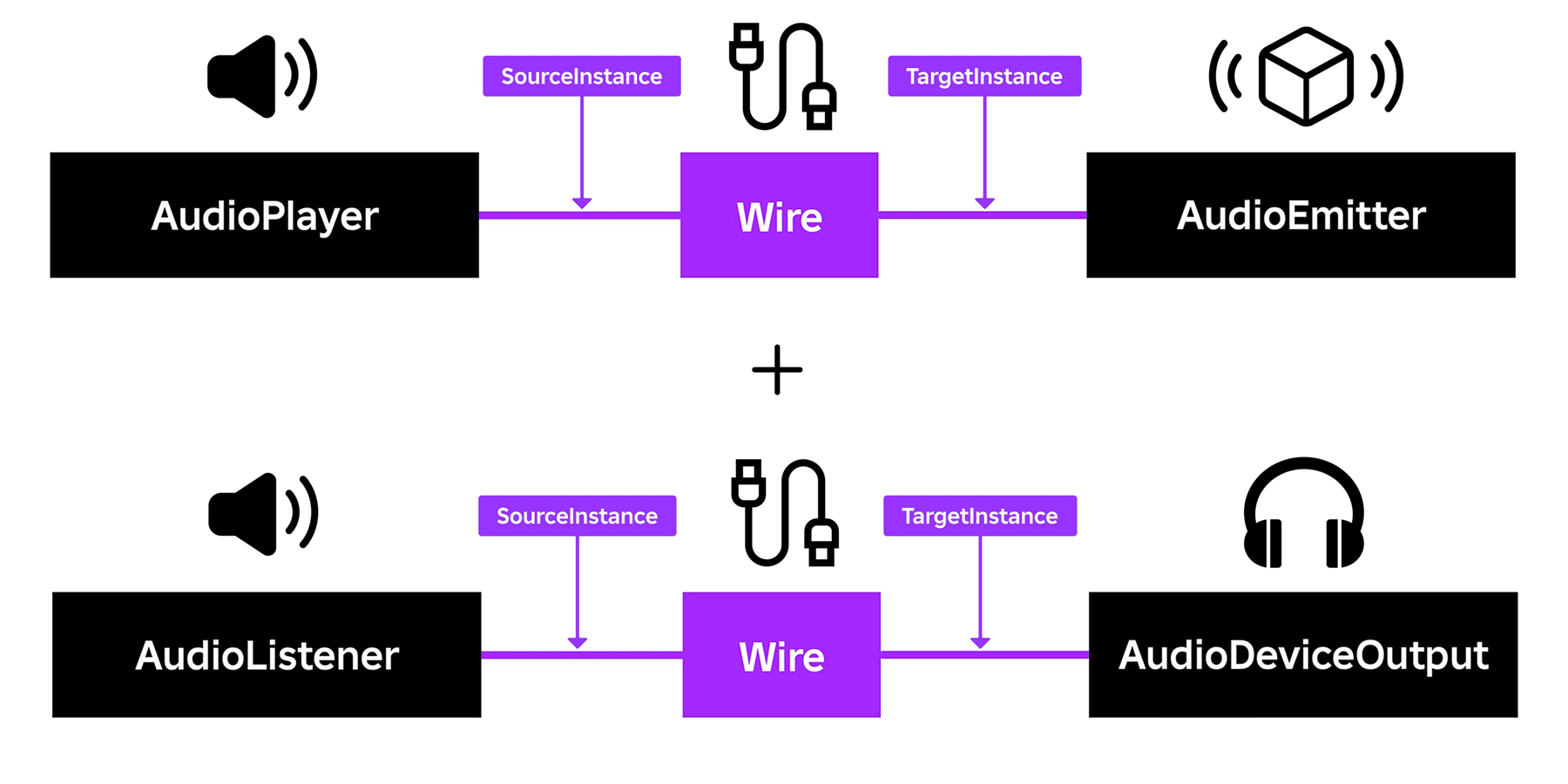
A saved audio asset is only one part of the experience. Roblox's modular audio system uses objects such as AudioPlayer, AudioEmitter, AudioListener, AudioDeviceOutput, and Wire to route sound.
For a menu announcement or tutorial prompt, non-directional 2D output is often simplest. For a shopkeeper or quest giver standing in the world, a 3D route can make the voice feel attached to the character and respond to player distance. Roblox's official audio guide explains the object connections for both setups.


What the Beta does not do yet
Creators should plan around the limitations Roblox listed in its October 22 announcement:
-
No custom asset names or descriptions: generated assets currently receive an automatic name in the format
TTS_Asset_1234567890. - No creator ID selection in this Beta flow: Roblox says the ability to specify a creator ID has not been added.
- No extra options table settings: the announcement says no options are supported for this workflow at present.
- Only four TTS properties are read: text, voice ID, pitch, and speed are used; other fields are ignored for this asset-creation operation.
Because generated names are not descriptive, keep your own mapping between dialogue keys and returned asset IDs in project notes or data. Use internal keys such as NPC_Guide_Welcome and Quest_Giver_Intro in your own table, then store the returned asset ID against each key. This makes it easier to replace a clip later without relying on the automatic asset name.
A practical production checklist before publishing
- Write the final dialogue first. Keep each clip focused on one instruction or response.
- Choose voice and settings. Record the selected voice ID, pitch, and speed beside each line.
- Generate only approved lines. Use asset creation for fixed dialogue, not constantly changing player-specific text.
- Save returned asset IDs. Maintain a simple key-to-ID list so scripts remain readable.
- Test in context. Listen through the actual UI or NPC audio route, with music and sound effects enabled.
- Check localization and accessibility. Verify the intended experience for supported languages and never communicate essential information by voice alone.
- Review policy compliance. Roblox says TTS text must follow its Community Standards and Terms of Use.
Why this matters for Roblox creators
The value of the Studio Beta is not simply that a developer can make a computer voice speak. Roblox already offered runtime TTS. The meaningful change is that creators can prepare repeatable spoken content as reusable audio assets, a better fit for fixed NPC barks, onboarding, tutorials, and announcements. Teams now have a clearer production choice: generate once and reuse when dialogue is stable, or keep runtime TTS when the game needs to construct speech dynamically.
For small teams, this distinction can reduce repeated runtime work and make voice content easier to test before release. For larger experiences, a controlled asset library can help keep recurring lines consistent across maps, quests, and updates. The feature is still a Beta, so creators should expect the workflow and its limitations to evolve.
Frequently asked questions
Does the new Studio Beta replace Roblox runtime text-to-speech?
No. Runtime AudioTextToSpeech remains useful for dialogue that changes with player actions or game state. The Beta adds reusable audio assets for lines prepared in advance.
Which method creates the reusable voice asset?
Use AssetService:CreateAssetAsync() with an AudioTextToSpeech object and Enum.AssetType.Audio, following Roblox's current Beta instructions.
Which properties affect the generated voice?
The October 22 Beta announcement says the asset service reads Text, VoiceId, Pitch, and Speed from the TTS object.
Can creators name the generated audio assets?
Not through the workflow described in the October 22 announcement. Roblox says generated assets currently use an automatic TTS_Asset_ name followed by the asset ID.
Is this useful for NPC dialogue?
Yes, especially for greetings, fixed quest prompts, vendor lines, and other dialogue that does not change. Use runtime TTS when the NPC needs to speak changing information, such as a player's current objective.
Official Roblox resources
- Roblox Developer Forum: Studio Beta – Text-to-Speech Asset Creation Support in Lua
- Roblox Creator Hub: Audio objects
- Roblox Creator Hub: AssetService API reference
- Roblox Creator Hub: AudioTextToSpeech API reference
- Roblox Creator Hub: Add text-to-speech tutorial
- Roblox Community Standards
By Shivam Das