Updated November 1, 2026 · By Shivam Das
Roblox Studio’s UIShadow system is getting a significant creative upgrade. Announced on October 14, 2026, the Studio Beta adds four capabilities: shadows that follow text, shadows drawn inside an element, knockout effects that prevent transparent surfaces from looking muddy, and gradient color across a shadow. There is one major restriction: Roblox says experiences using these new capabilities cannot yet be published live while the beta is in progress.
This is therefore a feature to experiment with in Studio—not a production switch that players will immediately see. Here is what changed, how to enable it, where each effect is useful, and what developers should test before planning a release.
Quick answer: what changed?
The beta adds Text mode, Inset shadows, ShowBehindParent control for knockout-style shadows, and support for a child UIGradient that colors a shadow. Enable it from File > Beta Features > Upgraded UIShadows, then restart Studio when prompted.
- Text shadows: follow the contours of characters in supported text objects.
- Inset shadows: render inside and on top of the parent instead of behind it.
- Knockout shadows: hide the portion of a shape shadow directly behind its parent.
- Gradient shadows: apply a color transition over the shadow’s base color.
Why the update matters for Roblox interfaces
UI polish affects readability and feedback. A button should look clickable, a selected tab should feel selected, and text needs to stand out over busy scenes. Developers have often assembled these effects with extra frames, duplicated text objects, image assets, or layered workarounds. Native shadow controls can make the interface easier to edit and scale across different screen sizes.
A restrained text shadow can improve title contrast without a thick outline. An inset shadow can make a button or inventory slot feel pressed. A knockout shadow can preserve a halo around a translucent panel without darkening the content behind it. A gradient shadow can match a game’s palette without a separate glow image.

1. Text shadows: the shadow follows the letters
Set UIShadow.Mode to Text to cast a shadow behind the glyphs in a TextLabel, TextButton, or TextBox. Instead of shadowing the full rectangular bounds of the UI object, the effect follows the shape of the characters.
This can help with game titles, dialogue labels, objective counters, button text, floating labels, and other interface copy. A soft offset can improve readability over a bright scene; a colored shadow can create a subtle glow for a heading or rarity label.
Text mode has clear limits: Spread, Inset, and ShowBehindParent have no effect while Mode is set to Text. Roblox says multiple text shadows can be added to the same parent. A text shadow can also coexist with a shape shadow by adding separate UIShadow instances with different modes.

2. Inset shadows: create a pressed or recessed surface
Set Inset to true to draw the shadow on top of and inside the parent UI object. This reverses the familiar drop-shadow direction: instead of making a card look raised, it can make a button or panel appear pressed inward.
Use Offset to control the direction and BlurRadius to soften the edge. Positive Spread values expand an inset shadow toward the center of the parent rather than outward. This can work for pressed buttons, recessed inventory slots, inset status bars, and panels that need a subtle inner edge.
ShowBehindParent has no effect when Inset is enabled. Test the result against the actual background and parent transparency; a heavy inner shadow can reduce contrast instead of improving it.

3. Knockout shadows: prevent unwanted darkening
The knockout-style effect uses ShowBehindParent. By default, the full shape shadow can render, including the portion directly beneath the parent. On transparent or semi-transparent UI, that overlap can create an unwanted dark patch.
Set ShowBehindParent to false to mask the part of the shadow directly behind the parent. The remaining halo can separate a translucent or glass-like card from the scene without darkening content visible through it. This property has no effect on inset shadows or text mode; it is intended for shape shadows.

4. Gradient shadows: color without a separate glow image
Add a child UIGradient to a UIShadow to apply a color gradient over the shadow’s base Color. This allows directional fades and multi-color effects, such as a cool blue-to-violet aura or a warm highlight around a reward card.
The practical advantage is editability: creators can adjust the gradient and shadow properties in Studio rather than maintaining a separate image for every variation. Keep the effect restrained, preserve contrast around text and icons, and check the result against light and dark backgrounds.

How to enable Upgraded UIShadows in Roblox Studio
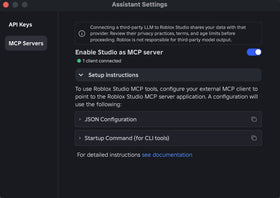
- Open Roblox Studio and load a test place or safe development copy.
- Open File and choose Beta Features.
- Find and enable Upgraded UIShadows.
- Restart Studio when prompted.
- Select a supported UI object in Explorer and add or configure a
UIShadowinstance. - Experiment with
Mode,Inset,ShowBehindParent, and a childUIGradientas appropriate.
Roblox says the options can be used through Explorer/Properties, the Styling system, and scripting workflows. The Creator Hub’s UI appearance-modifiers and UIShadow reference pages provide additional detail on the underlying controls.
Important limitations developers should know
The new beta effects cannot be published live yet
This is the most important caveat. Roblox explicitly says that during the Studio beta period, developers cannot publish live experiences with these new UIShadow capabilities. You can prototype them in Studio, but do not promise players they will see the new text, inset, knockout, or gradient effects in a public game yet. Wait for Roblox to announce client availability and publishing support.
Keep the number of on-screen shadows under control
Roblox recommends drawing no more than 100 UIShadows on-screen at a time for best performance. Treat this as a practical ceiling, not a target. Repeated cards, buttons, and labels can add shadow instances quickly. Test on lower-powered devices and remove unnecessary layers.
Rich text has a documented color and transparency issue
The October 14 release notes say that when a text shadow is added to rich text, UIShadow.Color and UIShadow.Transparency are ignored. Roblox said it was working on a fix. Until a later official update confirms the issue is resolved, test rich-text labels carefully and do not rely on those two properties for a precise color or opacity.
Some objects and rendering features are unsupported
Text mode is designed for TextLabel, TextButton, and TextBox. Roblox’s UIShadow reference also lists limitations including no support for Path2D and no textures on a UIShadow. Check the current Creator Hub reference before designing around an unsupported object type.
Testing checklist before a future release
- Check text shadows at several font sizes and weights, including small mobile UI.
- Confirm shape and text shadows do not compete or create overly dark edges.
- Test inset shadows on opaque and semi-transparent panels.
- Compare knockout shadows with
ShowBehindParenton and off. - Check gradient direction and contrast on light, dark, and animated backgrounds.
- Count visible UIShadow instances in busy screens and follow Roblox’s performance guidance.
- Test rich text separately because of the documented color/transparency issue.
- Keep the beta effects out of production publishing until Roblox confirms live support.
What this means for Roblox developers
The upgraded UIShadow beta is a focused step toward richer native interfaces. Text shadows, inset rendering, knockout masking, and gradient color give creators more control over depth and visual hierarchy without relying as heavily on duplicated UI or static glow images. The immediate benefit is experimentation: teams can prototype their visual systems and decide which effects genuinely improve usability.
The publishing restriction changes the rollout calculation. For now, test the new capabilities in a separate place or controlled development copy, document dependencies, and keep a production-ready fallback using features already supported in live experiences. When Roblox moves the upgrades out of beta and enables client support, developers can adopt them deliberately rather than rushing a visual overhaul.
Frequently asked questions
When did Roblox announce the upgraded UIShadow capabilities?
Roblox announced the Studio Beta on October 14, 2026.
How do I enable Upgraded UIShadows?
Open File > Beta Features in Roblox Studio, enable Upgraded UIShadows, and restart Studio when prompted.
Can I publish a Roblox game using the new UIShadow effects?
Not during the beta period, according to Roblox’s announcement. These new capabilities cannot yet be published in live experiences.
Which text objects support text shadows?
Text mode supports TextLabel, TextButton, and TextBox. It follows text glyphs rather than the object’s rectangular bounds.
What does ShowBehindParent do?
Setting ShowBehindParent to false masks the part of a shape shadow directly behind its parent. It has no effect in inset or text mode.
Can UIShadow use a gradient?
Yes. Add a UIGradient as a child of UIShadow; the gradient is applied over the shadow’s base Color.
How many UIShadows should be on screen?
Roblox recommends no more than 100 on-screen at a time for best performance.
Does text-shadow color work with rich text?
Roblox’s October 14 notes identified an issue where UIShadow.Color and UIShadow.Transparency are ignored for rich-text shadows. Check the latest official update for a fix.
Official sources and further reading
- Roblox announcement: Upgraded UIShadow Capabilities (October 14, 2026)
- Roblox Creator Hub: UI appearance modifiers
- Roblox Creator Hub: UIShadow reference
- Roblox Creator Hub: official updates and changelog
Editorial note: This guide separates the October 14 beta announcement from features already available in the UIShadow system. Beta availability, rich-text behavior, and live-publishing support can change; consult Roblox’s official release notes before making production decisions.
By Shivam Das