Updated November 1, 2026. Roblox has moved Custom Terrain Materials out of Early Access, giving creators the ability to paint up to 62 editable terrain material slots in published experiences. The release is a meaningful upgrade for builders who want more control over the look of forests, caves, deserts, snowfields and other environments. But there is an important distinction behind the launch announcement: custom materials are available in published games, while the associated terrain performance optimizations have been temporarily limited to Roblox Studio during the rollout.
That split matters more than the headline. A creator can start using the new material system in a place that players can access, but should not assume that every announced memory, streaming or load-time improvement is already active for players joining a live server. Roblox’s October 27 update says the performance improvements were Studio-only at that point after the team found a client crash during rollout. The custom terrain material feature itself was not affected.

What Roblox has actually launched
Roblox’s official Developer Forum announcement on October 22 said Custom Terrain Materials and the first set of terrain rendering, storage and delivery improvements had exited Early Access. The material system allows creators to define up to 62 editable custom terrain materials. Each slot can use a custom color and, optionally, a MaterialVariant to apply a custom texture.
The number is 62, not 64. Roblox clarified that the earlier count included Air and Water, which are read-only and therefore are not editable material slots. The distinction is useful for creators planning a large biome palette: the available count refers to materials they can actually customize.
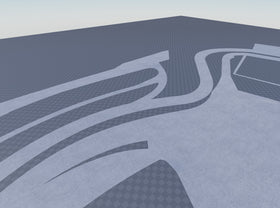
Roblox says the feature is intended to let creators build more varied environments within a single experience. Instead of being limited to one global appearance for a base material, a developer can create multiple color variations of grass, rock or other terrain types and paint them into different areas of a map.
The rollout caveat: materials are live, but performance optimizations were restricted
The rollout did not remain a simple all-features-at-once launch. On October 24, Roblox staff member DevOdysseus reported a crash affecting some iOS players during terrain streaming in live experiences. Roblox said it was temporarily turning off the new terrain memory and performance optimizations in live experiences to protect players while a fix moved through release.
In that notice, Roblox separated what continued to work from what was paused: custom terrain materials remained functional in Studio and published experiences, and publishing larger terrain remained supported. The newer memory and performance optimizations were not being applied to new live servers while the previous terrain system was used there.
Roblox followed up on October 27, saying the performance improvements were available only in Studio at that time, while custom terrain materials remained available to all games and Roblox players when Expanded Terrain was enabled. The team said it was working on a fix and expected the client-side rollout to take additional time. As of this article’s November 1 check, the latest official clarification located for this story still describes that split. Creators should check the announcement thread for a newer rollout notice before promising players specific performance gains.
How to enable Custom Terrain Materials in Roblox Studio
Expanded Terrain is not automatically enabled for every place. Roblox’s Creator Hub documentation says it is an opt-in setting configured per place. A creator who has not enabled it should follow the Studio workflow below.
- Update Roblox Studio and restart it so the latest feature changes are available.
- Open the place where you want to use custom terrain materials.
- In Explorer, select Workspace.
- In the Properties panel, find Expanded Terrain and change it from Default to Enabled.
- When prompted, restart the place. Save your work first, then reopen the place so the new terrain backend takes effect.
- Open the Terrain Editor and choose a brush tool such as Paint, Draw, Fill or Sculpt.
- Open the material picker next to Source Material, select the plus icon, and create a new material slot.
For places edited during the Terrain Early Access program, Roblox says creators still need to enable Expanded Terrain. Otherwise, custom materials may appear as grass. The setting is per place, so check each experience rather than assuming that enabling it in one project changes every project in the account.

How to create and manage a custom terrain material
After Expanded Terrain is enabled, creators can use the Terrain Editor’s material picker to add a new slot. Give the material a name, select a base material, and optionally assign a MaterialVariant for custom textures. A color tint can then give the material a distinct appearance. Once created, the slot can be used with Paint, Draw, Fill or Sculpt tools, and the Replace tool can swap one terrain material for another without rebuilding the terrain shape.
Roblox’s Terrain Materials Manager is available from Window > 3D. Developers can also right-click a material in the Terrain Editor’s picker and open the manager. This is where teams can add, remove or edit the custom material slots for a place. If a material is deleted while terrain still uses it, Roblox says the affected terrain turns bright purple, making the missing material easier to spot and replace.

What the performance claims mean for game creators
The full-launch announcement described optimizations intended to reduce terrain’s contribution to place file size and improve streaming and load times. Roblox cited one benchmark with a 90% reduction in CPU memory overhead and a 45% reduction in meshing latency. Those are benchmark results, not a universal promise that every game will load 90% faster or use 90% less total memory.
There is also an important publishing detail. Roblox explained that terrain is automatically ejected from the DataModel as an asset when creators use Save to Roblox or Publish to Roblox with the new format. This can help terrain stop counting toward the overall publishing size limit, although the terrain asset itself has its own size limit. It does not mean the underlying terrain asset has magically become smaller in every case.
For now, creators should separate three questions when testing a project:
- Does the custom material appear correctly? Test the place with Expanded Terrain enabled and verify that the material is not falling back to grass.
- Does the place publish successfully? Use the Roblox publishing workflow and check the result in the Creator Dashboard.
- Are the new runtime performance optimizations active for players? Check Roblox’s latest rollout notice and measure a live server on the devices your audience uses. Do not infer client performance from Studio alone.

Known limitations creators should test before shipping
Roblox’s Creator Hub documentation lists several limitations that matter in production. Custom physical properties on a MaterialVariant are not yet respected by custom terrain material slots. Editing terrain in Team Create can introduce meshing or visual bugs. In Team Create places, changing Expanded Terrain and using the restart prompt may not be enough: Roblox advises exiting the place, waiting about 15 seconds, and reopening it.
Thin terrain also needs attention. When streaming is enabled with a small streaming radius, terrain features thinner than 16 voxels may disappear on the client or in playtesting. Roblox recommends adding thickness rather than trying to optimize memory by making terrain extremely thin. The documentation notes that, with Expanded Terrain, making terrain thinner than 16 voxels saves little or no memory.
Heightmap and colormap imports may also produce different results than before, and colormap imports are more sensitive to the colors in the source map. Teams using automated terrain generation should compare imported terrain against the original project and inspect caves, narrow ledges and other thin geometry before publishing.
What this means for players
Players do not need to switch on Expanded Terrain themselves. It is a place-level creator setting. If a game developer enables custom terrain materials and publishes the experience, players can see the creator’s new terrain appearance in the published game.
What players should not assume is that every game using custom materials will immediately receive the new memory and streaming optimizations. Roblox’s rollout notice separated the material feature from the client-side performance work. In practical terms, a world may look more varied because of custom terrain materials even while the performance optimization rollout is still being handled separately.
What developers should do next
The most useful next step is a controlled test rather than a full-world conversion in one pass. Choose a representative area with several terrain types, create a small set of named variants, and compare the result in Studio and in a published test place. Include a mobile device in the test plan, particularly because the rollout pause followed an iOS terrain-streaming crash report.
Keep a copy of the original place before making broad terrain changes. Check Team Create behavior, thin terrain, imported heightmaps, and any MaterialVariant settings that depend on physical properties. Finally, monitor the official Roblox announcement for the client performance re-enable notice before reporting that the full optimization package is active for every player.
Frequently asked questions
Are Roblox Custom Terrain Materials fully released?
Yes. Roblox announced on October 22, 2026, that Custom Terrain Materials had exited Early Access and could be used in published games. The feature remains available when Expanded Terrain is enabled for the place.
How many custom terrain materials can developers create?
Creators can define up to 62 editable custom terrain materials. Air and Water are excluded from that total because they are read-only.
Are the terrain performance improvements live for all Roblox players?
Not according to the latest official clarification located for this November 1 update. Roblox said on October 27 that the performance improvements were available only in Studio while the client rollout was being addressed. Custom terrain materials themselves remained available in published experiences.
How do I turn on Expanded Terrain?
In Roblox Studio, select Workspace in Explorer, set Expanded Terrain to Enabled in Properties, then restart and reopen the place. The setting is configured per place.
Can I use MaterialVariants with custom terrain materials?
Yes. A custom terrain material can use a MaterialVariant for custom textures, alongside a color tint. However, Roblox documents that custom physical properties on a MaterialVariant are not yet respected by custom terrain material slots.
Why does my custom material look like grass?
If the place was edited during the Terrain Early Access program, check that Expanded Terrain is enabled on Workspace. Roblox says custom materials may appear as grass if this step is missed.
Can thin terrain disappear after enabling Expanded Terrain?
Yes. With streaming enabled and a small streaming radius, terrain thinner than 16 voxels may disappear on clients or in playtesting. Roblox recommends adding thickness and does not recommend making terrain thinner than 16 voxels as a memory optimization.
Does the 90% memory benchmark mean my entire game uses 90% less memory?
No. Roblox cited a 90% reduction in CPU memory overhead in one benchmark. It is not a guarantee of a 90% reduction in total game memory or a 90% faster load time for every experience.
Official sources and further reading
- Roblox Developer Forum: Full Launch — Publish Games with Custom Terrain Materials and Performance Improvements — launch announcement and October 27 clarification.
- Roblox staff rollout note, October 24 — explanation of the temporary live-experience performance optimization pause.
- Roblox Creator Hub: Custom Terrain Materials — setup steps, material management and known limitations.
- Roblox Developer Forum: Early Access Program — Unlocking Massive Terrain With Up to 64 Custom Materials — earlier material-system context.
By Shivam Das